Chapters
Manual homeChapter 13
The website
Who: the office and managers. Everybody can read the website; the menu shows only your role's pages (chapter 2).
Deliveries are received on the phone, not on the website. The website is for reading, deciding and keeping the lists.
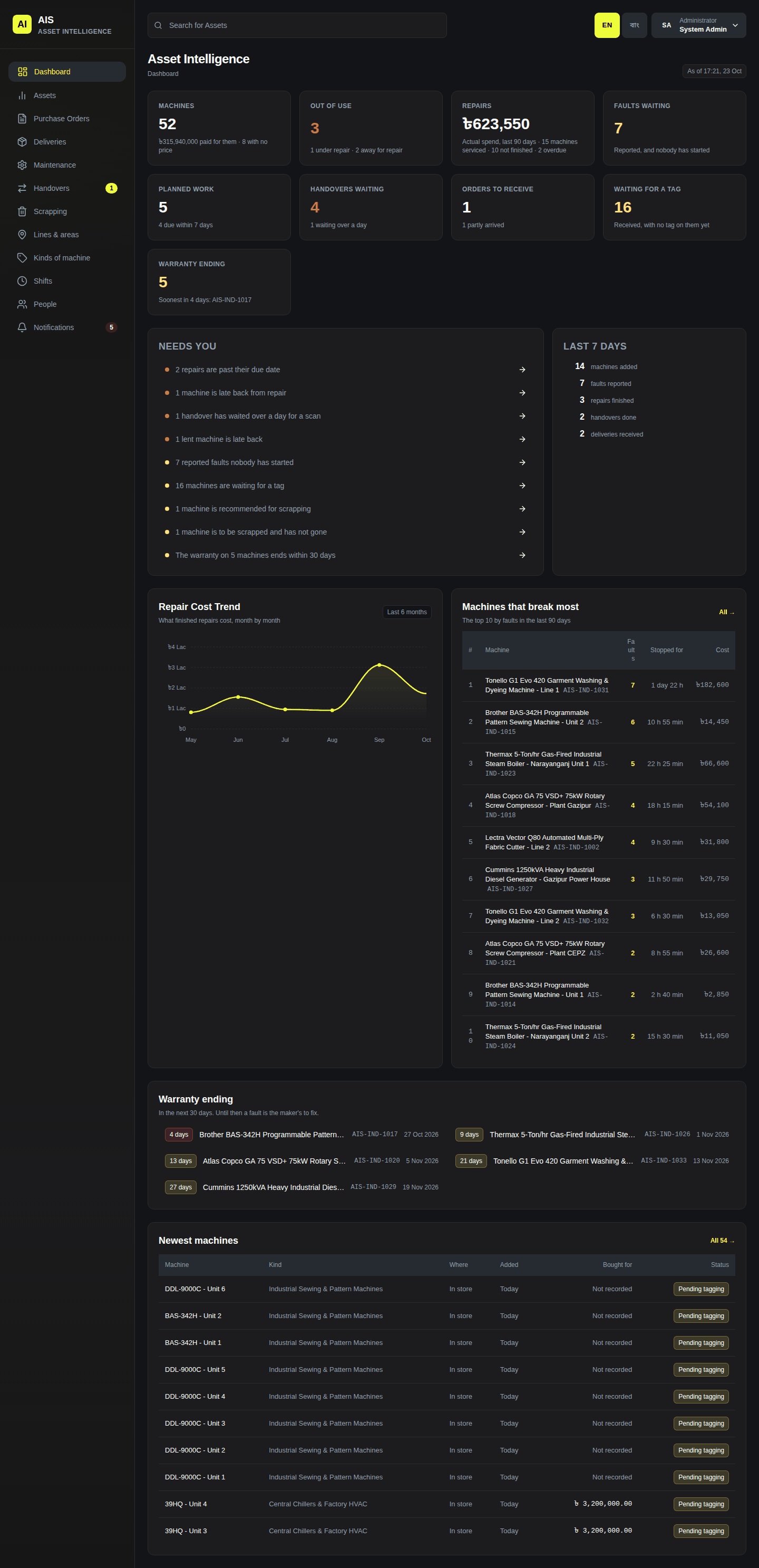
Dashboard
The first page after signing in. Each box is a count. Needs you is what is waiting for you; click a row to open it. Last 7 days is what happened this week.
Deliveries
Click Deliveries in the menu. Every delivery is listed, newest first. 8 waiting for a tag means 8 machines still need their tag.
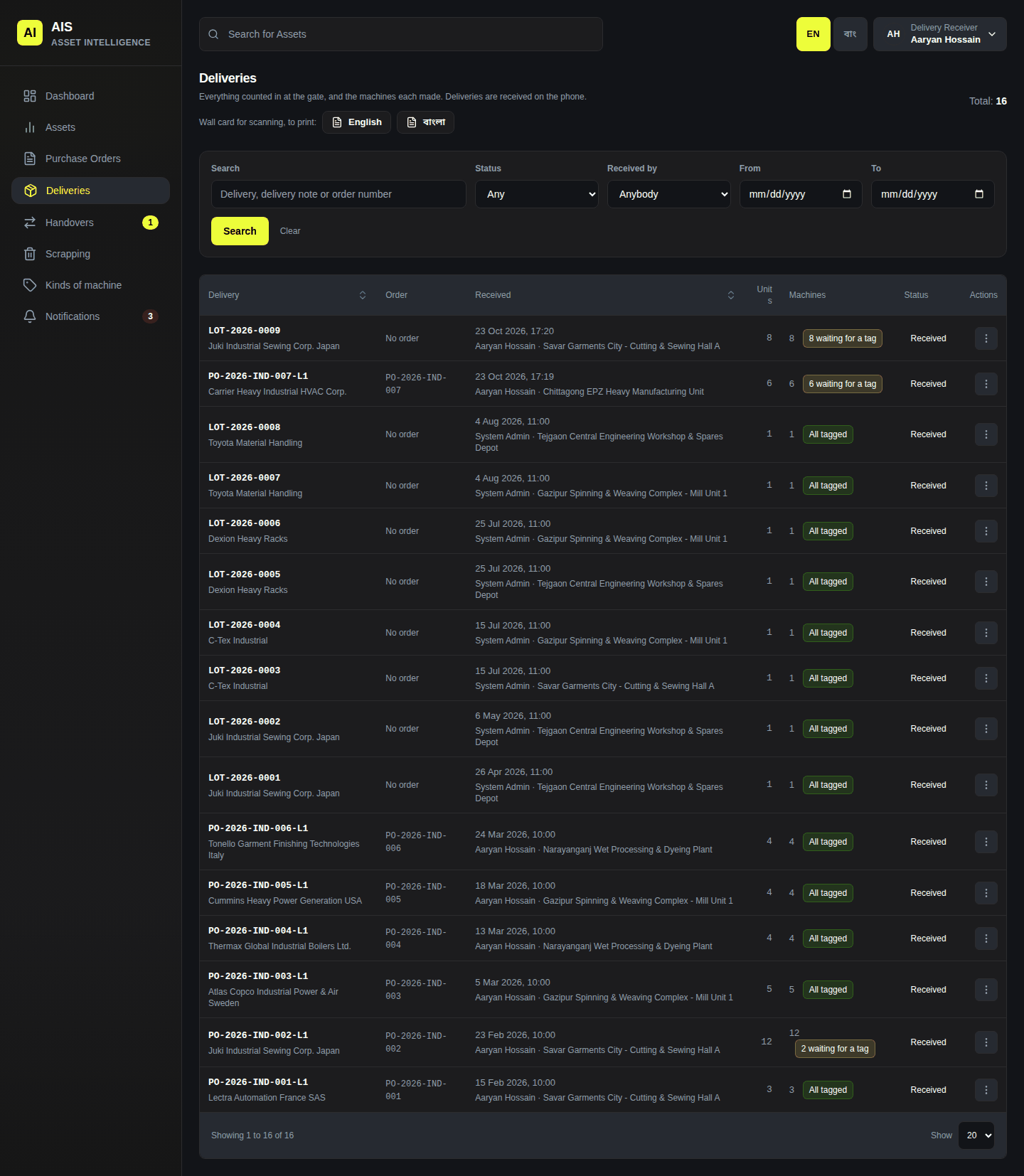
The deliveries list To find one, type in Search, or pick a Status, Received by or the days. Click Search. Clear shows all again.
Click a delivery to open it. What arrived shows each model. was 5 means the count was changed; Changes to the count says why, who and when.
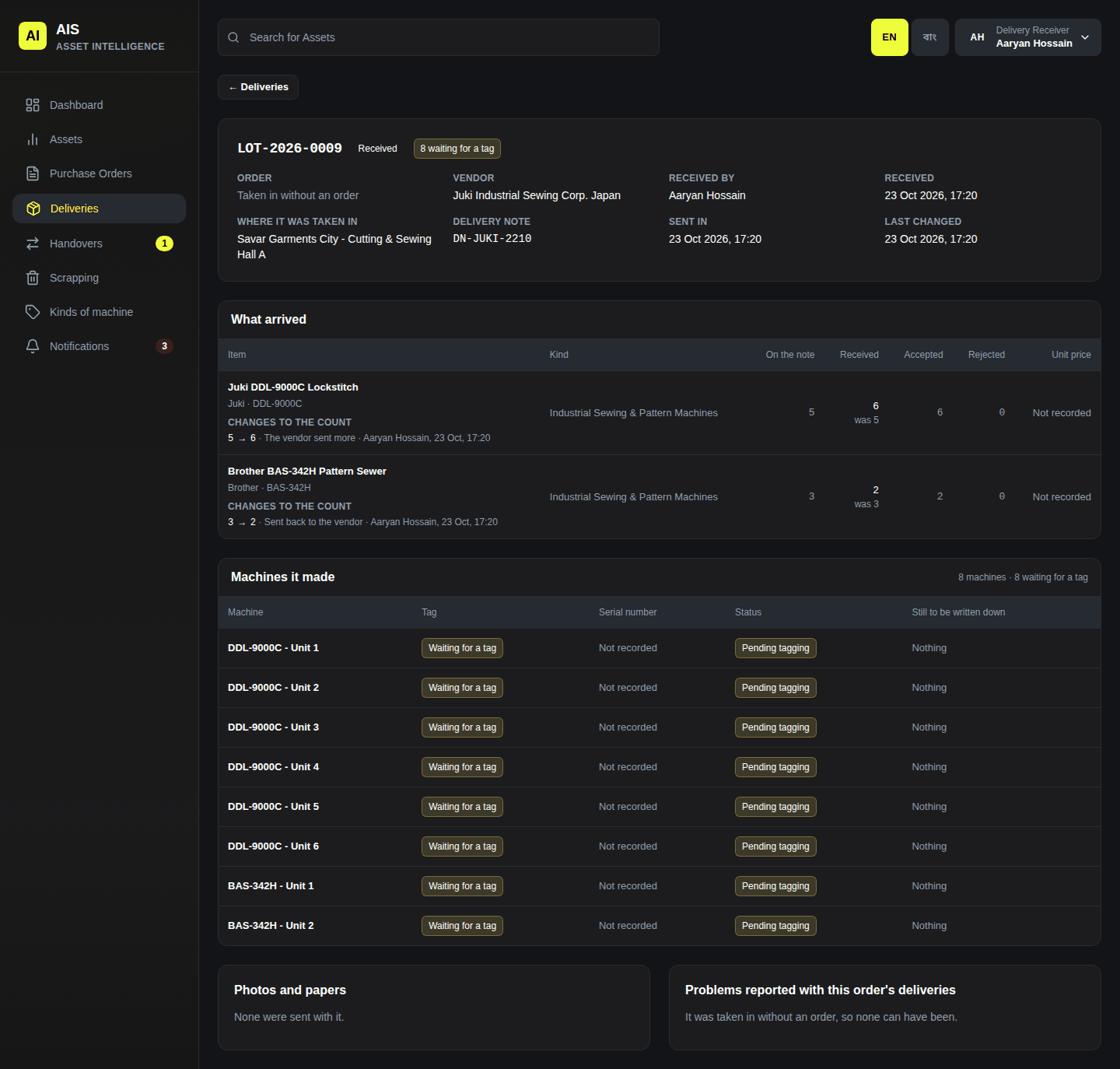
A delivery with no order whose counts were changed Machines it made lists each machine and its tag. Below are Photos and papers from the gate, and problems reported.
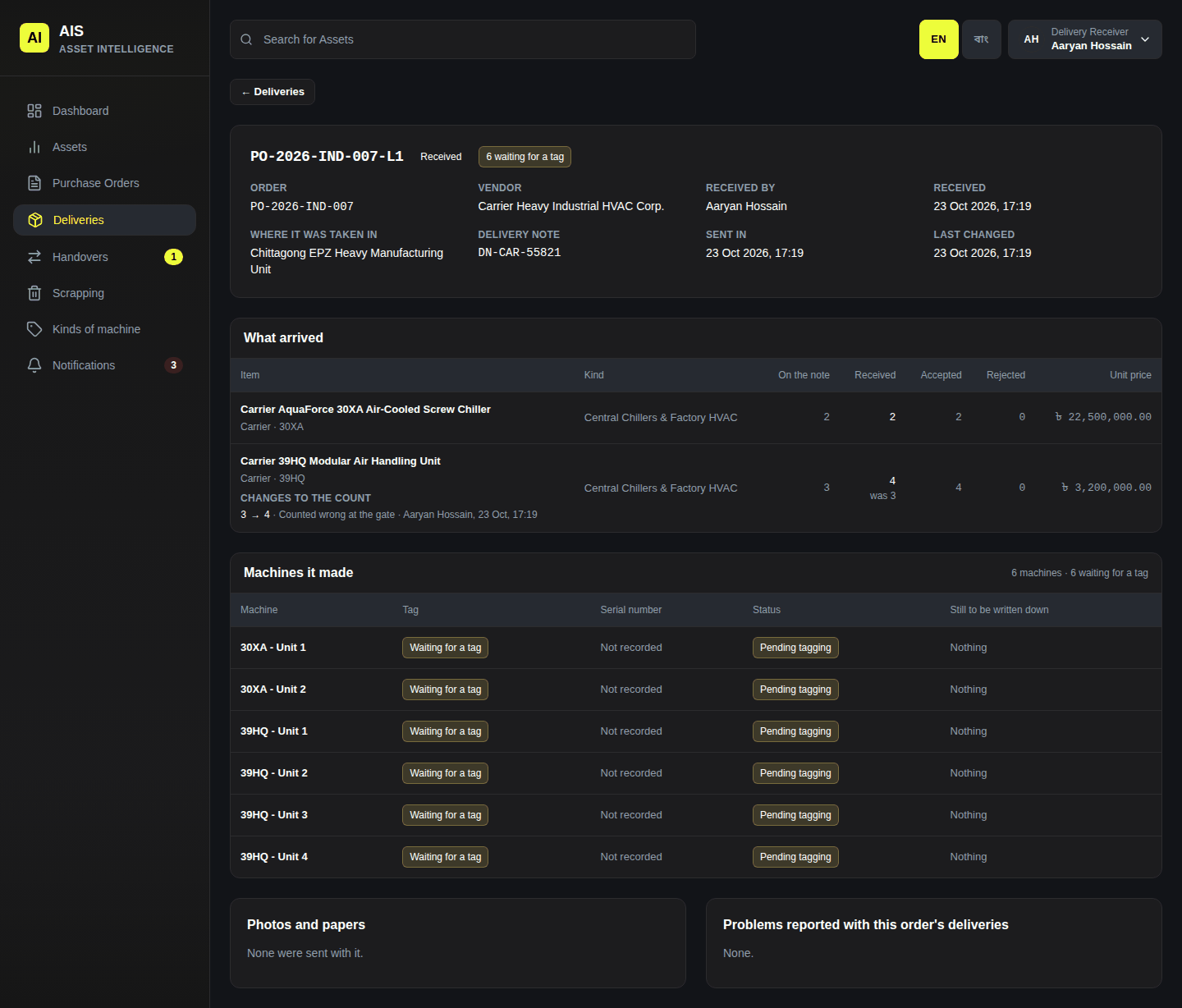
A delivery against order PO-2026-IND-007
The wall card for scanning
At the top of the Deliveries list: Wall card for scanning, to print: English or বাংলা. It is one A4 page. Print it and put it on the wall where machines are scanned.
Purchase Orders
Click Purchase Orders. Each order shows its status: Issued, Partially received or Received. AIS sets the status from the deliveries; nobody picks it.
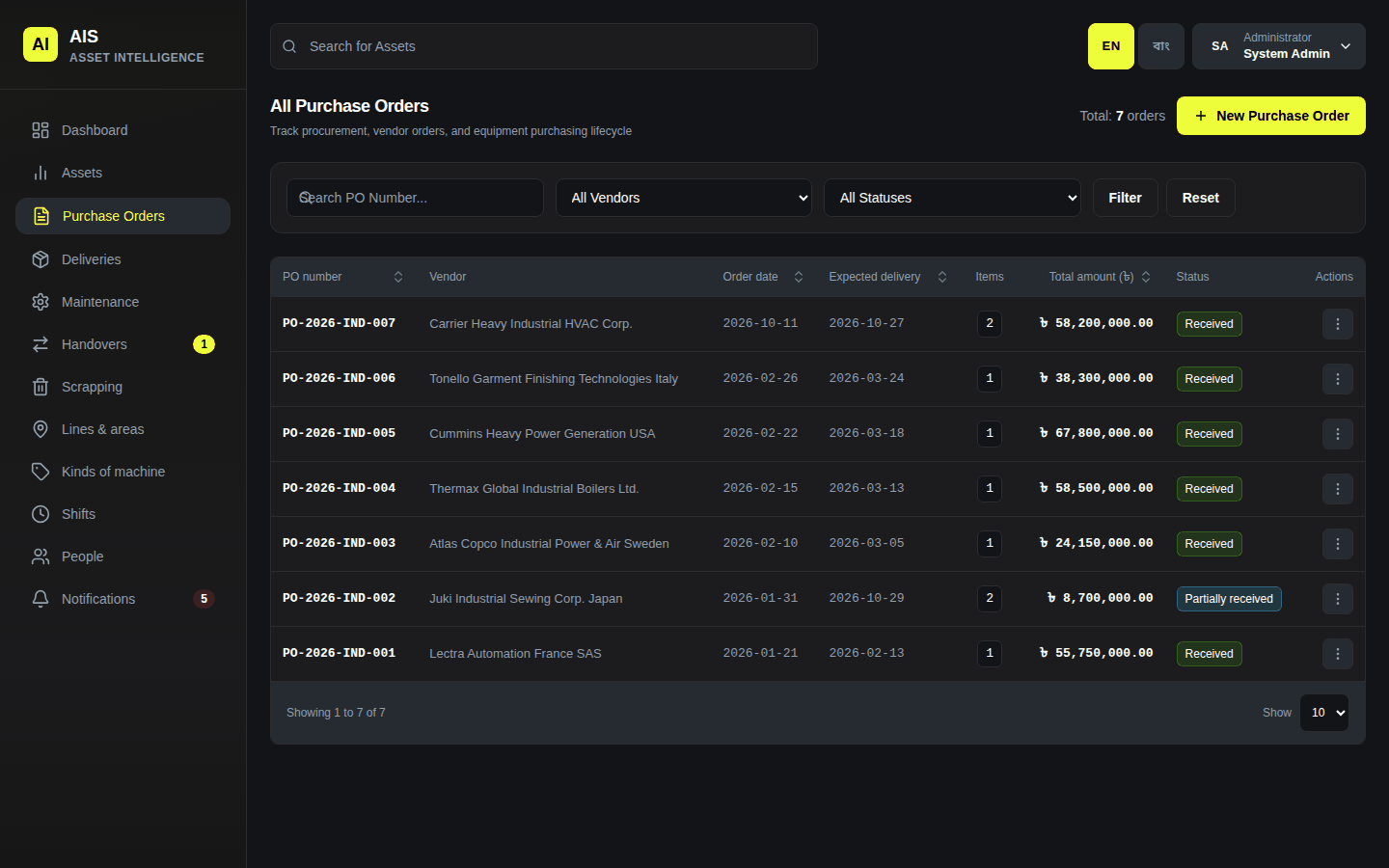
The purchase orders list Click an order. Ordered Items is what was ordered. Deliveries lists what has arrived against it.
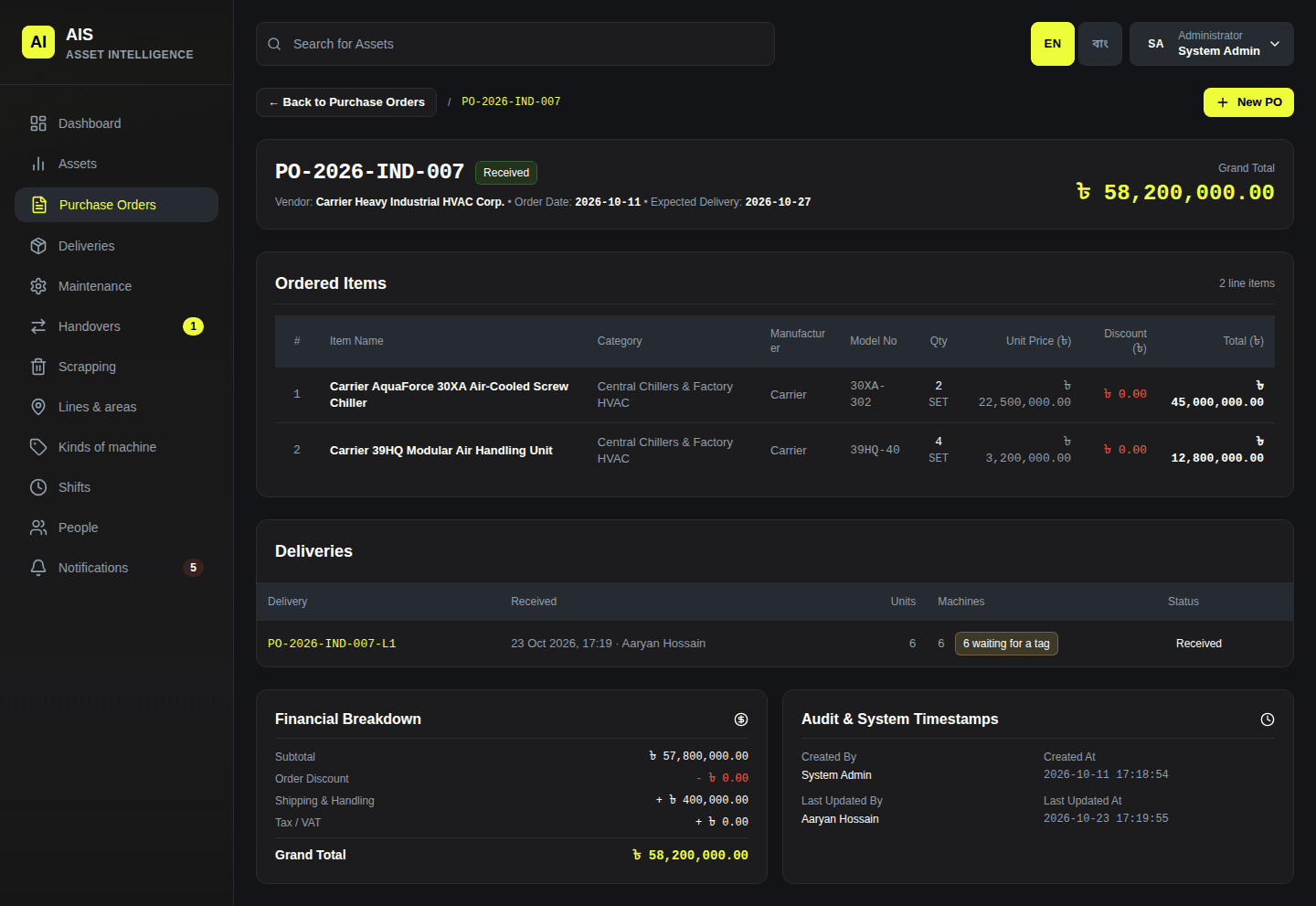
Order PO-2026-IND-007 To raise an order, click New PO. Fill in PO Number, Vendor and the lines (Add Item for another line). Click Save Purchase Order.
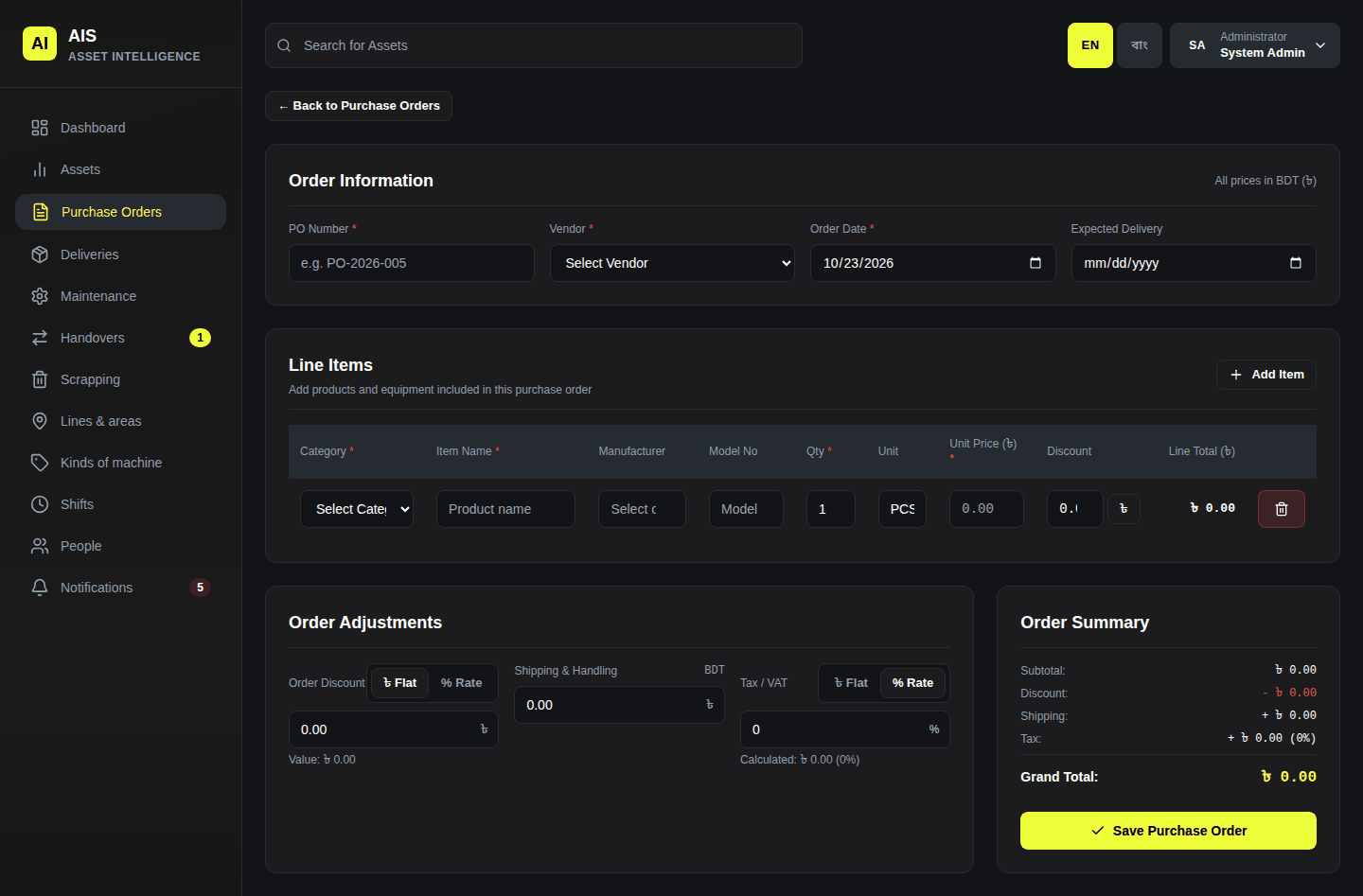
Raising a purchase order
Only people who are shown money (administrator, inventory manager, maintenance manager) raise orders.
Assets (machines)
Click Assets. Narrow the list by name, kind, status or place, then click Filter. With says where each machine is: In store, With Rahim, at a line.
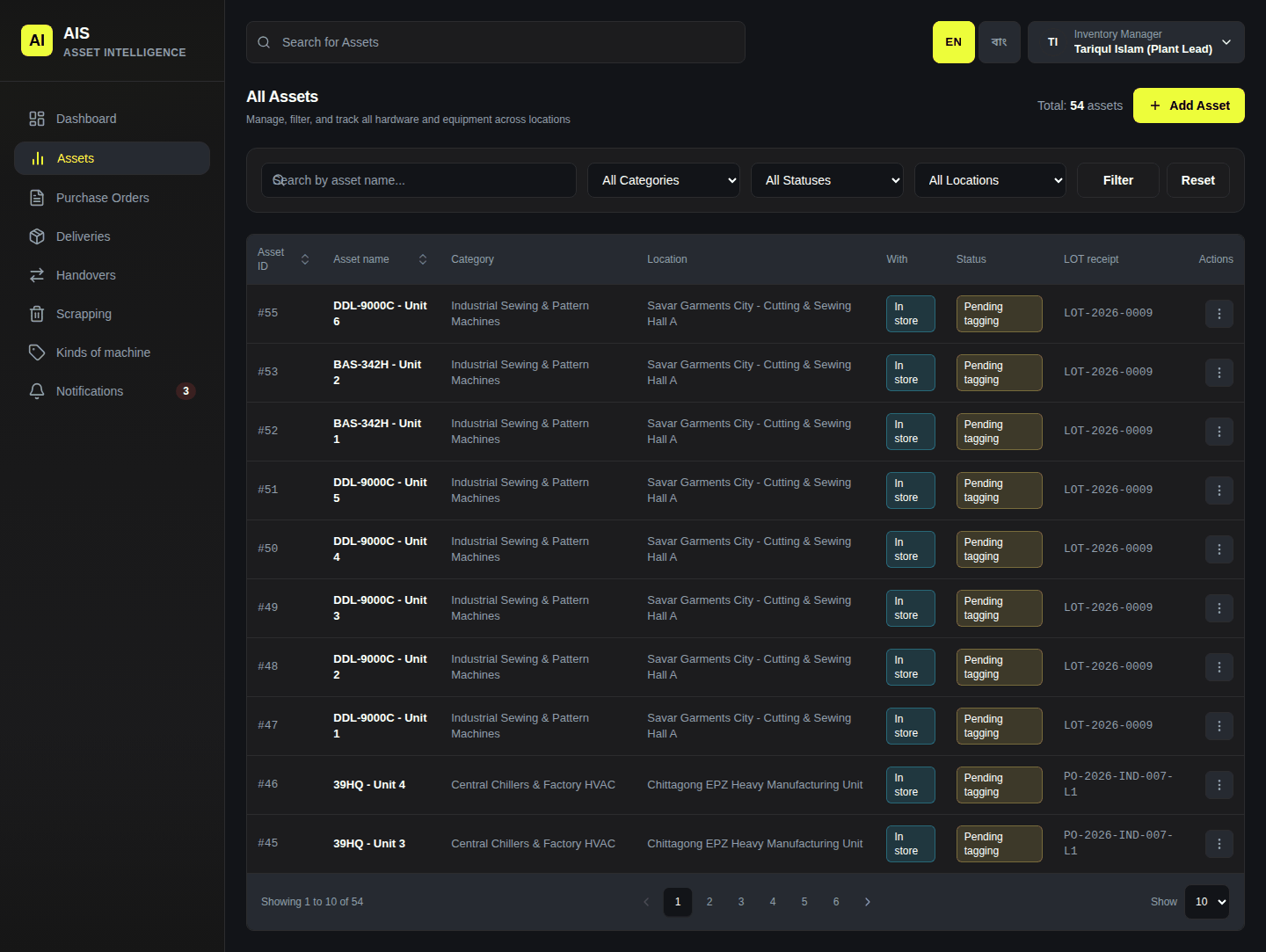
The machines list Click a machine to open its page: where it is, its tag, faults and repairs, planned work, its history, and the delivery and order it came on.
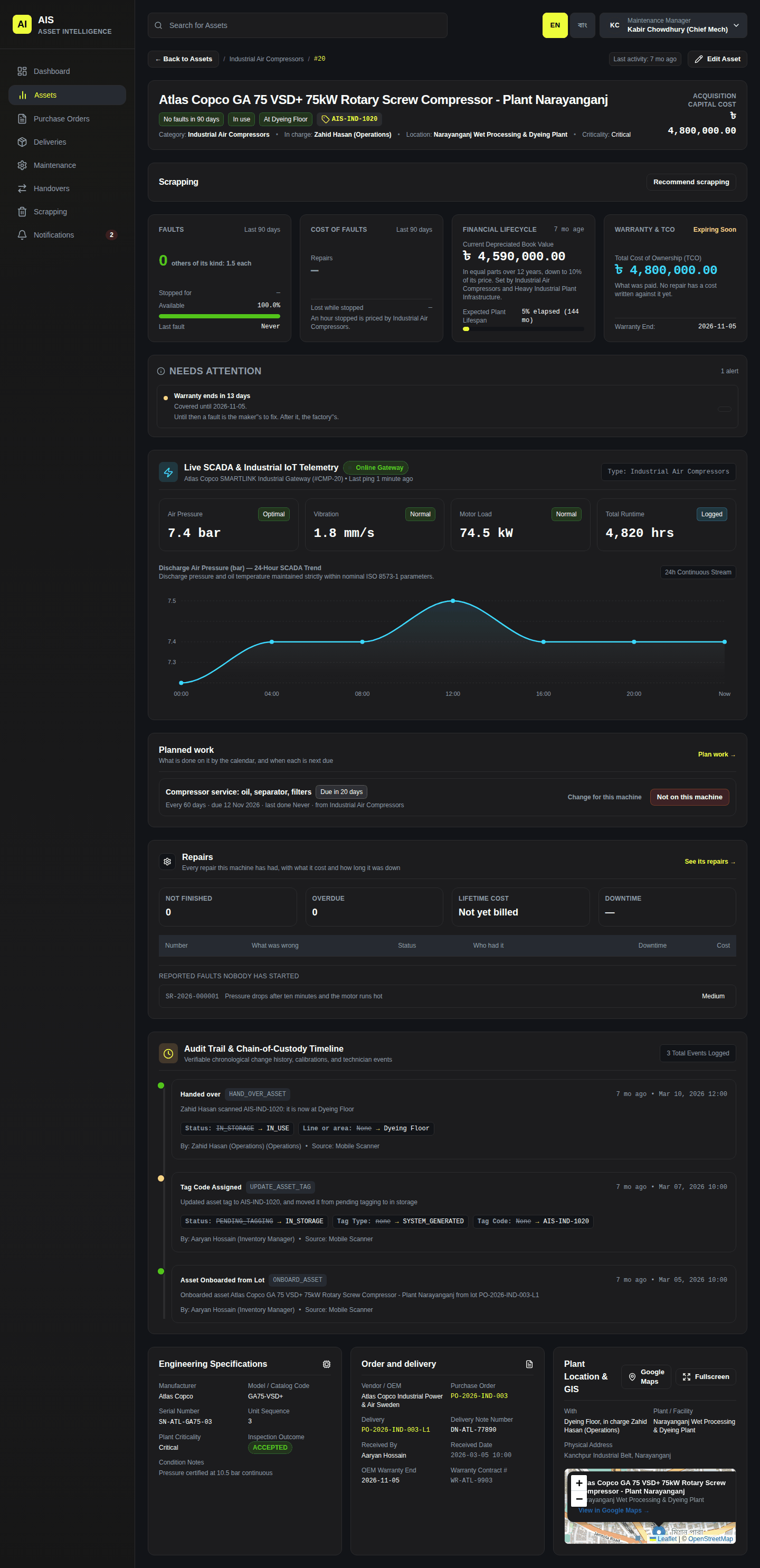
A machine's page Add Asset adds a machine by hand, one not received through a delivery. There is no box for a tag: the tag is scanned on the phone.
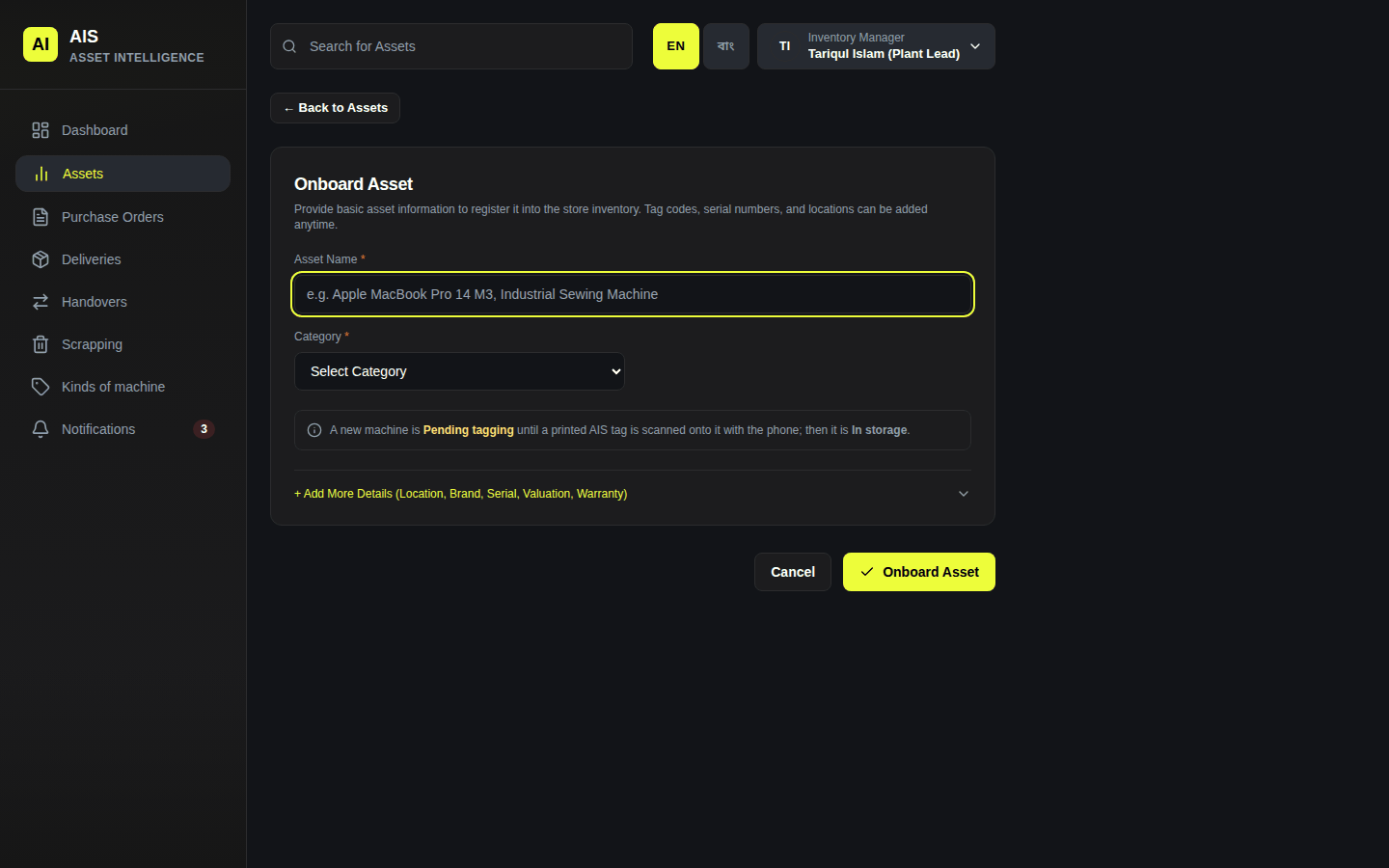
Adding a machine by hand
The Live SCADA & Industrial IoT Telemetry box on a machine's page is example data. It is not read from the machine.
Kinds of machine
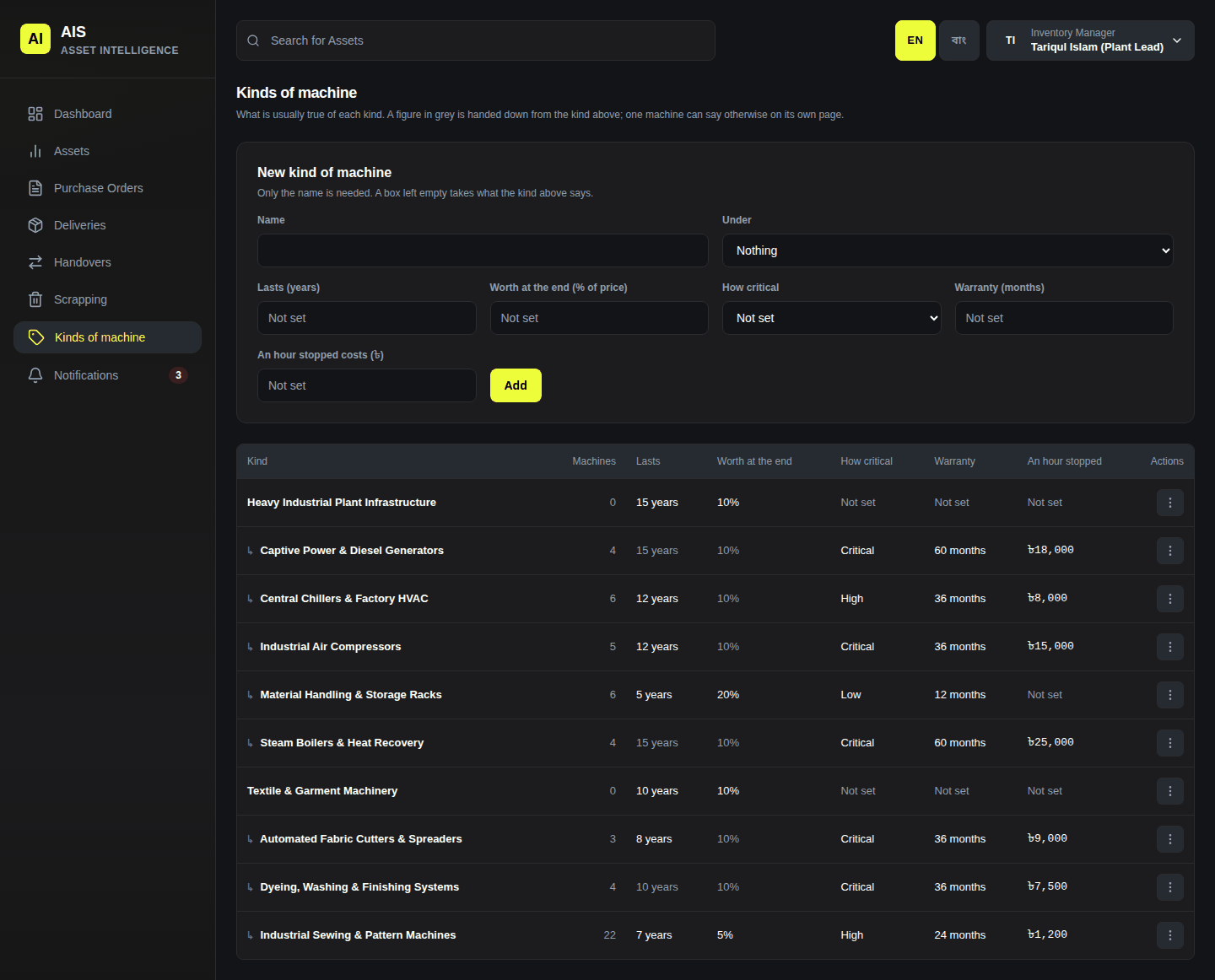
What is usually true of each kind: how long it lasts, its warranty, how critical it is, and what an hour stopped costs. A kind can be under another kind. A box left empty takes what the kind above says. Fill in New kind of machine and click Add.
People
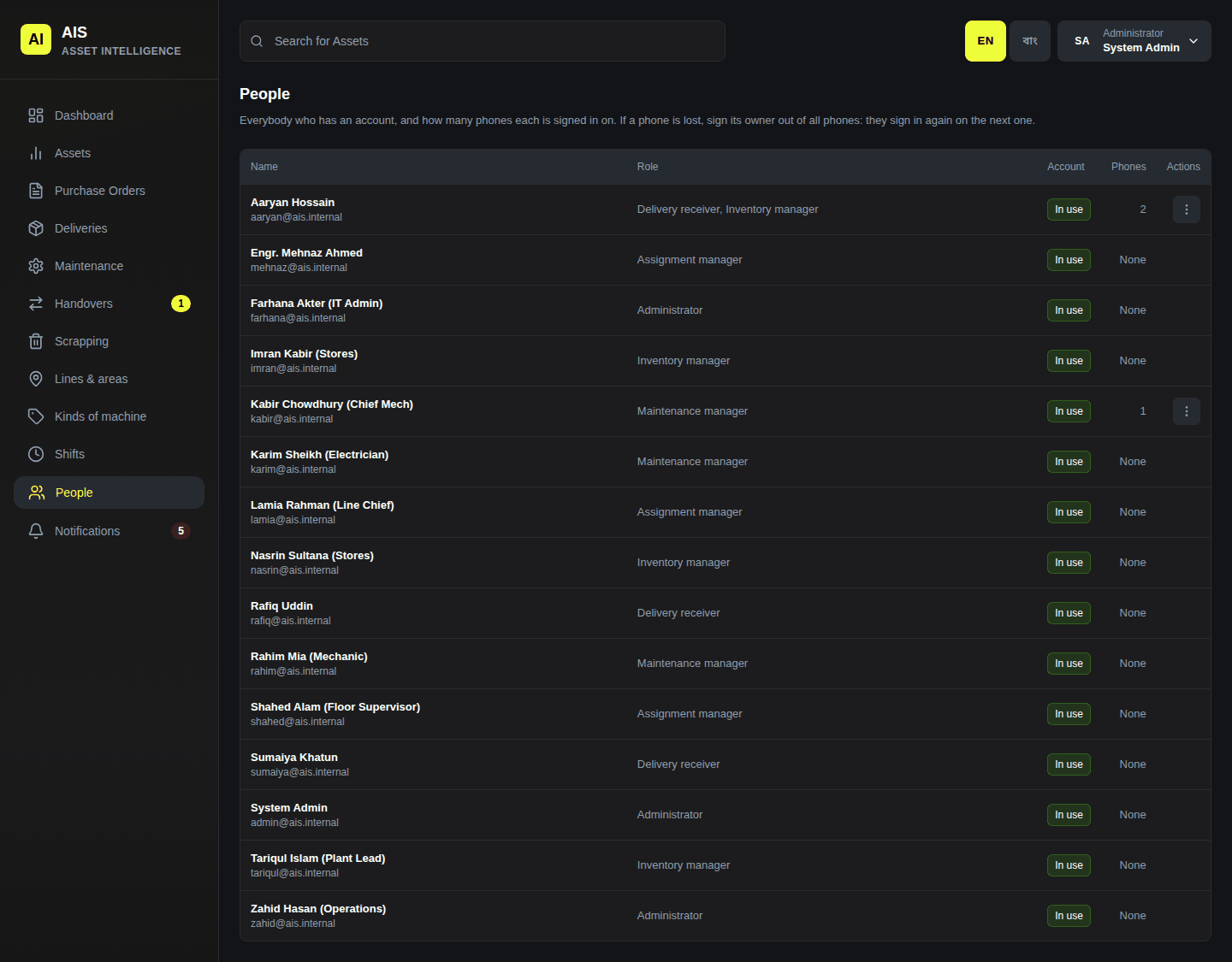
For an administrator. Everybody with an account, their role, and how many phones they are signed in on. If a phone is lost, open the row's menu and sign its owner out of all phones.
Handovers
Click Handovers. The tabs: For you, Open, Late, On loan, Done.
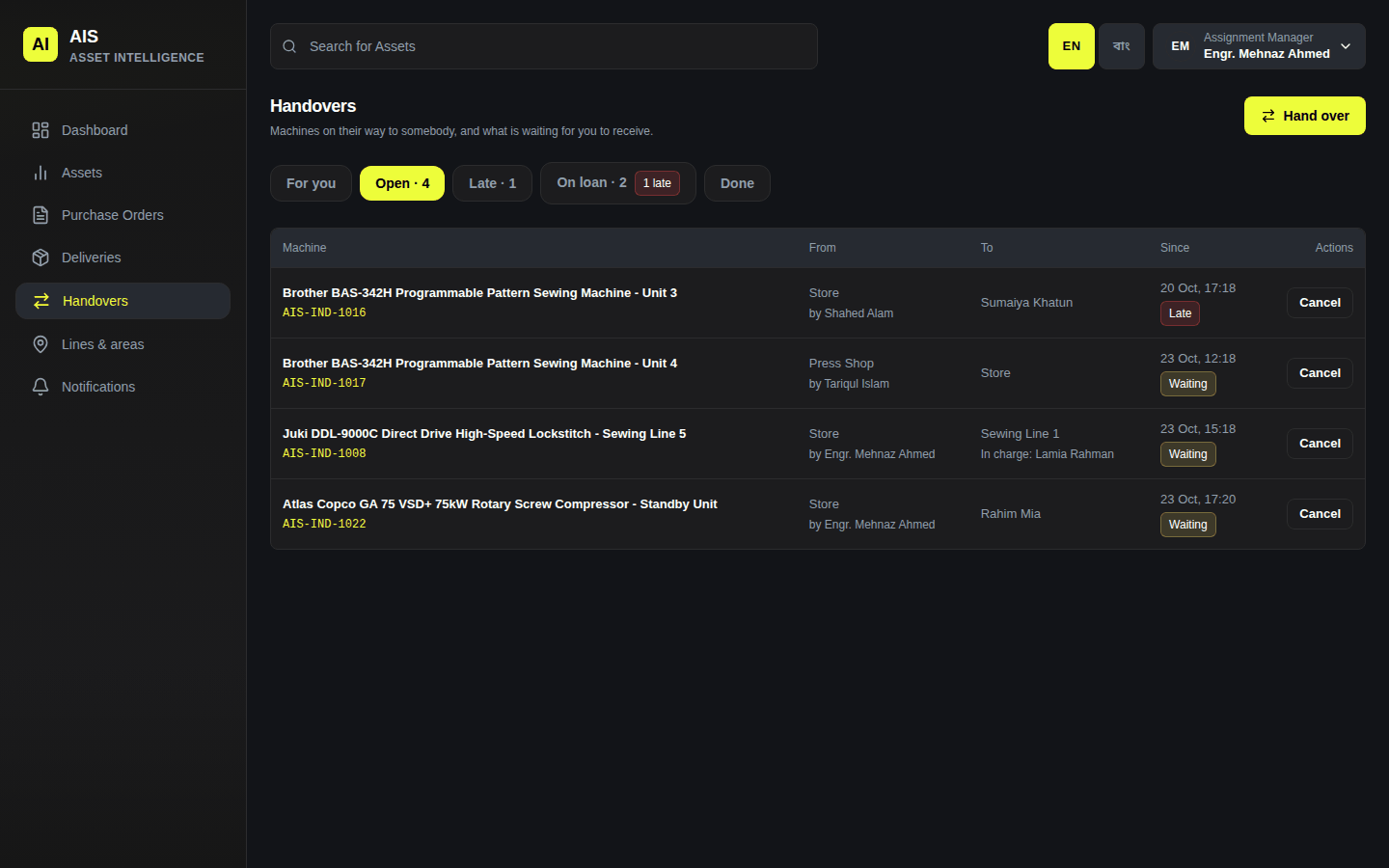
Handovers, as an assignment manager Click Hand over. Under Who gets it? type a name or a line and pick it. Click Hand over.
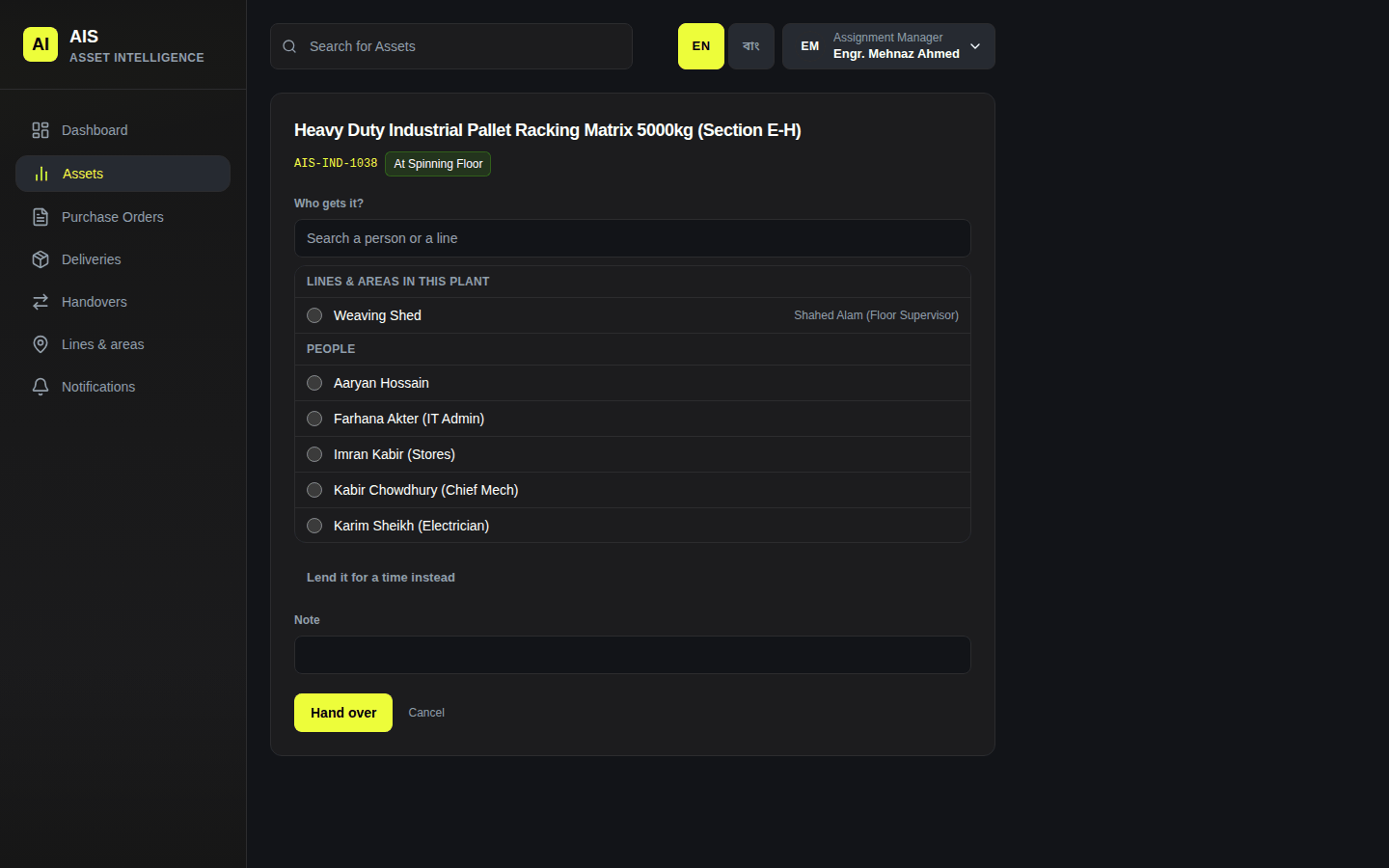
Handing a machine over Until the person scans it, the machine says Waiting · Rahim Mia. Whoever started it can Cancel.
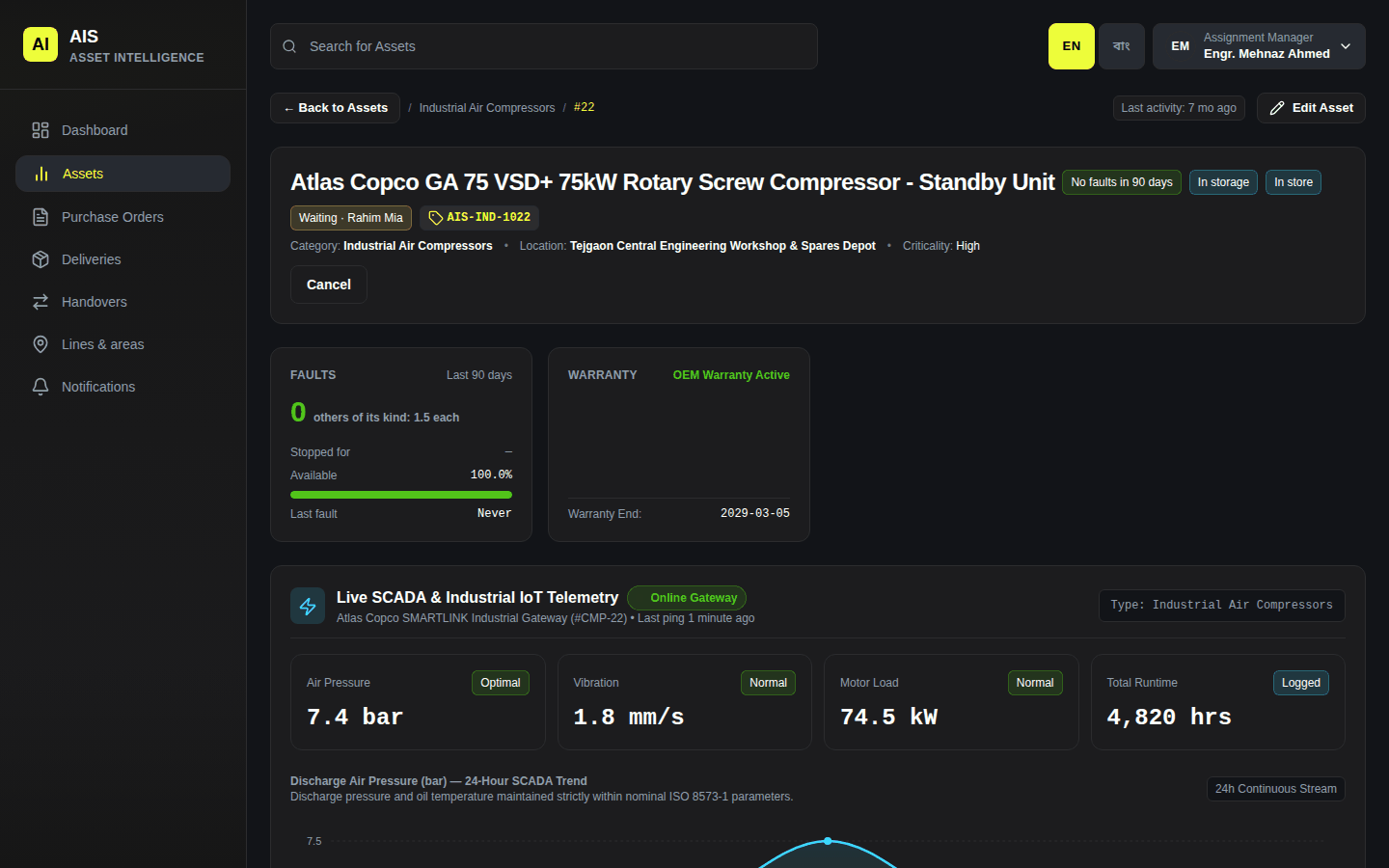
A machine waiting to be received A machine waiting for you is under For you. On the website, type its tag in Tag and click Receive. Or Refuse, saying why.
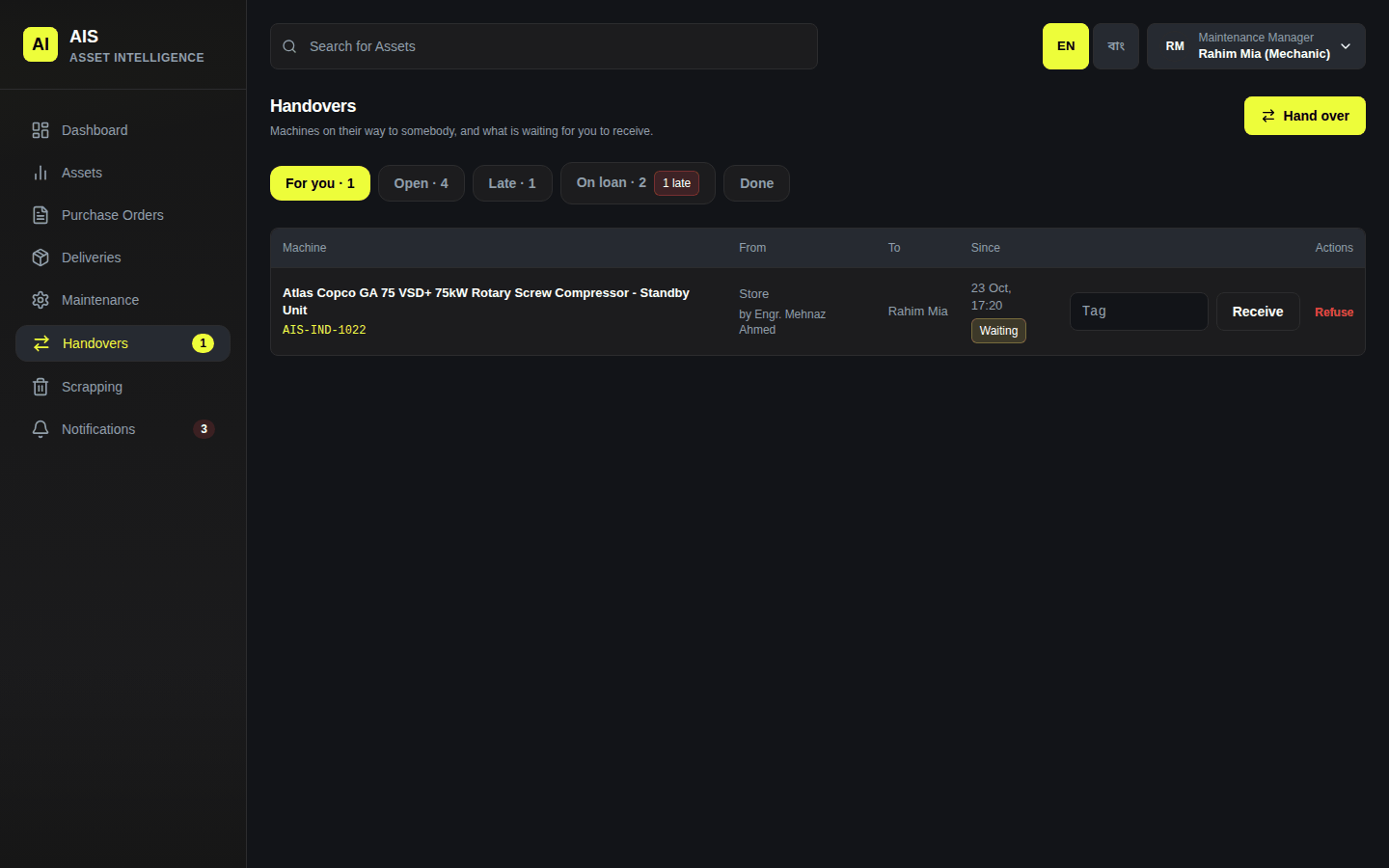
A machine waiting for Rahim
More in chapter 9.
Lines & areas
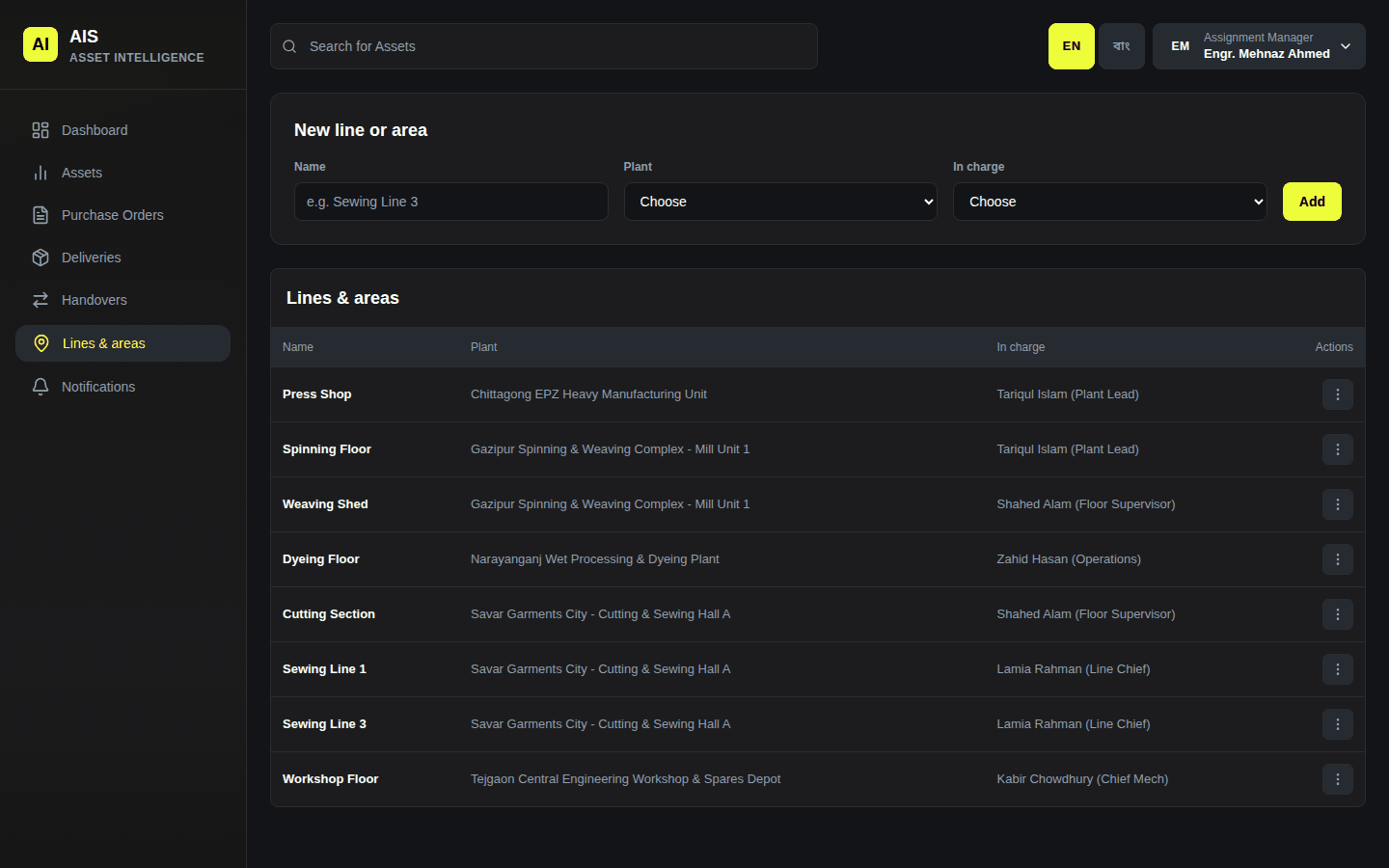
For an assignment manager or an administrator. The lines and areas in each plant, and who is in charge of each. A machine handed to a line is received by its in-charge.
Maintenance
Click Maintenance. At the top: Reported faults nobody has started. Click Open a repair on one to start its repair.
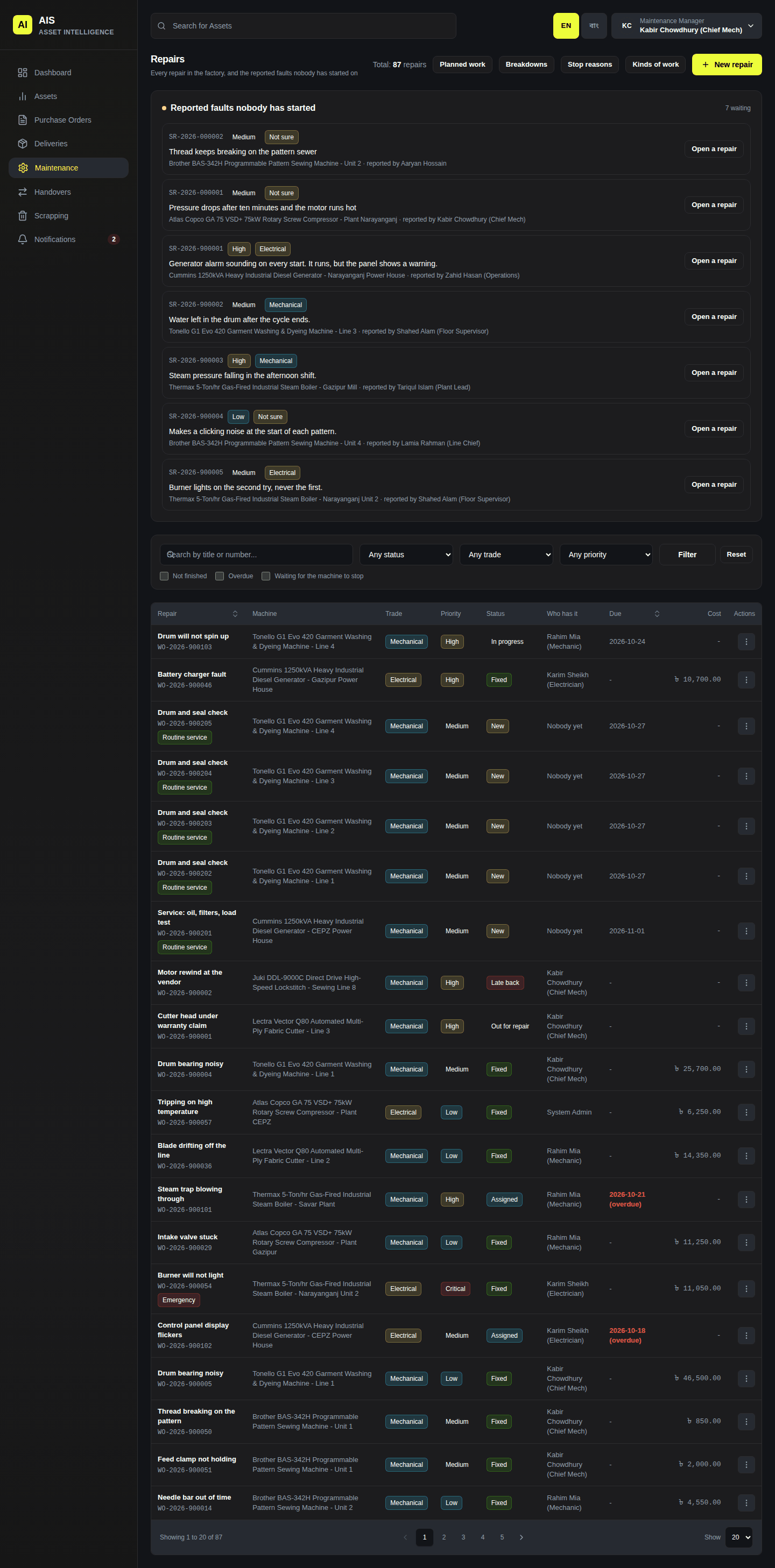
Repairs, and the faults nobody has started Below is every repair, with its status, priority and who has it. Click one to open it.
On a repair, change Status, Waiting for, Who has it and the rest, then click Save. Under Steps you can add steps for several people, in order.
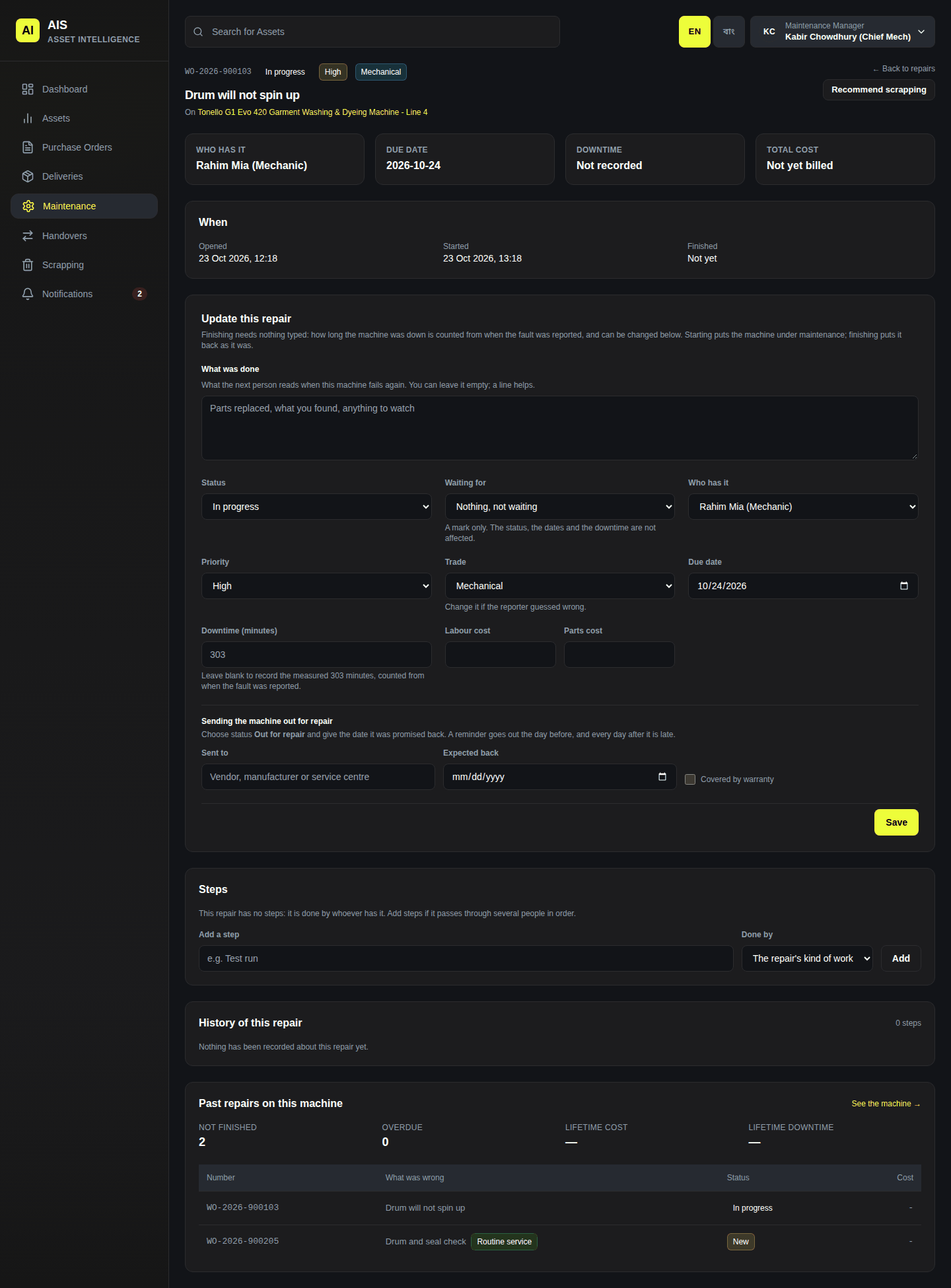
One repair New repair opens a repair with no reported fault.
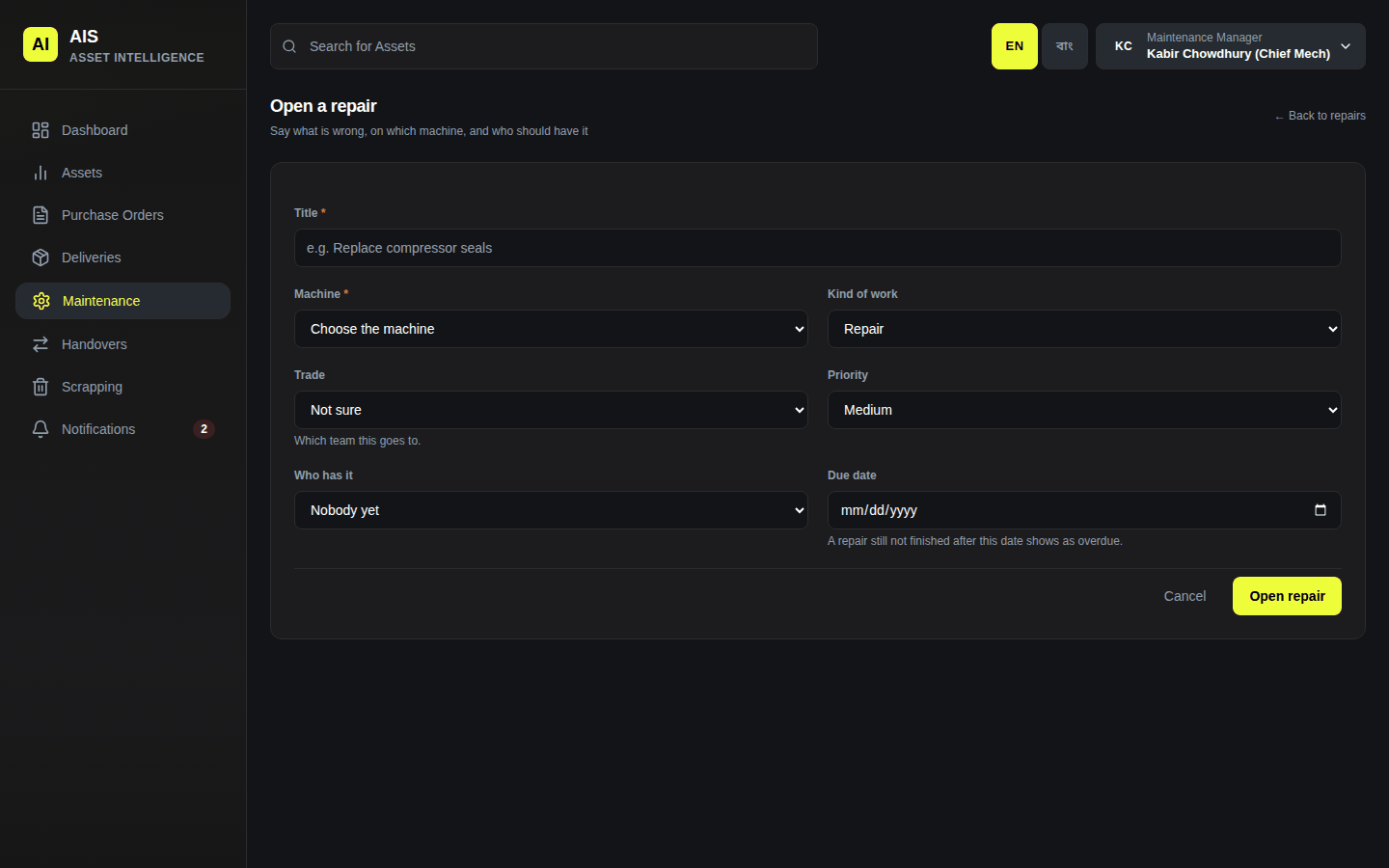
Opening a repair
Planned work
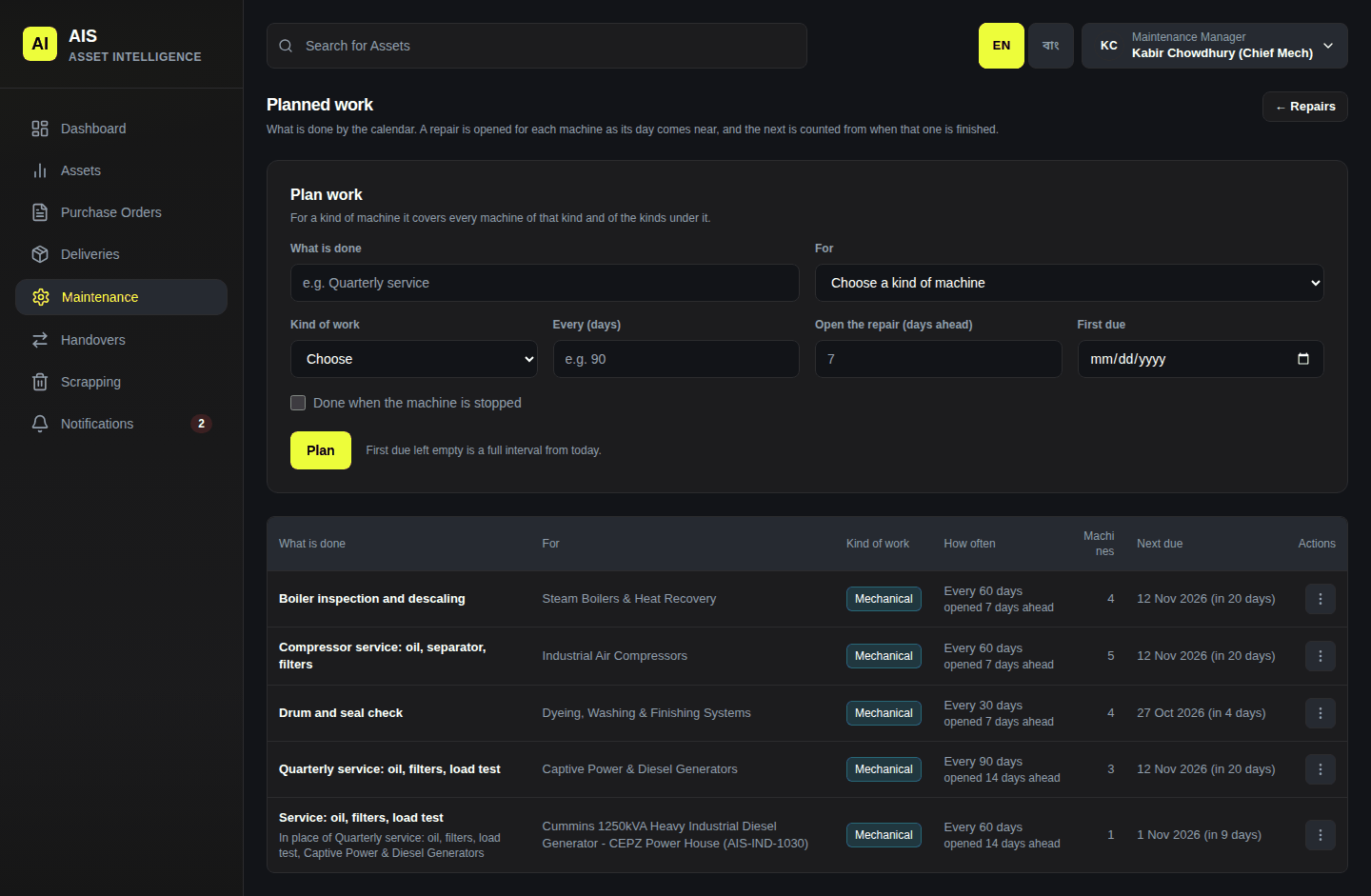
Work done by the calendar. Fill in What is done, For (a kind of machine, or one machine), Every (days), then click Plan. AIS opens a repair for each machine as its day comes near. The next one is counted from when the last was done.
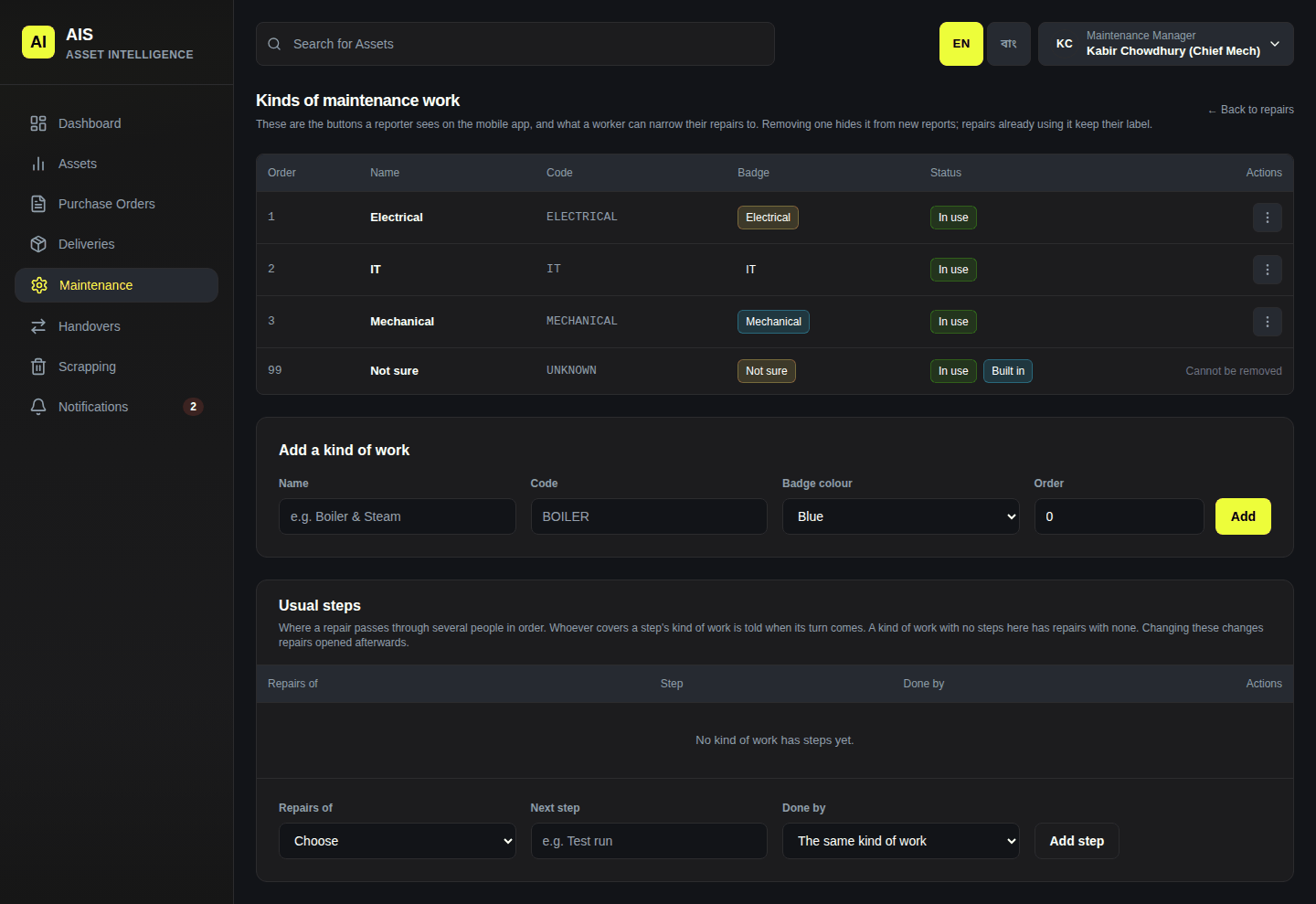
Kinds of work
The kinds of work a fault can need (Electrical, Mechanical…). Usual steps are steps every repair of that kind starts with.
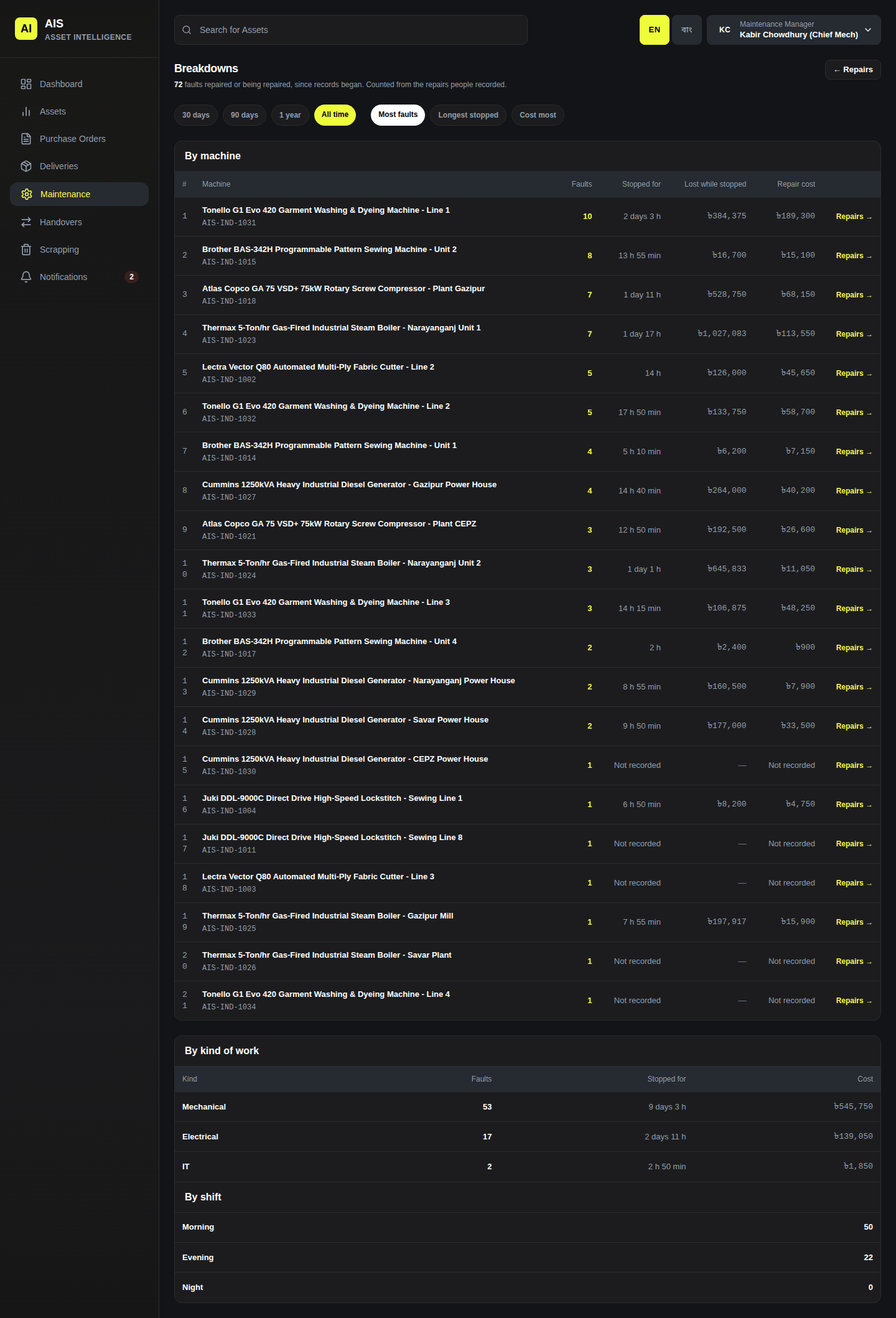
Breakdowns
Which machines break most, and faults by shift.
Stop reasons
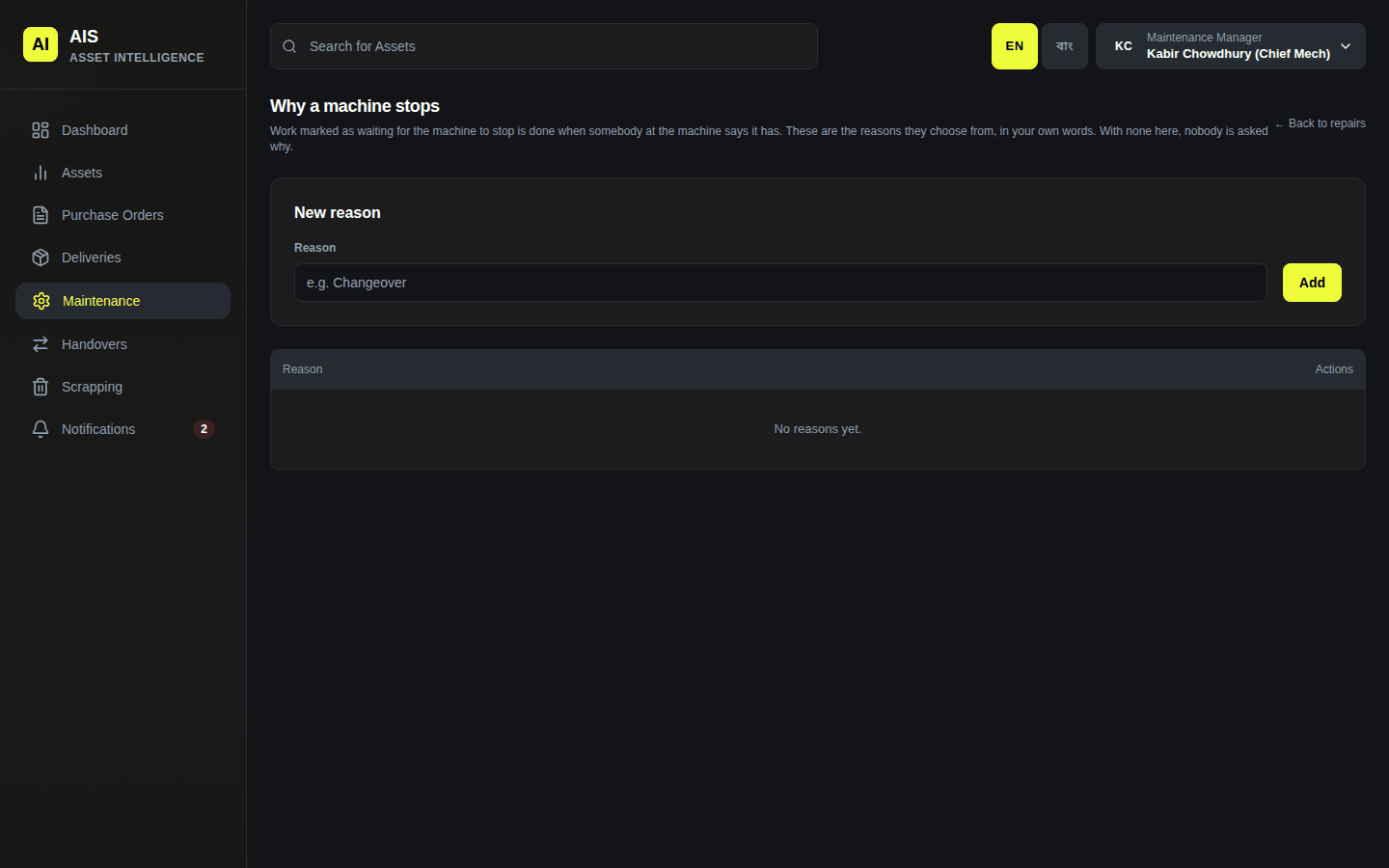
The reasons a machine stops (Changeover, Batch finished…). They are asked when somebody says a machine has stopped (chapter 10).
Scrapping
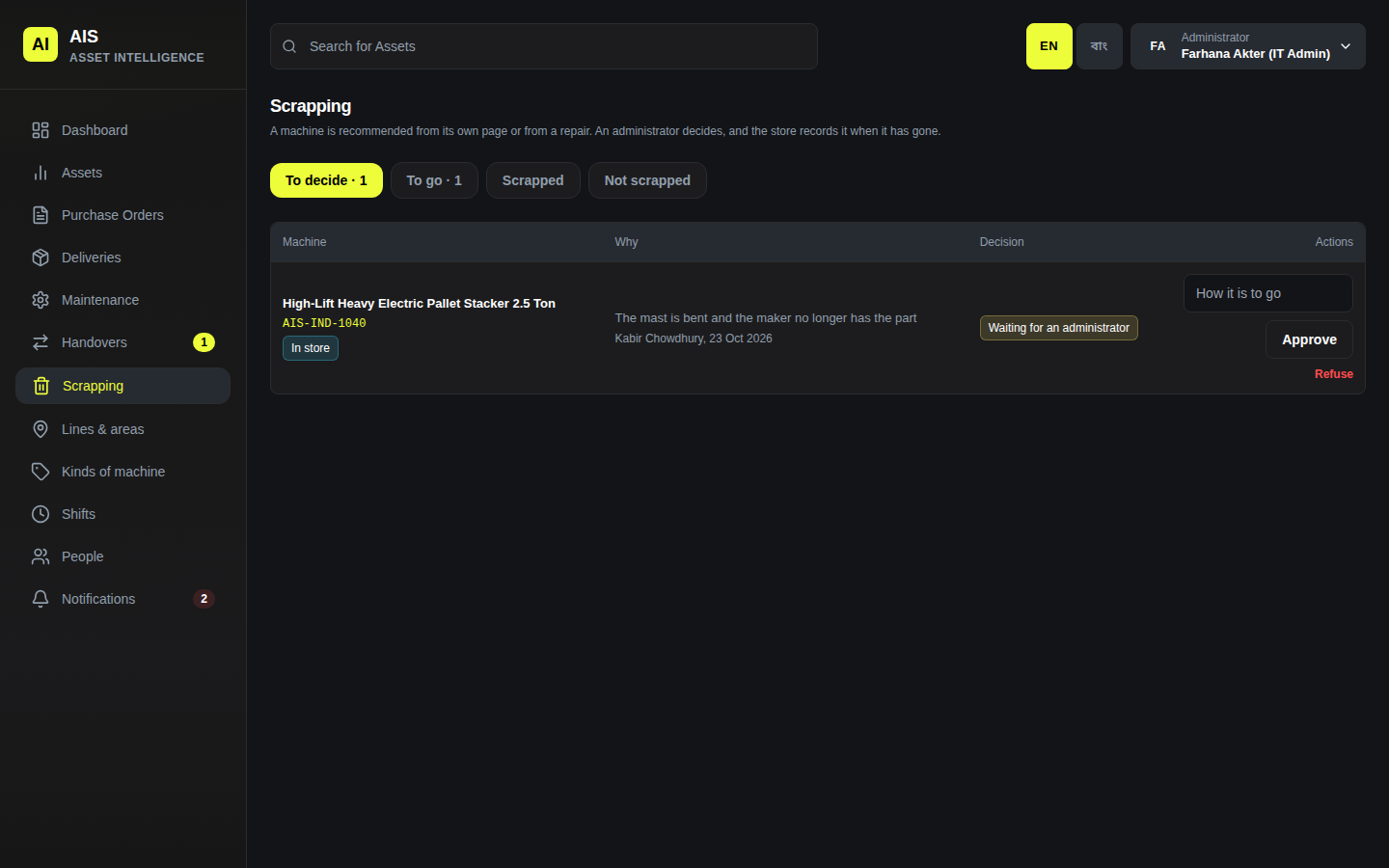
Tabs: To decide, To go, Scrapped, Not scrapped. Step by step in chapter 11.
Shifts
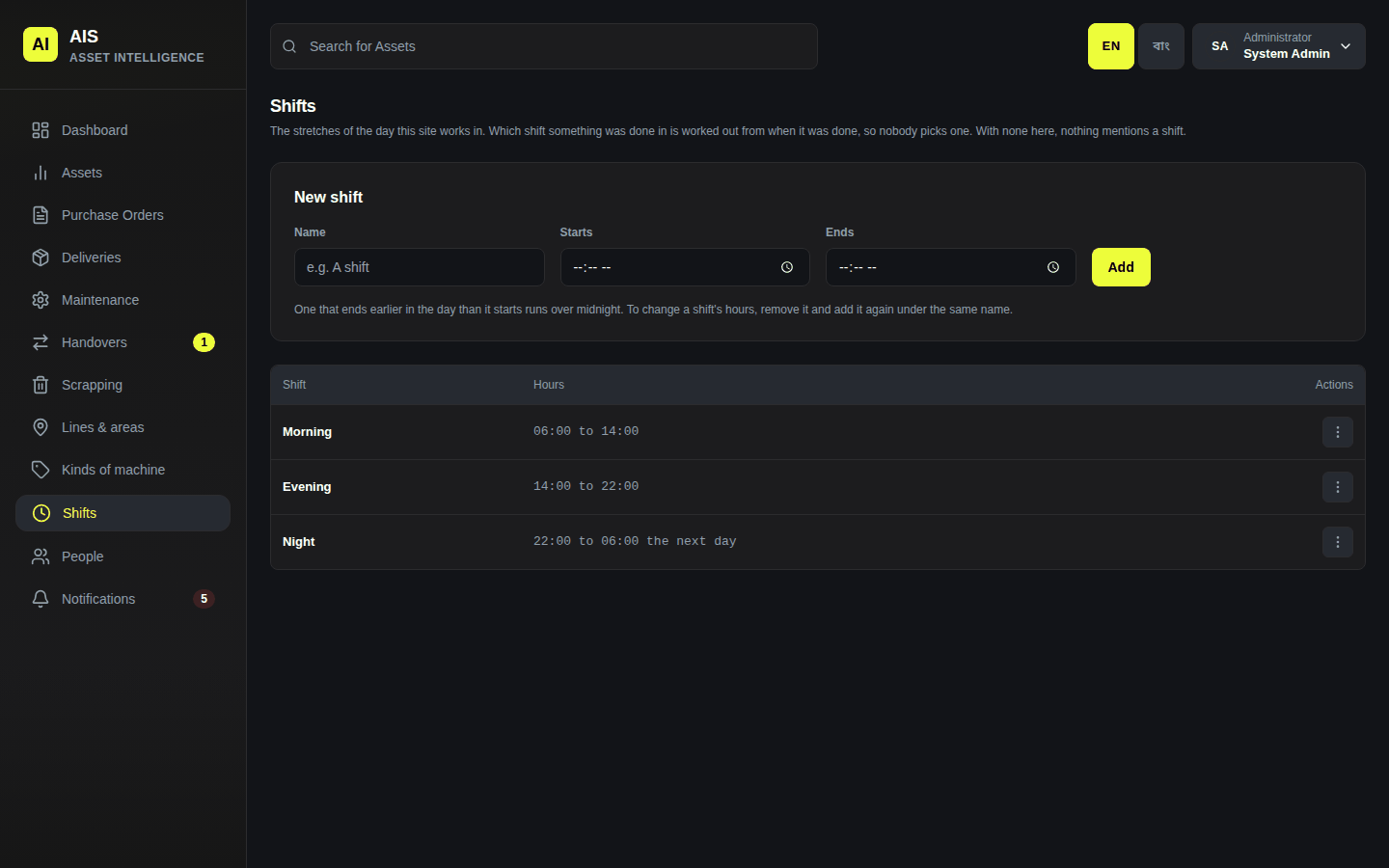
For an administrator. The shifts the site works. Fill in Name, Starts and Ends, then click Add. A shift that ends earlier than it starts runs over midnight. AIS works out which shift a fault or repair was in; nobody picks it.
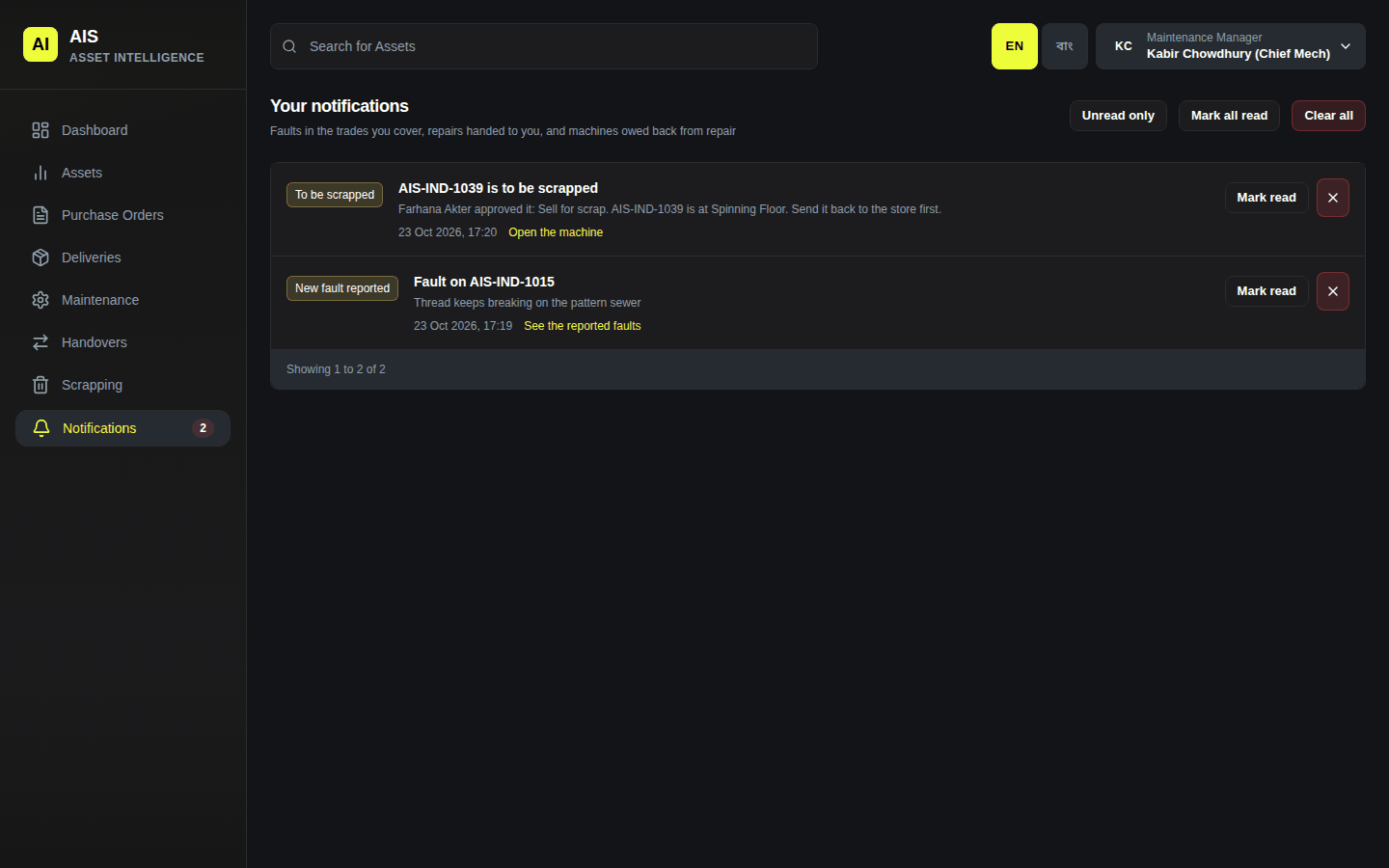
Notifications
The number beside Notifications in the menu is how many you have not read. See chapter 12.