Chapters
Manual homeChapter 3
Receiving a delivery
Who: a delivery receiver or an administrator, on the phone.
A delivery is everything that came in on one truck. When you confirm it, AIS makes one machine for each unit. Nobody has to approve it.
A delivery against an order
On Home, under Purchase orders, tap the order. It shows how many units have come and what is still to come.
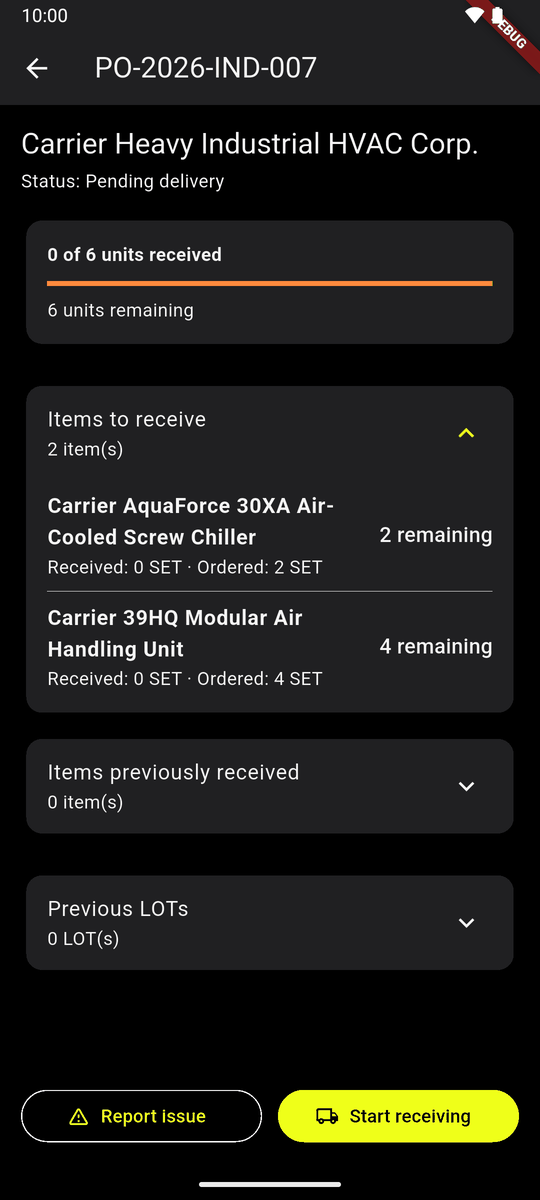
An order: 0 of 6 units received Tap Start receiving.
Each line is a card. Set how many came in This delivery with the big − and +, or tap the number and type it. Count only what you take in.
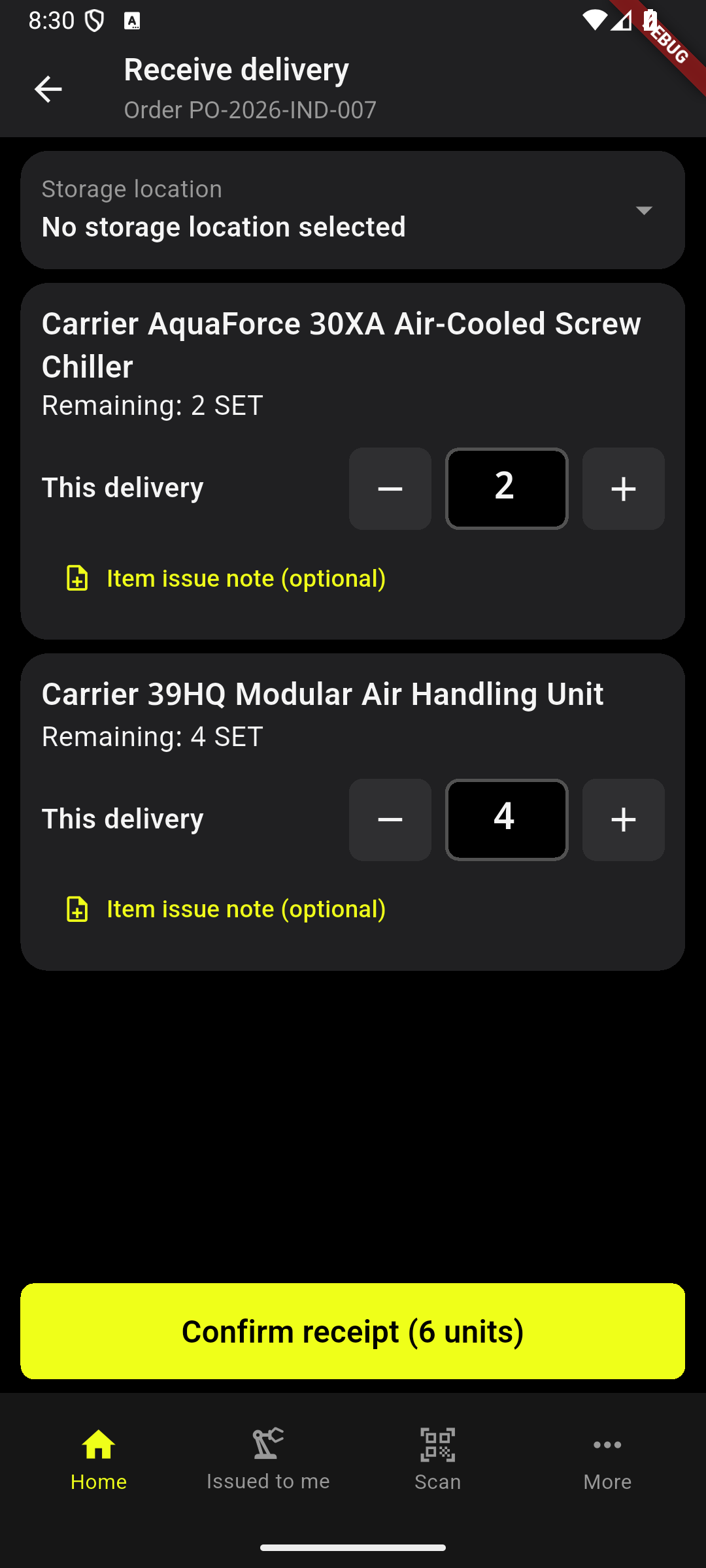
Receive delivery: how many of each Tap Storage location and pick where the machines go.
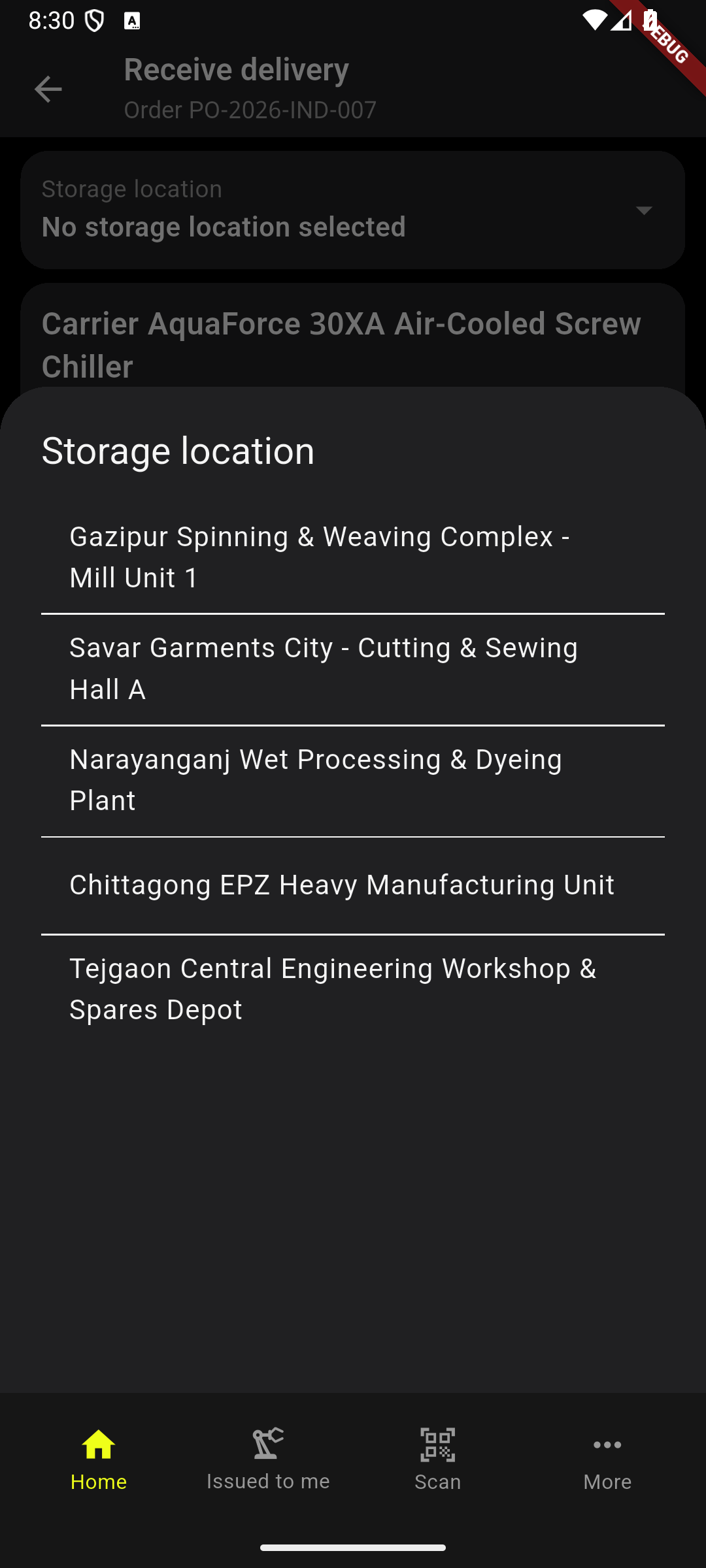
Choosing the storage location Check the counts, then tap Confirm receipt. The button says how many units.
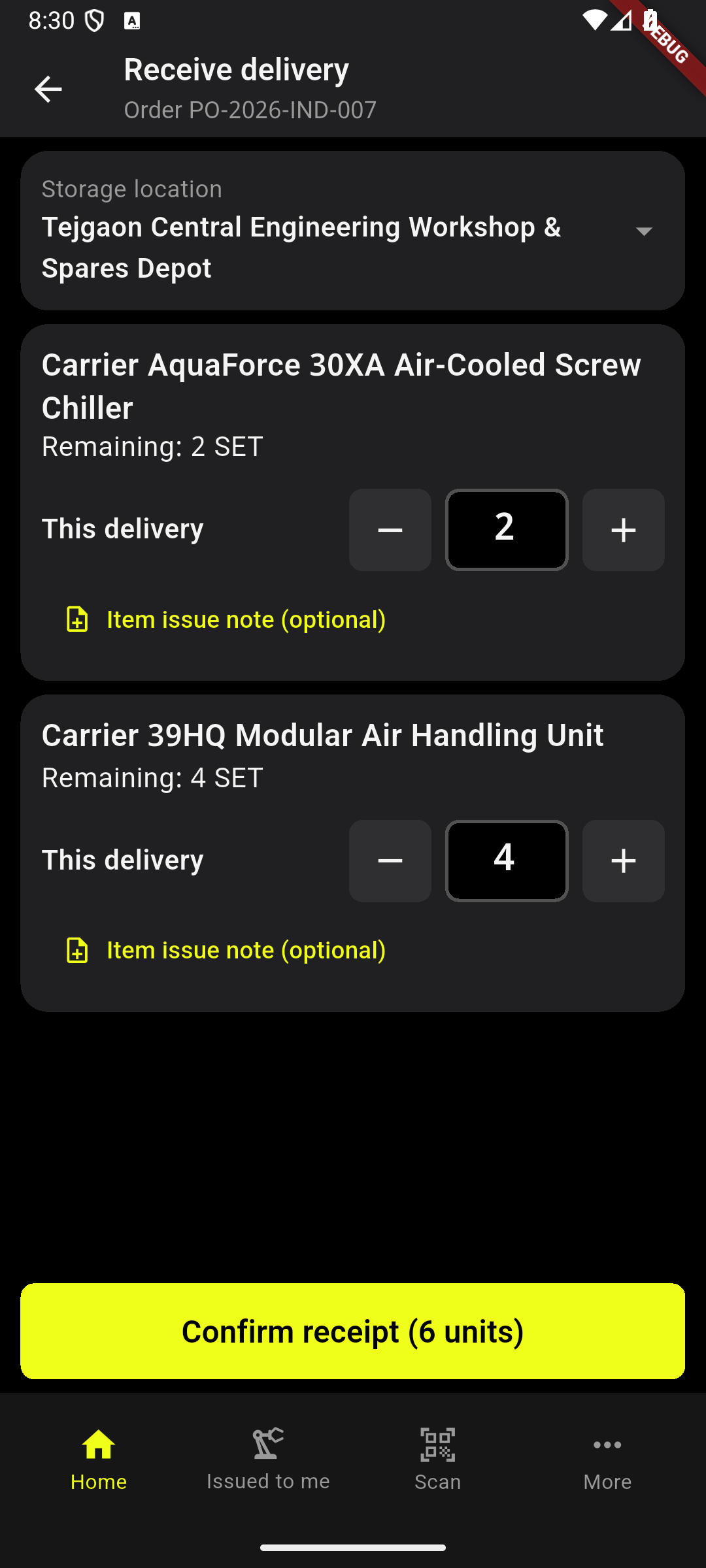
Ready: Confirm receipt (6 units) The phone asks once more: Receive 6 units? Tap Receive 6 units. Go back lets you change it.
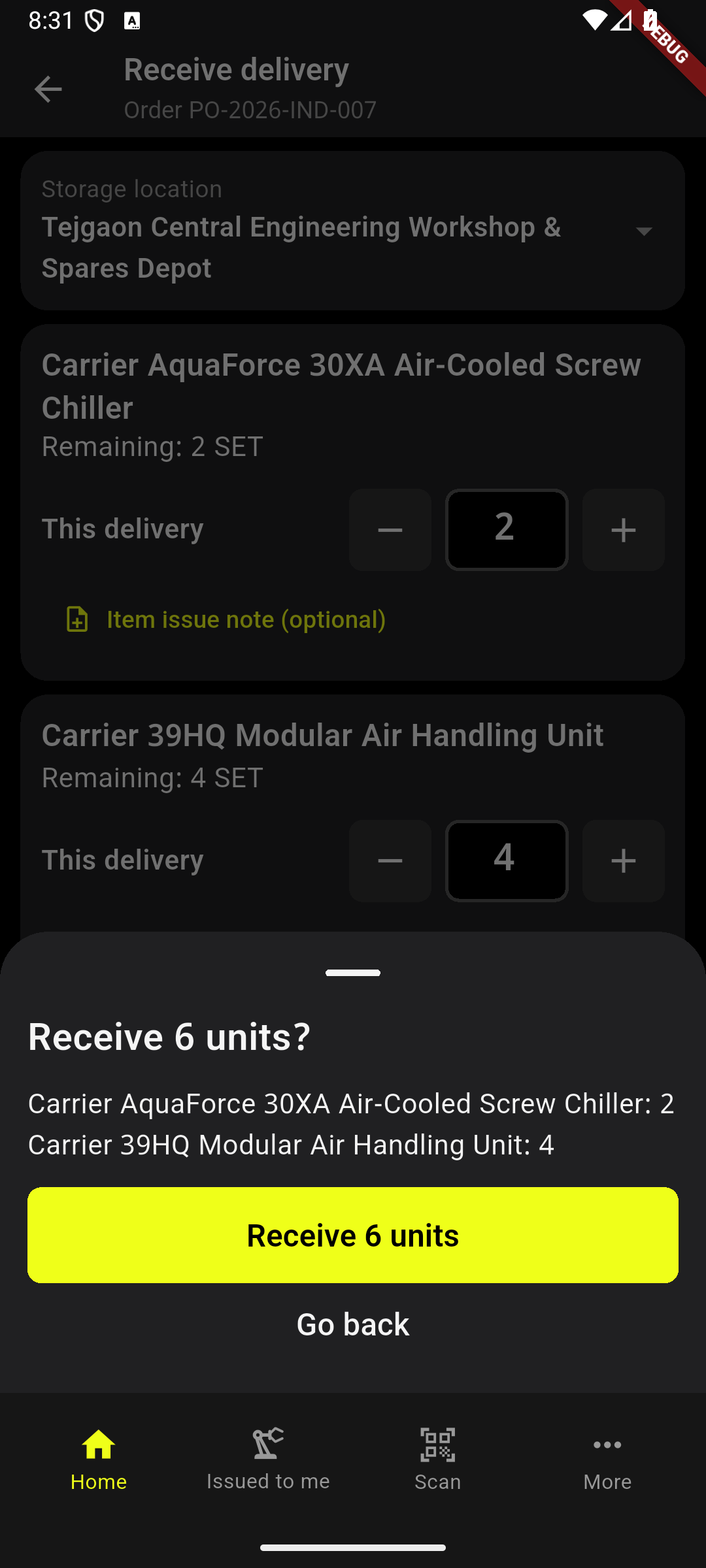
Receive 6 units?
More than the order
If more came than the order still has to come, count them all: + does not stop at Remaining. A line with everything received already says None to come.
The number turns amber and the card says how many, for example 2 over the order. Under Why? tap the reason: Counted wrong at the gate, The vendor sent more, or Other (then write the reason).
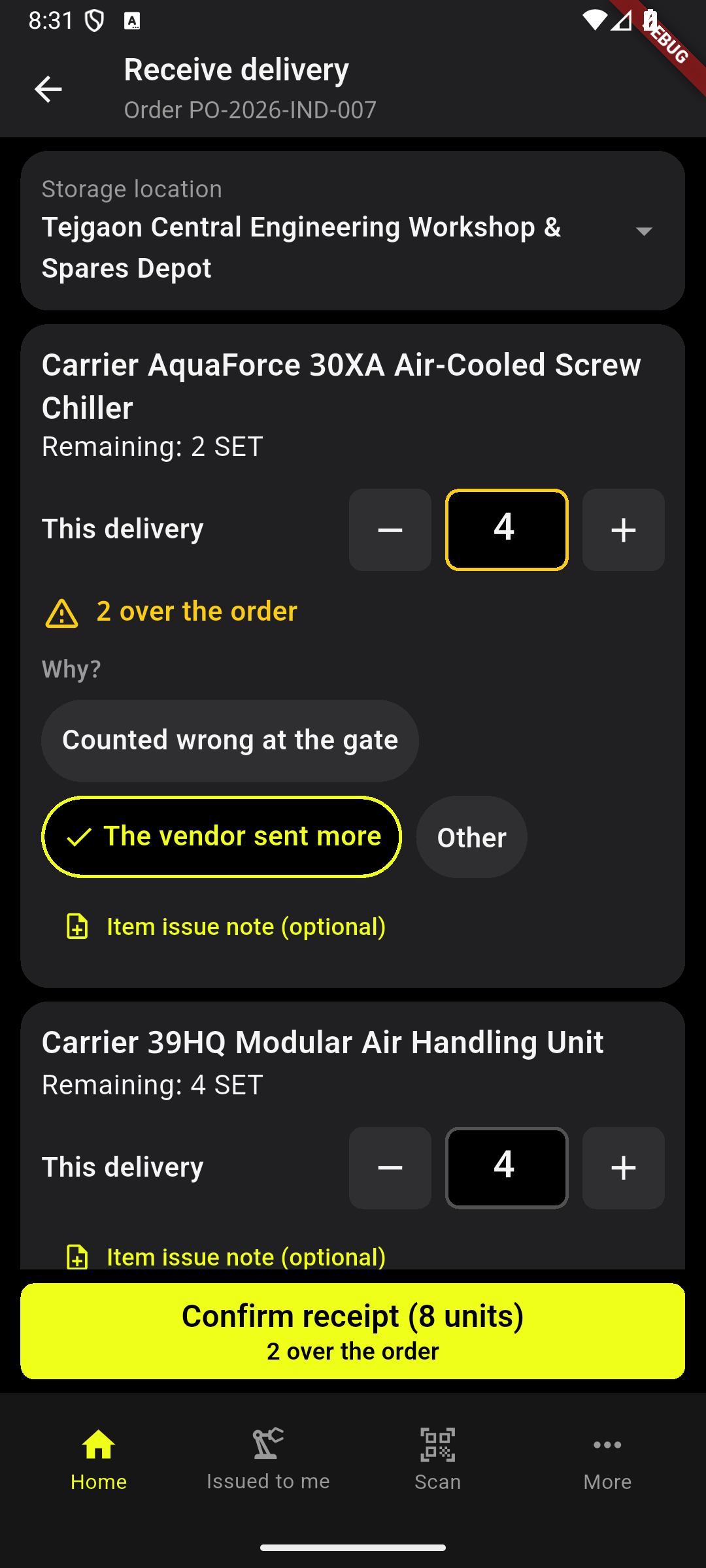
2 over the order, with its reason Confirm receipt stays grey until every line over the order has a reason. The line above it says which one. Then the button says how many are over.
The phone asks once more and shows each line over the order in amber, with its reason. Tap Receive 7 units. Your name and the time are kept with it. Nobody has to approve it.
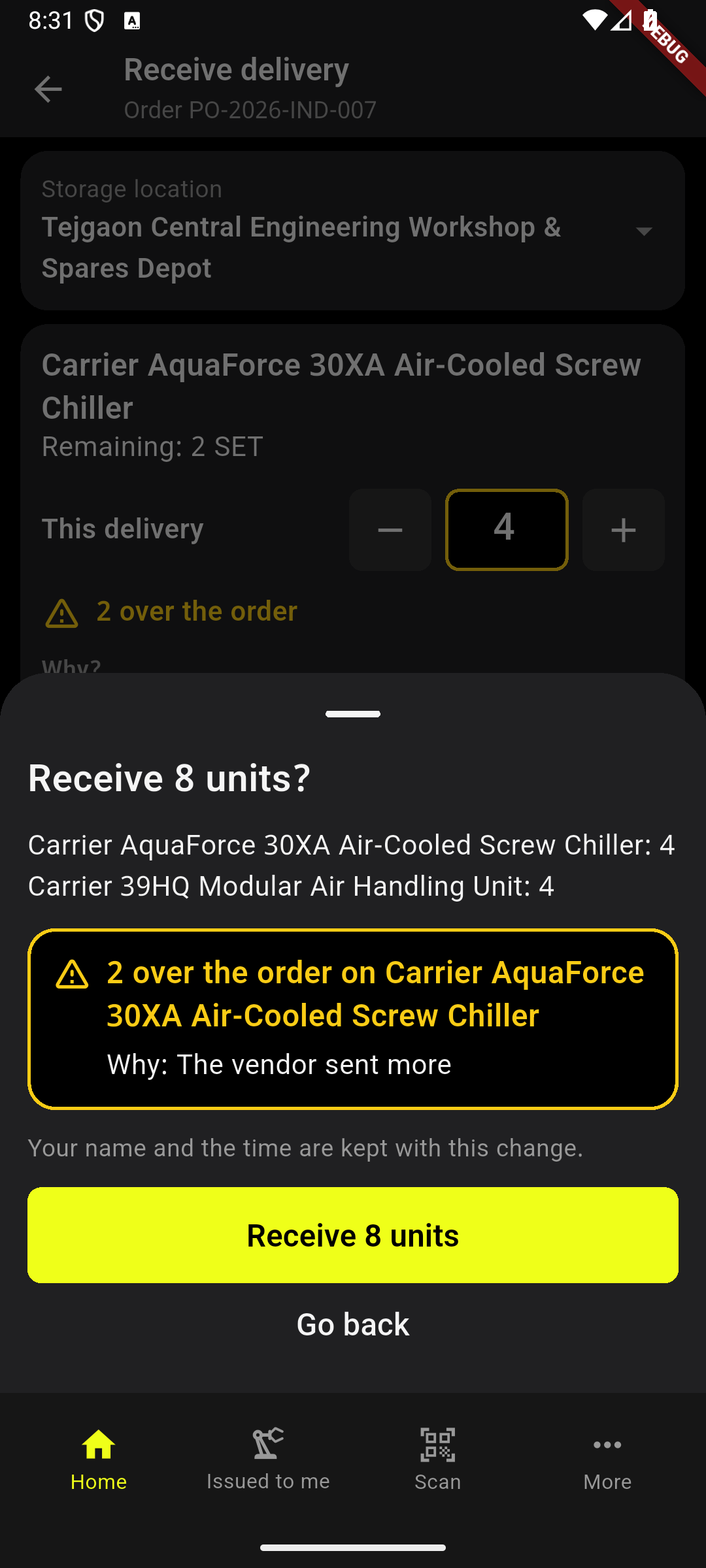
Receive 7 units? with the line over the order
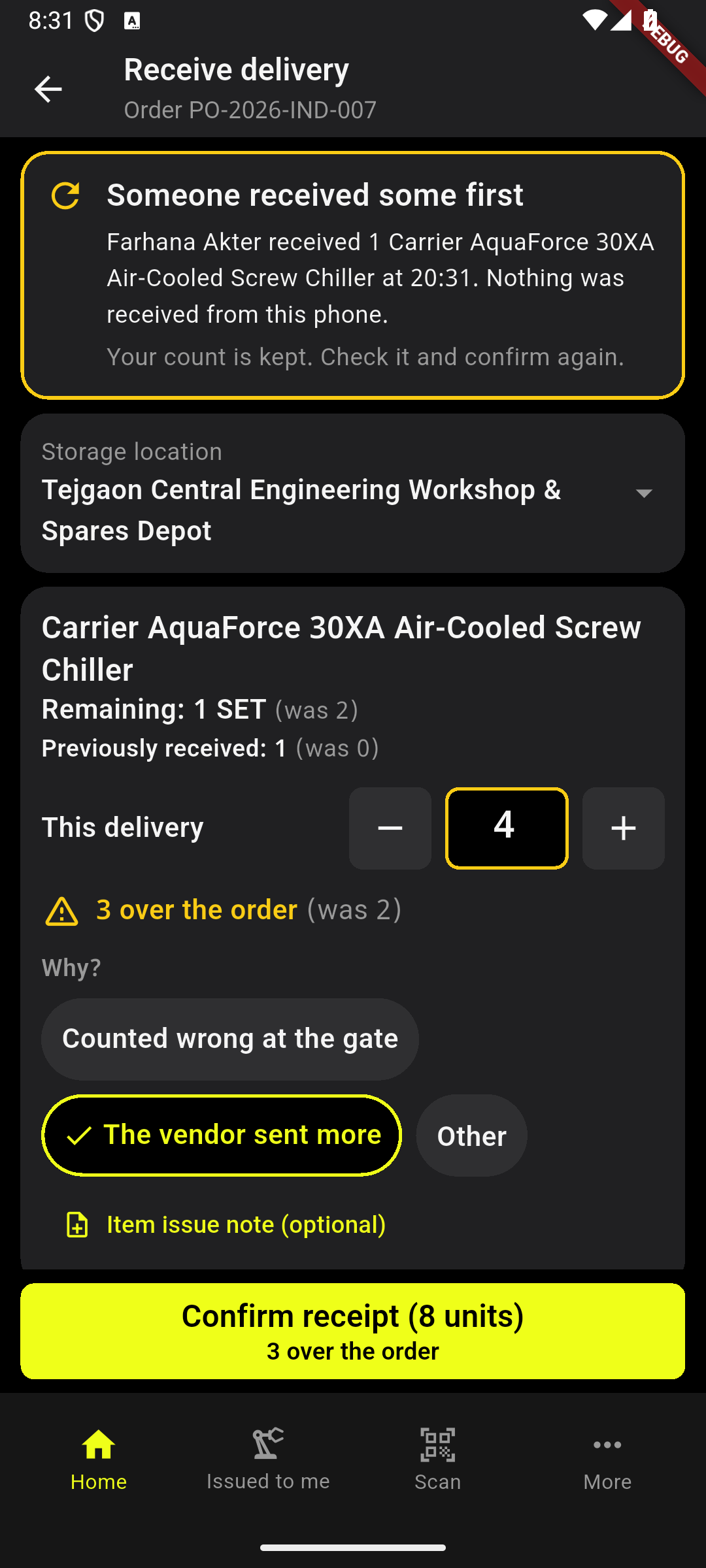
If somebody received part of the order meanwhile, the phone says Someone received some first and who. Nothing was received from your phone. Your count is kept; the numbers that changed show what they were, for example (was 3). Check it and confirm again.
Delivery received
After you confirm, Delivery received opens. It is the same for every delivery.
At the top: the delivery's number, its models (× 4 is how many), and when it came in. The pill says where it has got to, for example Sent and confirmed.
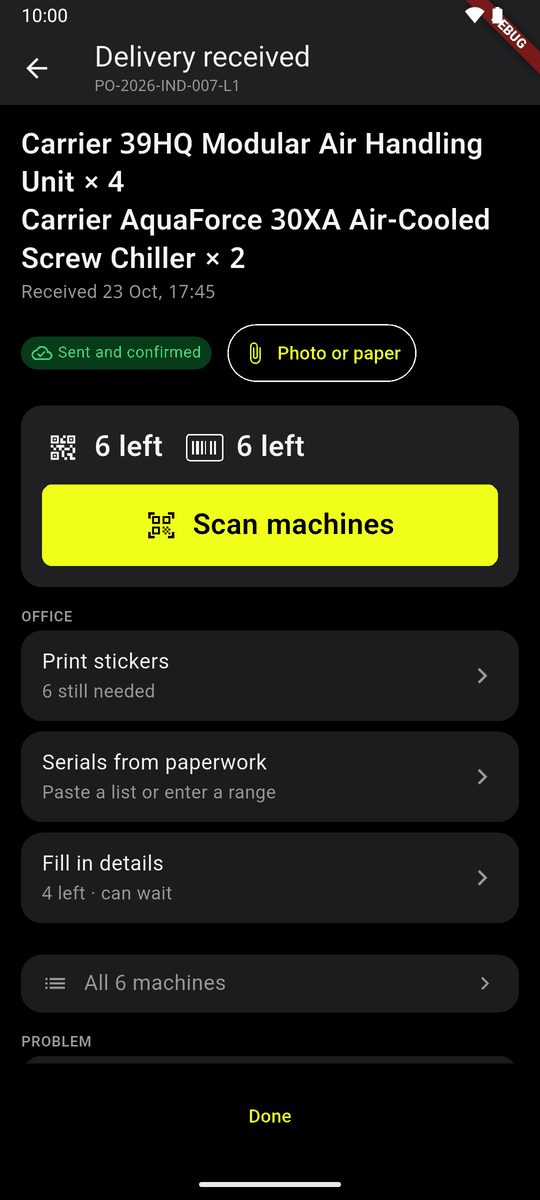
Delivery received The big card is the floor's job. The tag and serial number pictures say how many are left. Tap Scan machines (chapter 4).
OFFICE WORK is work for the desk. It can wait: Print tags, Serials from paperwork, Fill in details (chapter 5).
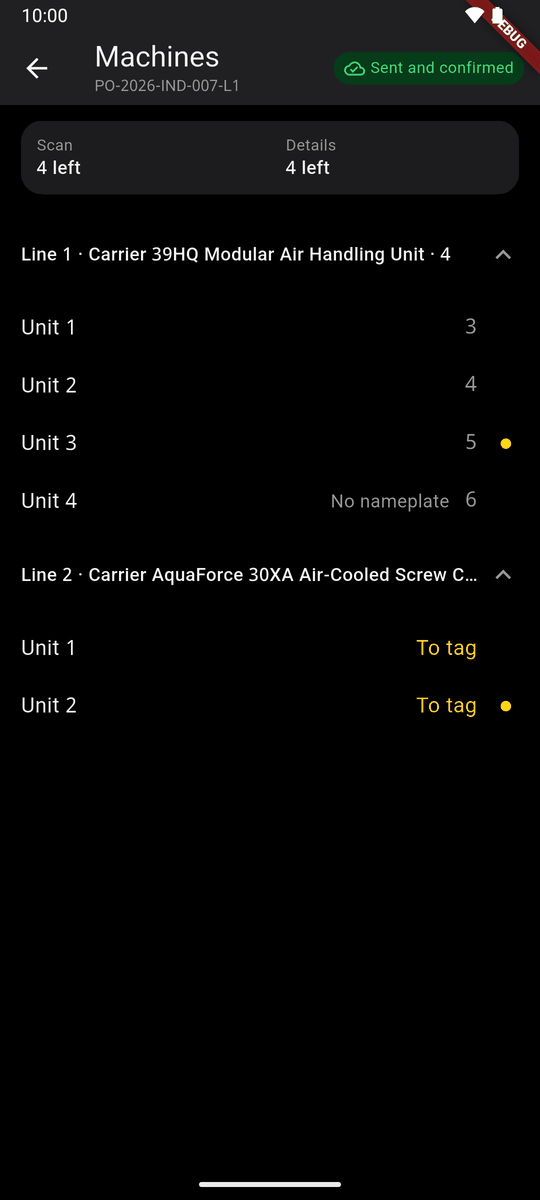
All 6 machines opens this delivery's machines at any time, line by line. To tag means a machine still waits for its tag.
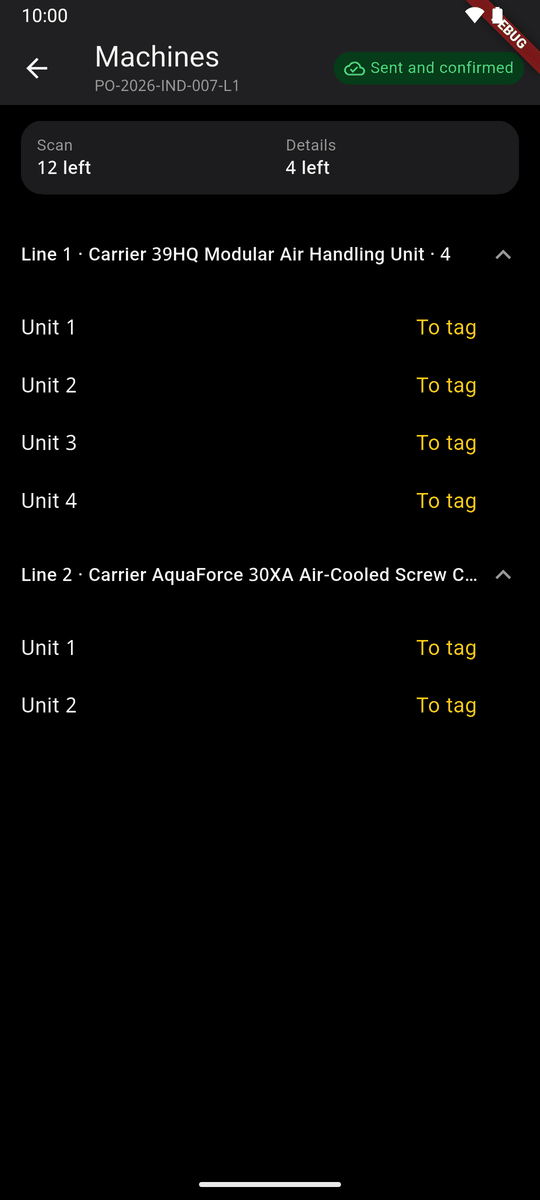
Machines: the delivery's units, line by line At the bottom, under CORRECTIONS: Quantity does not match, when the count was wrong (chapter 6).
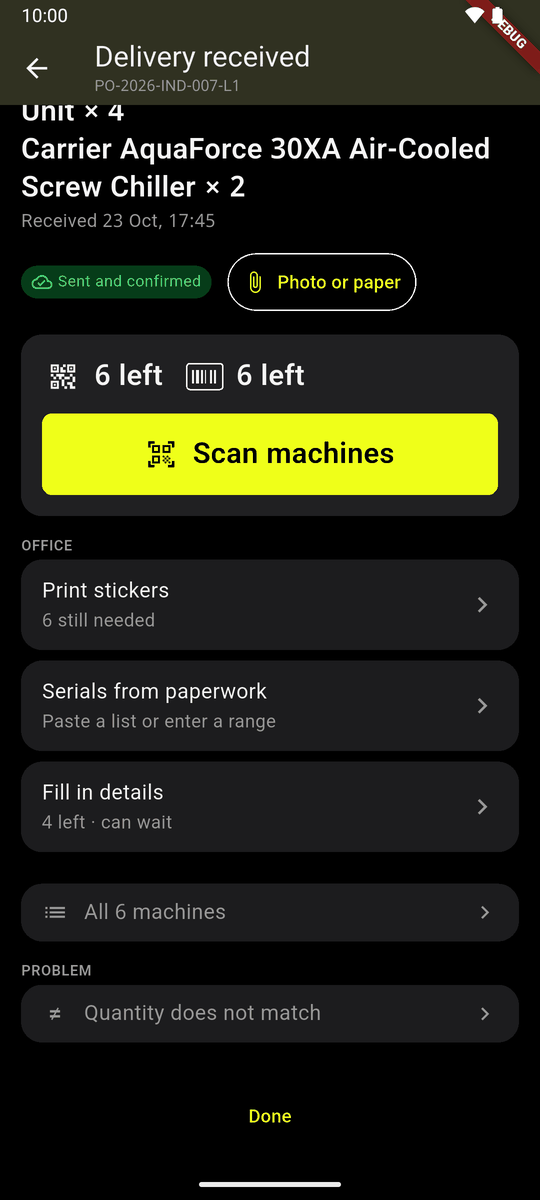
Office work, All 6 machines and Corrections Tap Done when you leave. Nothing has to be finished first. You can come back any time from Deliveries to finish (chapter 7).
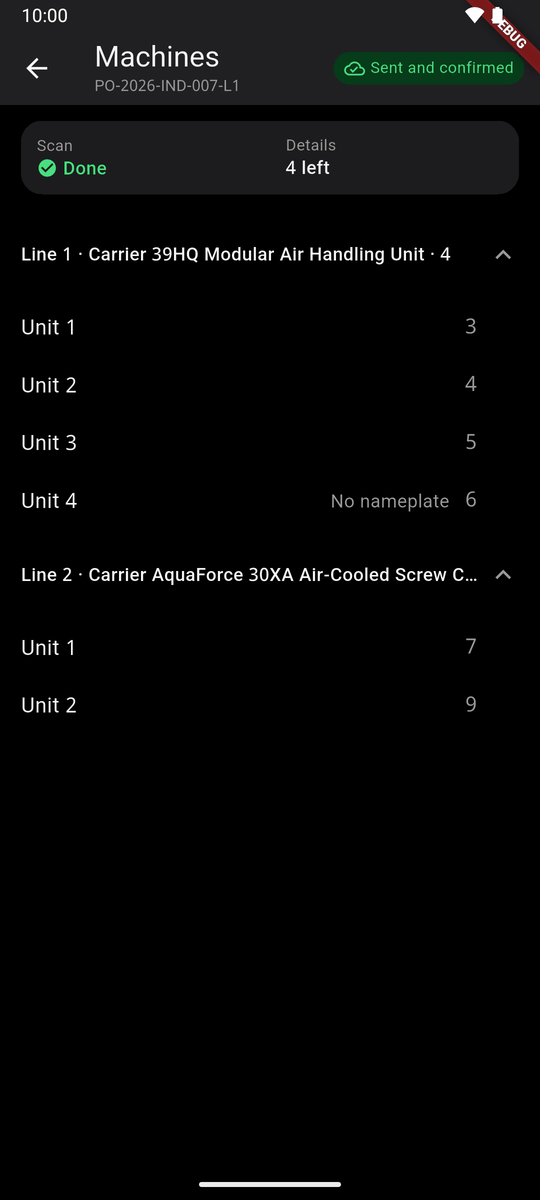
When every machine has its codes, the card becomes a tick: Scan machines · Done.
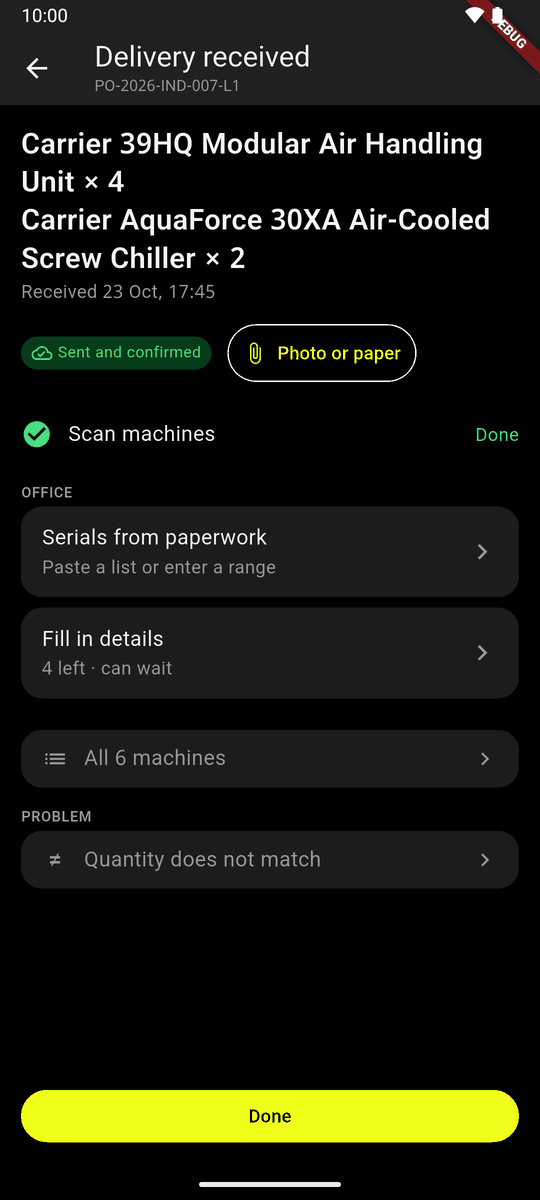
Scan machines · Done
The machine list
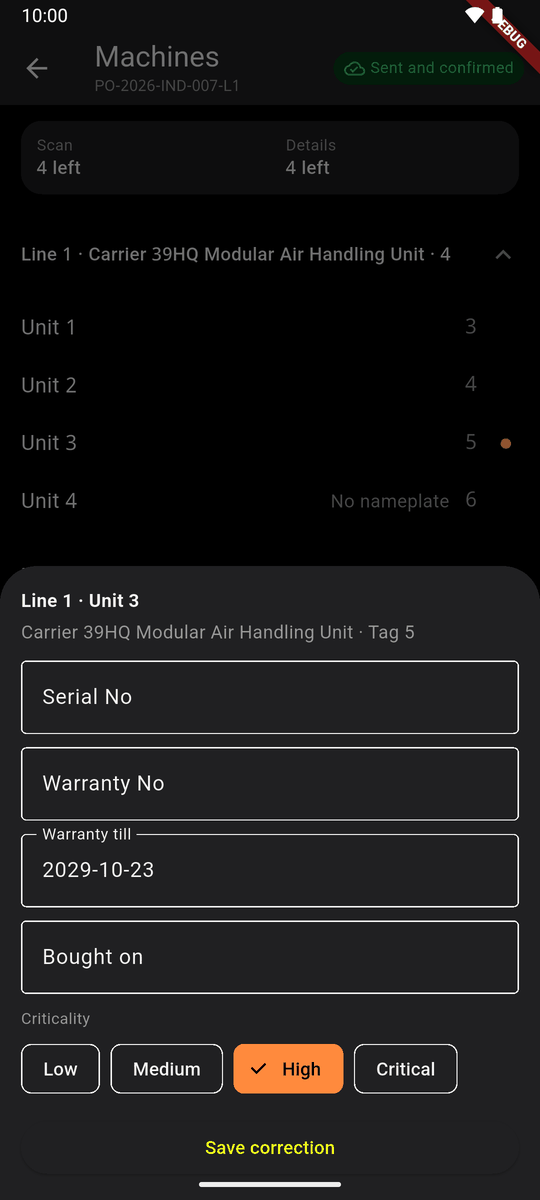
In the machine list each unit shows its tag code, or No serial number, or To tag. Tap a unit to change what is different on that one machine (serial, warranty, bought on, criticality), then tap Save correction.
A photo or paper
On Delivery received, tap Attach.
Tap Take a photo, or Choose a photo or PDF already on the phone.
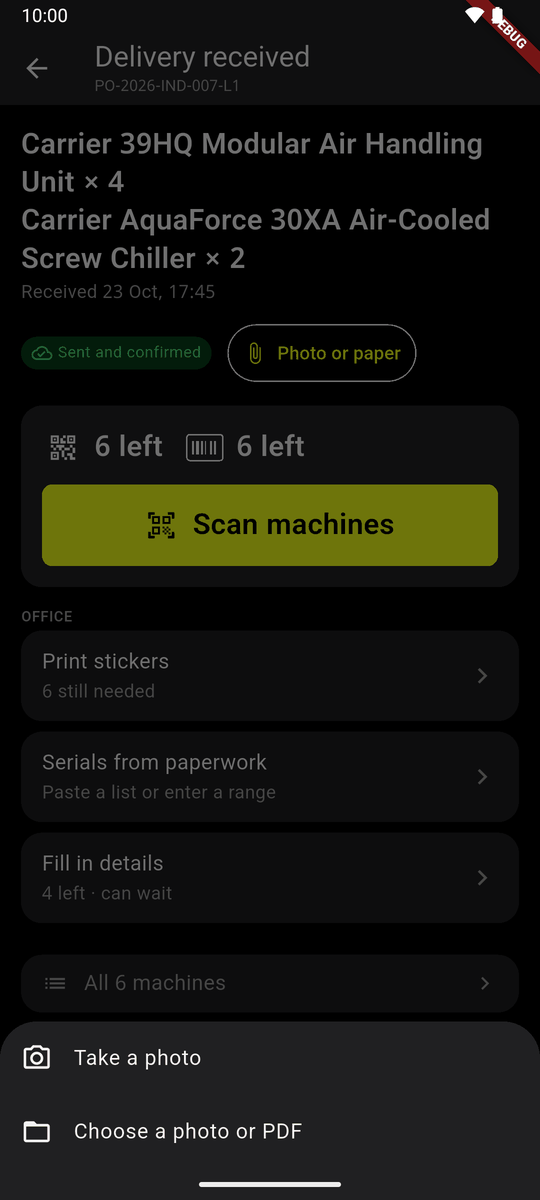
Take a photo, or choose one The phone's camera opens. Take the photo of the delivery note or the signed paper. It is kept with the delivery and sent. The office sees it on the website.
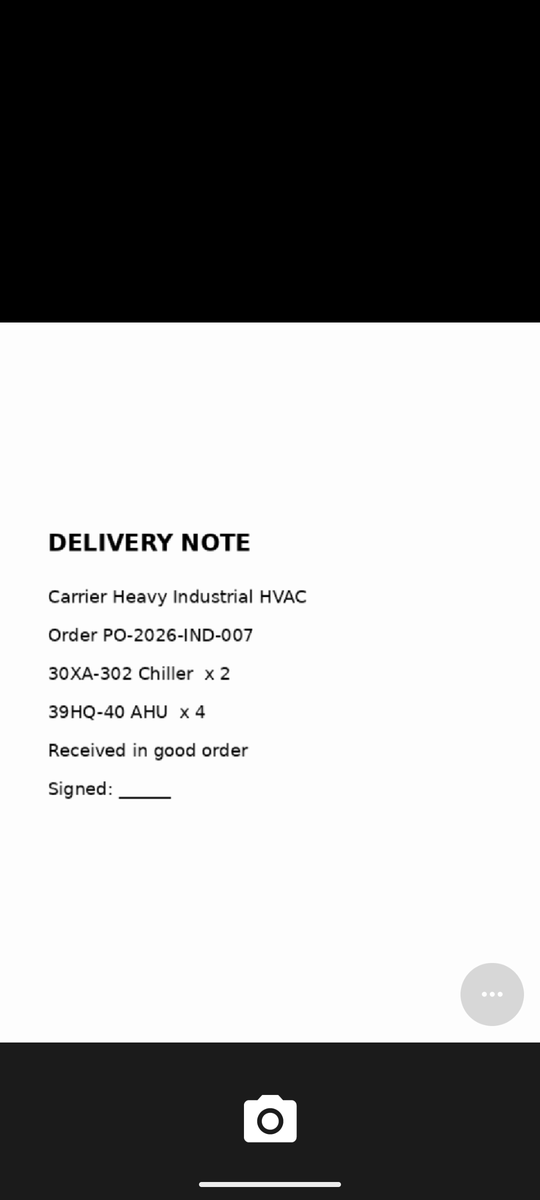
Taking a photo of the delivery note
A file over 10 MB, or one that is not a picture or a PDF, is refused at once.
A new delivery with no order
On Home, tap New delivery (Without a purchase order). Nothing is filled in for you.
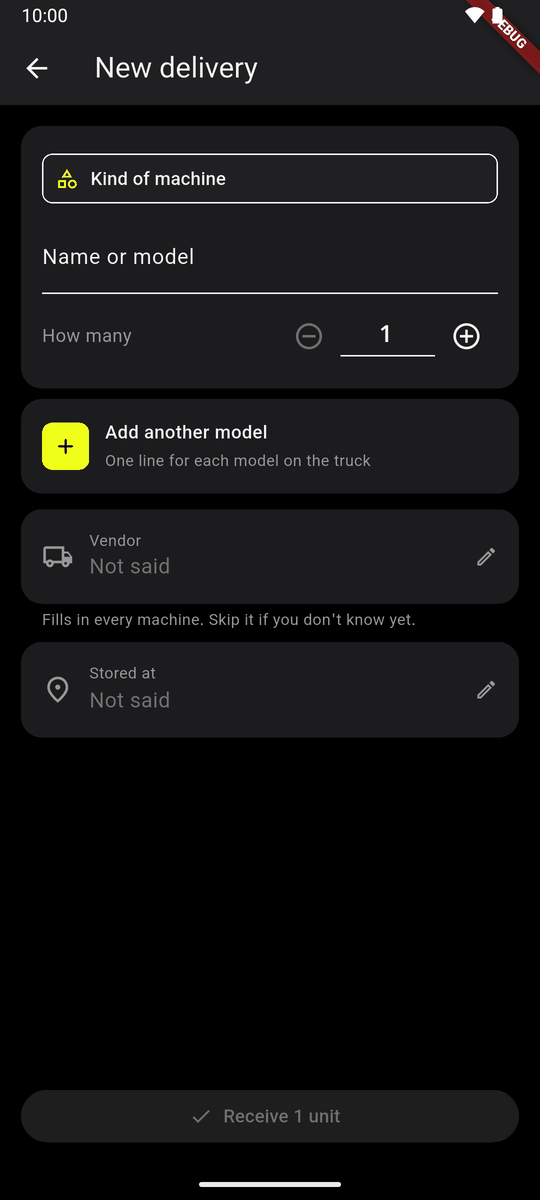
New delivery: an empty line Tap Kind of machine and pick it from the list.
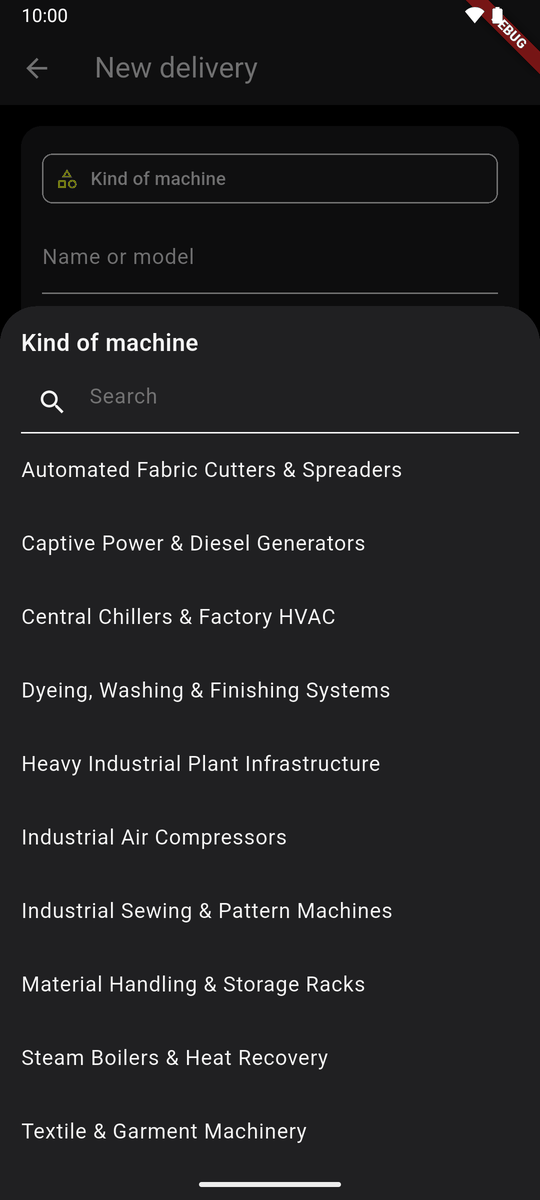
The kinds of machine Type the Name or model, and set How many.
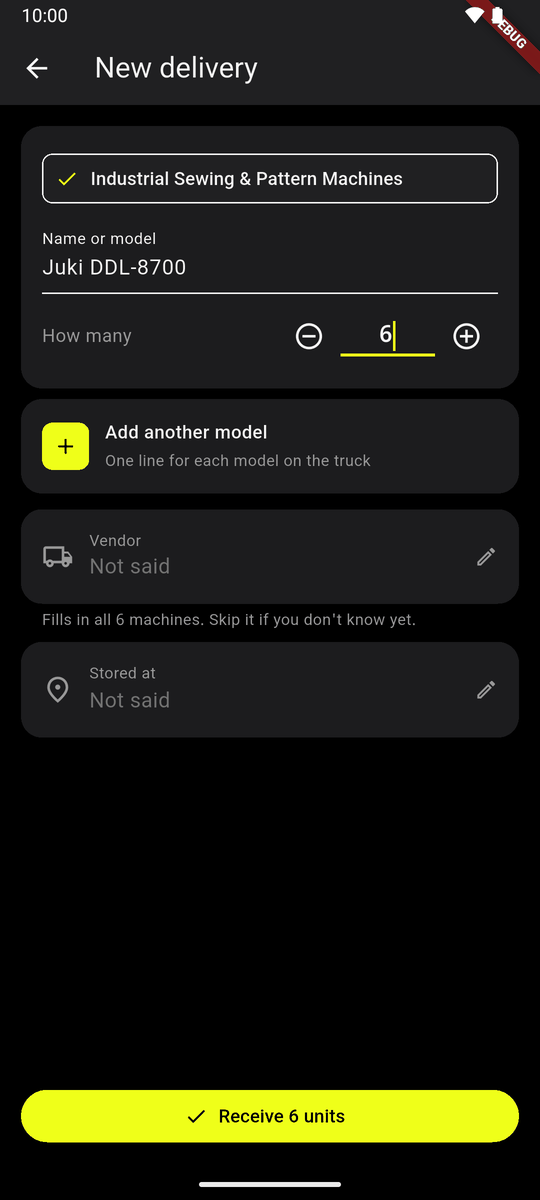
Line 1: Juki DDL-8700, 6 Another model on the truck? Tap Add another model: One line for each model on the truck. Lines you are not filling in fold to one row each. Remove takes a line out.
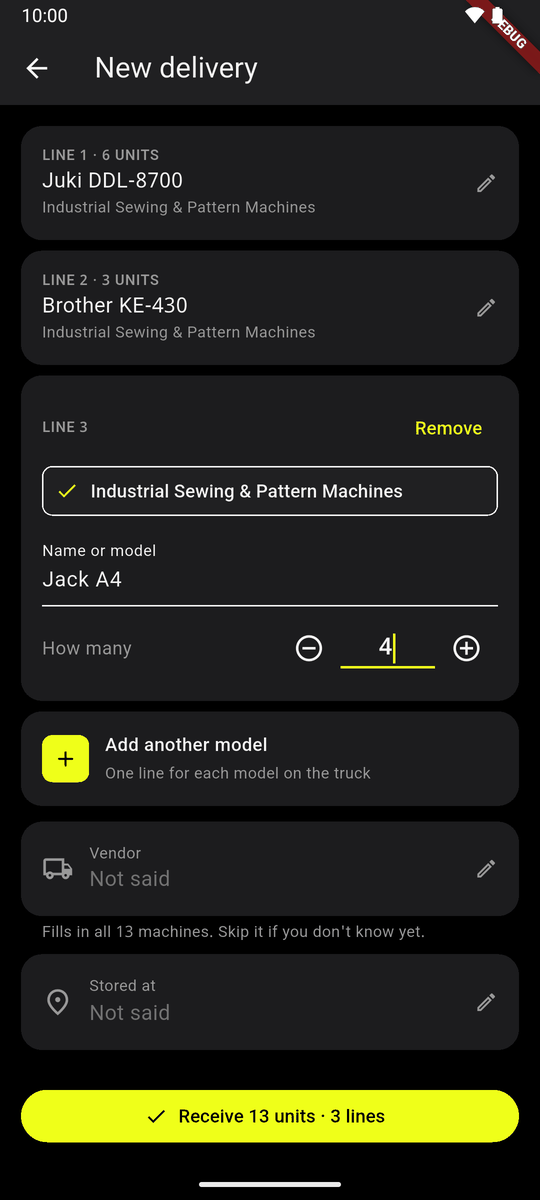
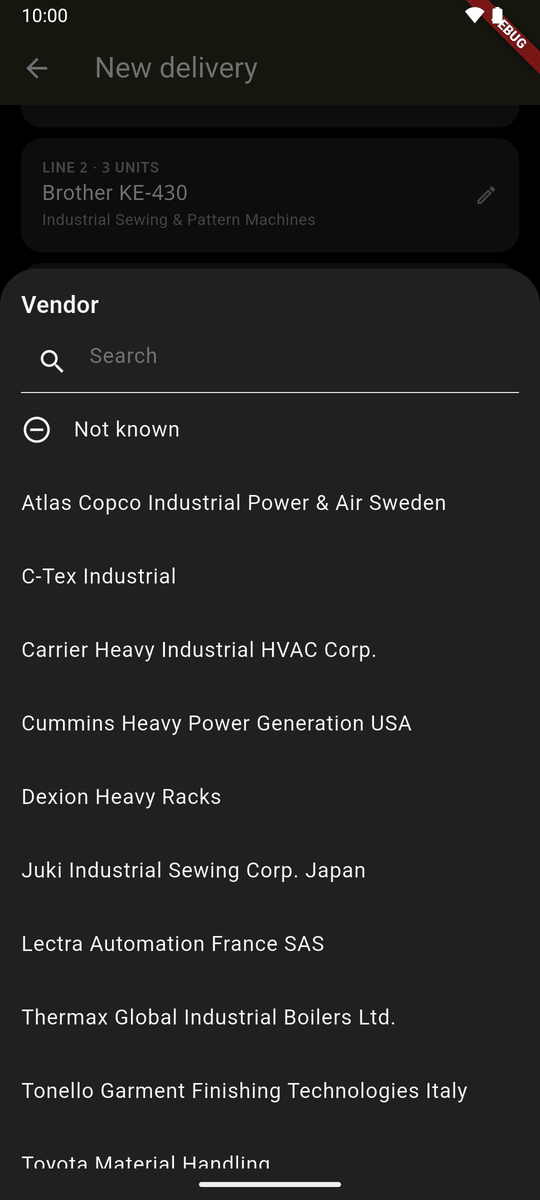
Three models, three lines Vendor and Stored at may stay Not said. To fill one in, tap it and pick. Not known is on the vendor list too.
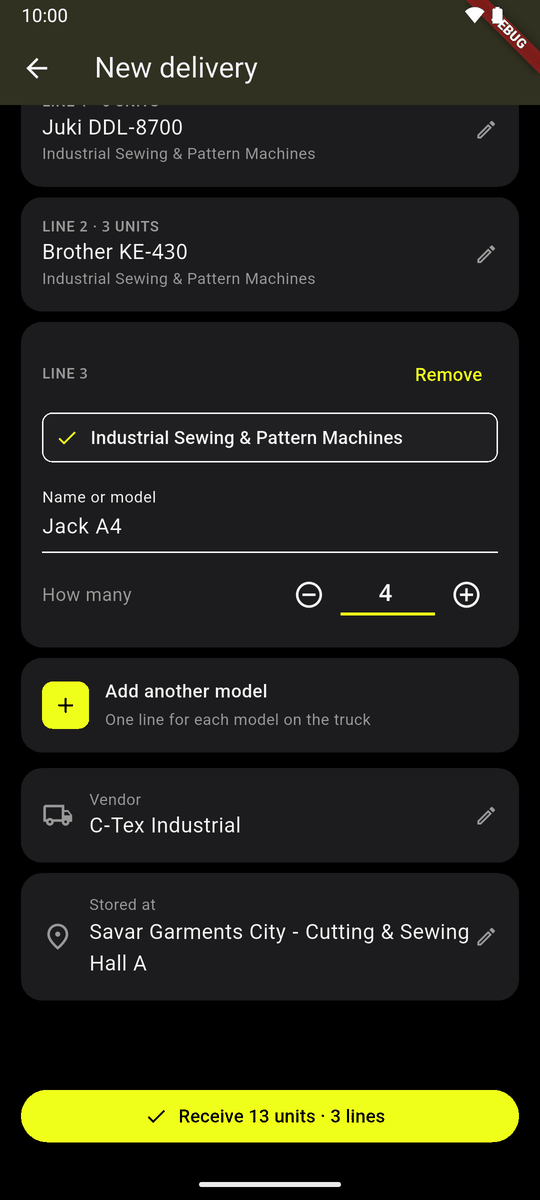
The vendor list Tap the button, for example Receive 13 units · 3 lines. If one line of many units has no model number, the phone asks once: All 50 the same model?
Ready: Receive 13 units · 3 lines Delivery received opens, the same as above. The delivery is numbered by the day and time, GATE-….
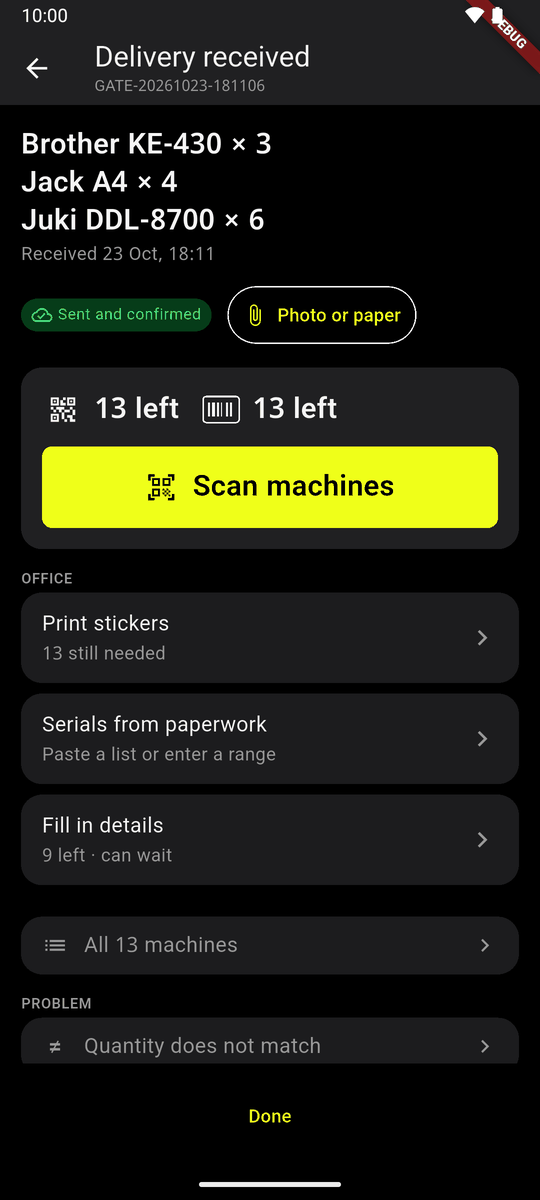
A delivery with no order, received
A problem at the gate
On the order, tap Report issue.
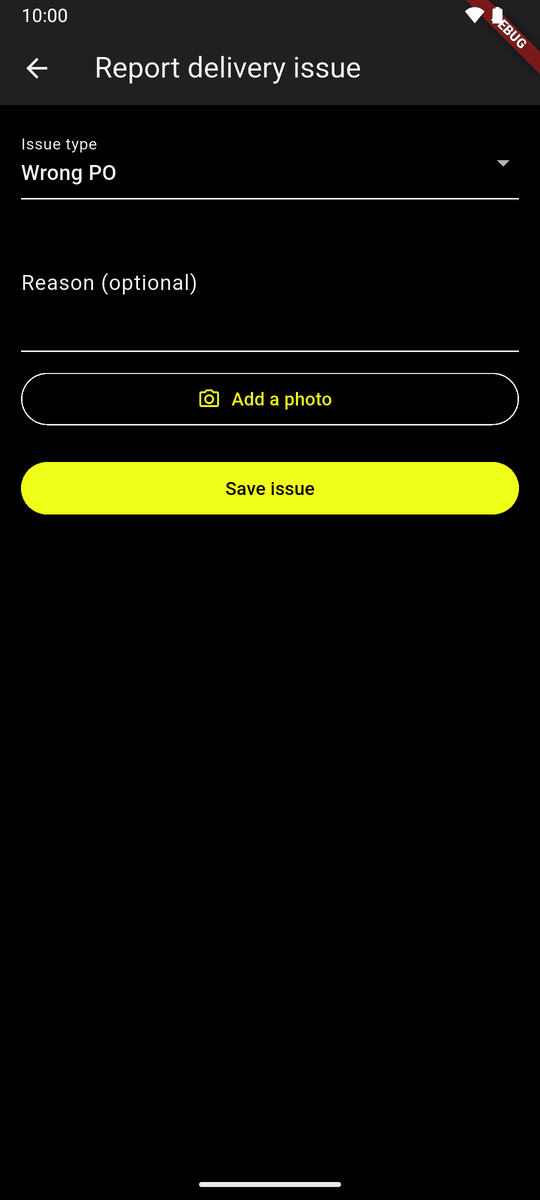
Report delivery issue Tap Issue type and choose: Wrong PO, Wrong vendor, Damaged delivery, Quantity mismatch, Refuse entire delivery or Other.
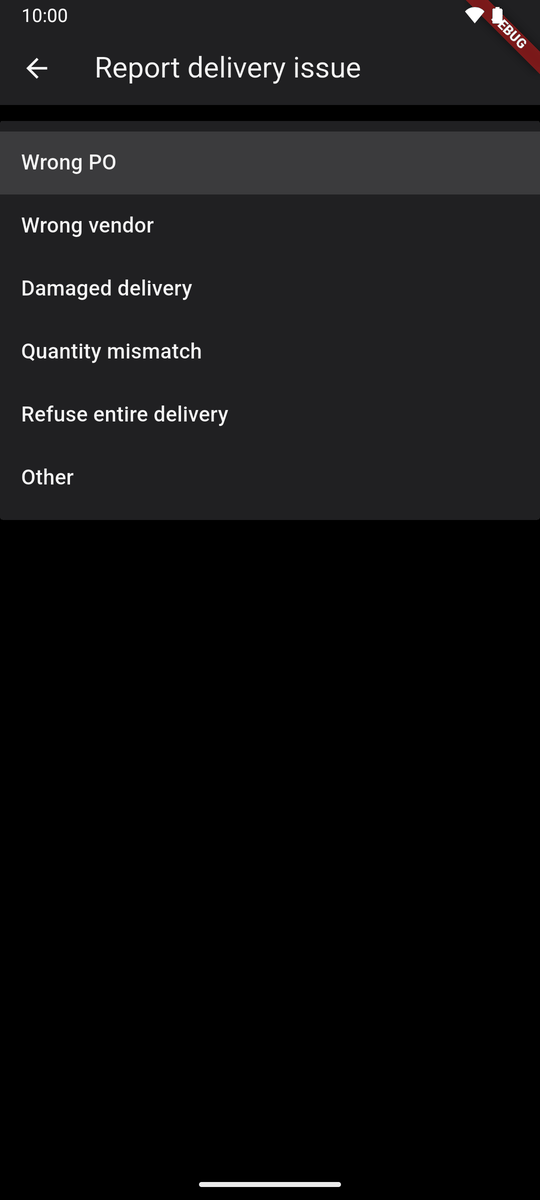
The kinds of issue Write a reason if you like, and tap Add a photo if you can. Tap Save issue.
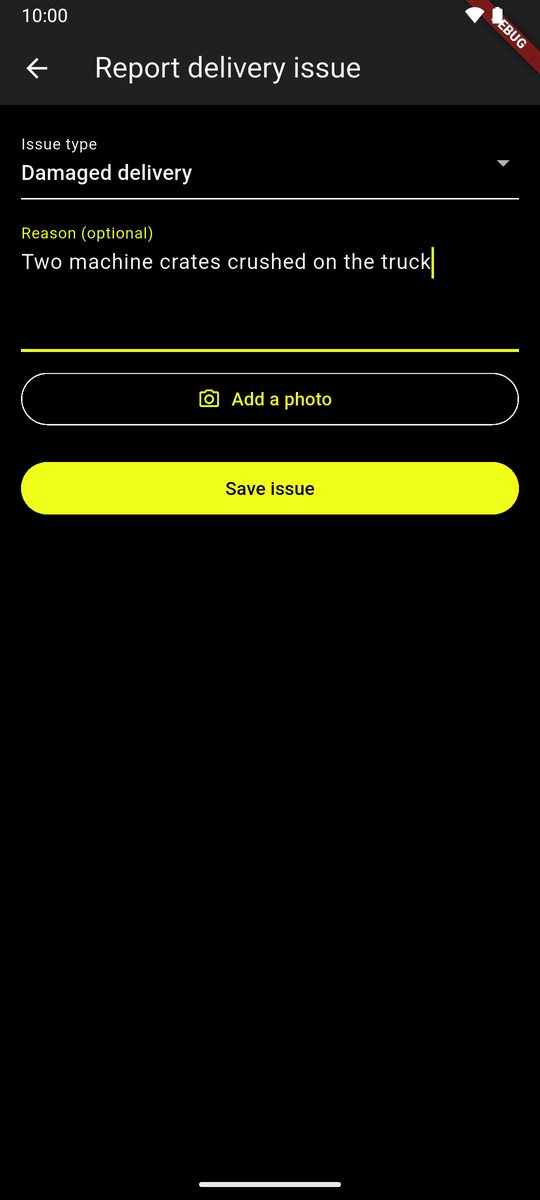
A damaged delivery, with a note The phone says Problem saved. The office will see it once it is sent. The office sees it on the order's page on the website.
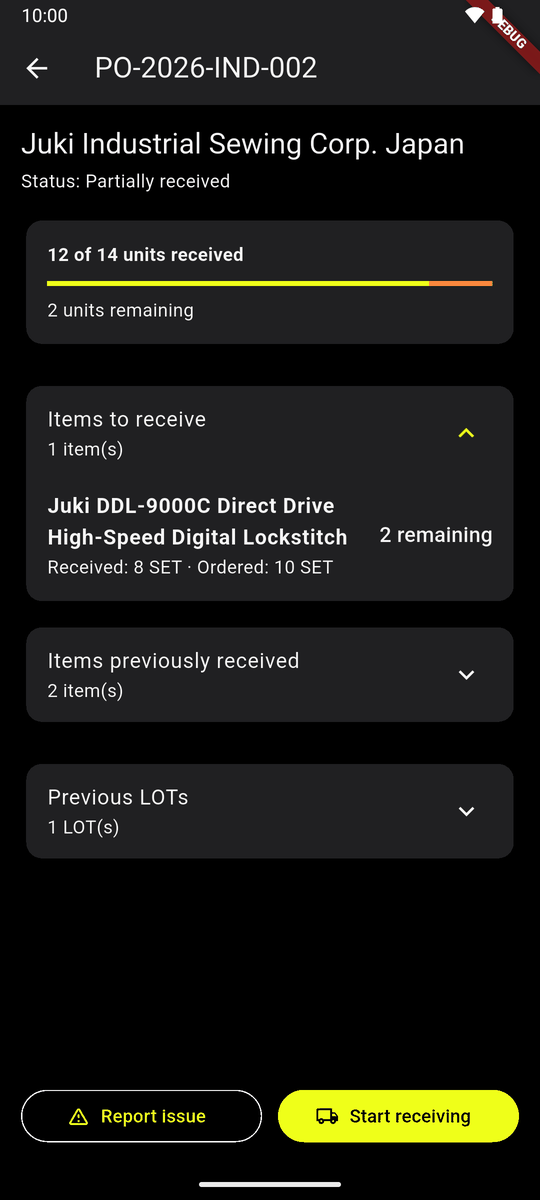
Problem saved
Refuse entire delivery turns the whole delivery away: nothing is taken in and no machine is made.