Chapters
Manual homeChapter 10
Faults and repairs
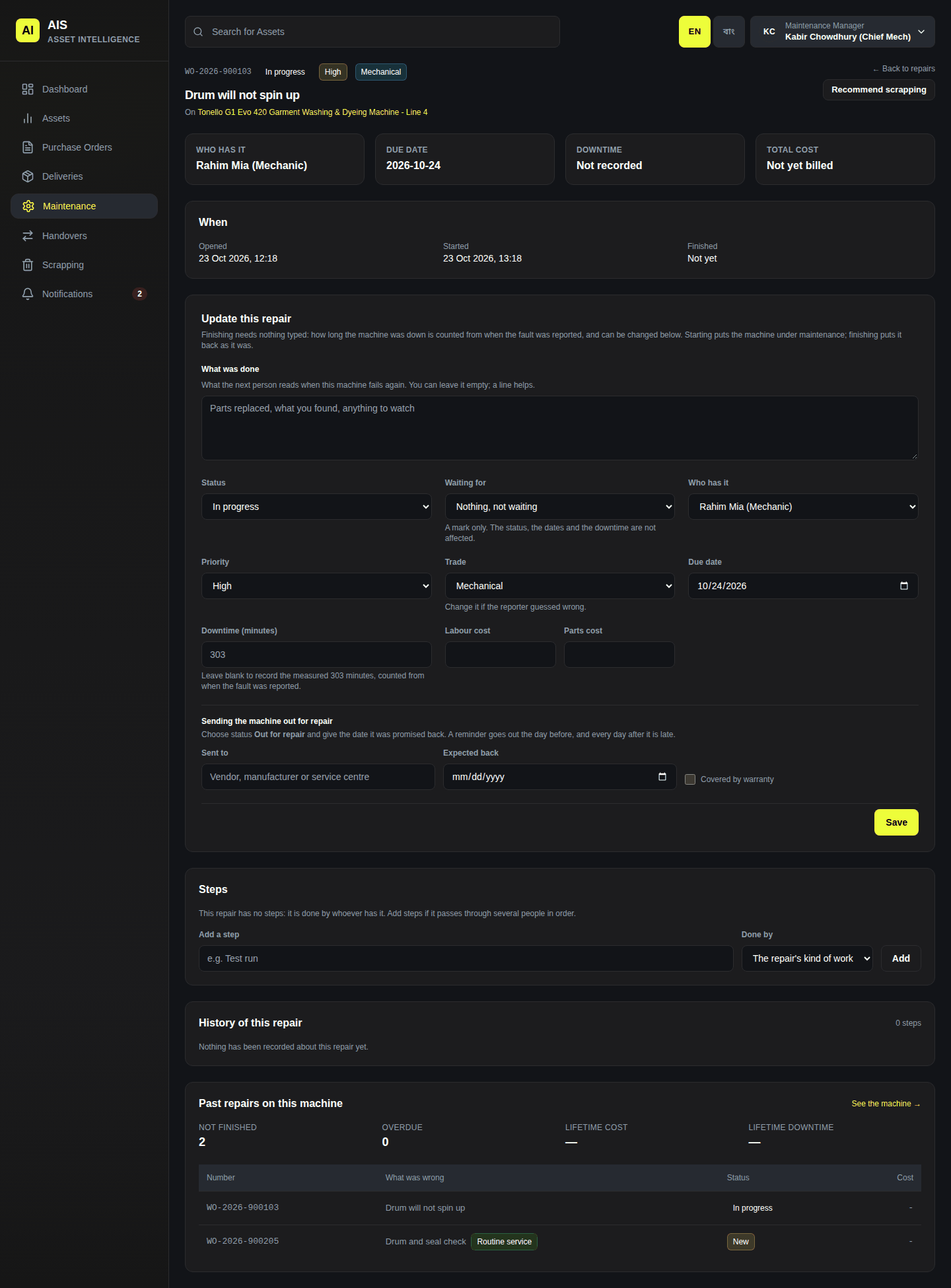
Who reports a fault: anybody signed in. Who repairs: a maintenance manager or an administrator.
Report a fault
Tap Report a fault (on Home, or under More). Point at the tag on the machine you want to report. (Enter tag manually if it will not scan.)
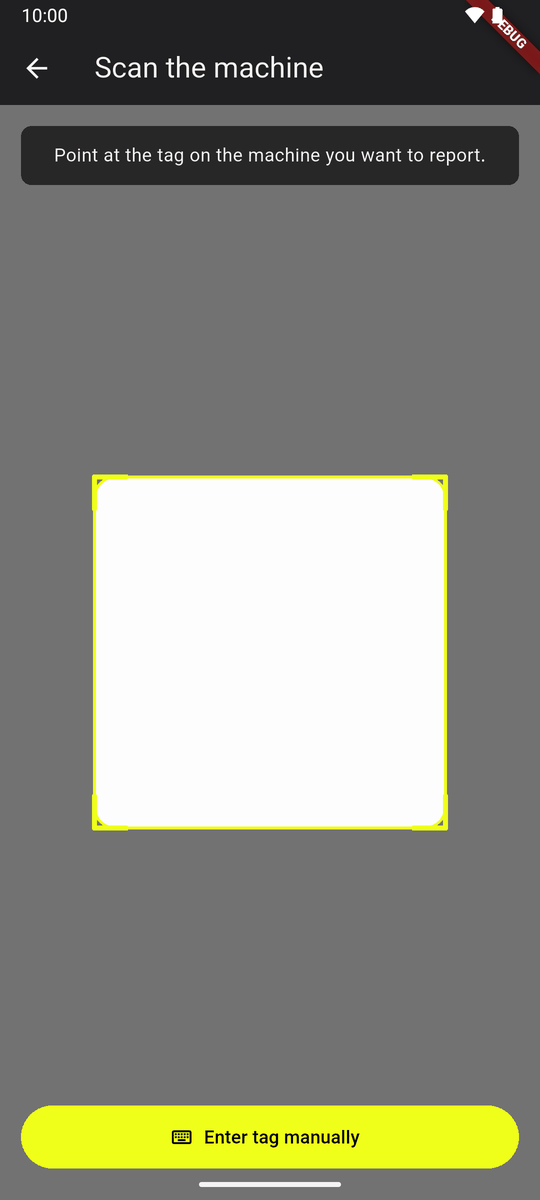
Scan the machine The machine is at the top, with who will be told. Under What is wrong? describe it.
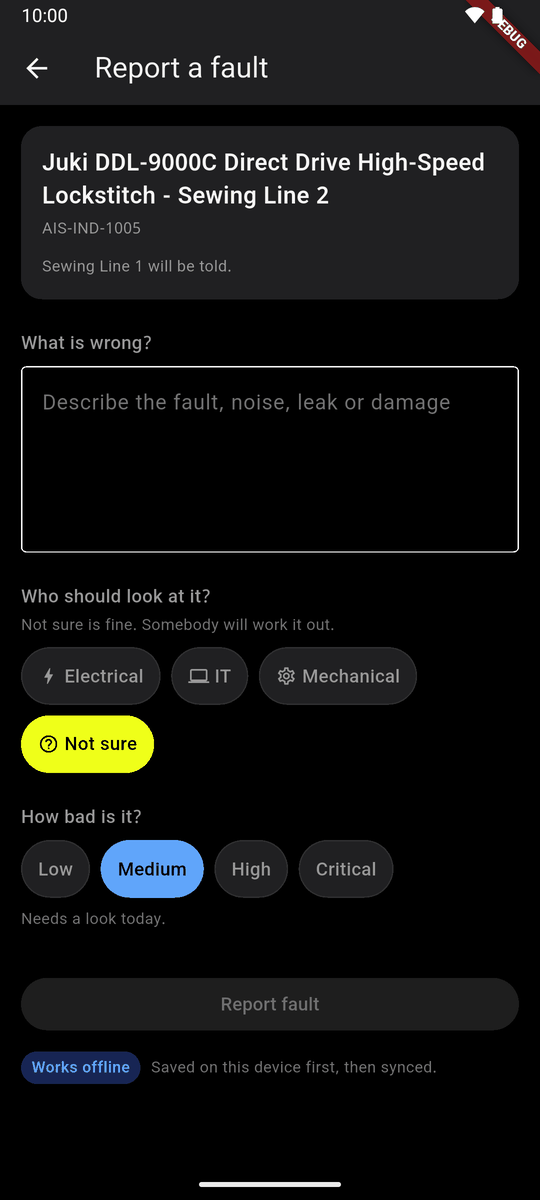
Report a fault Who should look at it? Tap the kind of work: Not sure is fine, somebody will work it out. How bad is it? Tap Low, Medium, High or Critical. Tap Report fault.
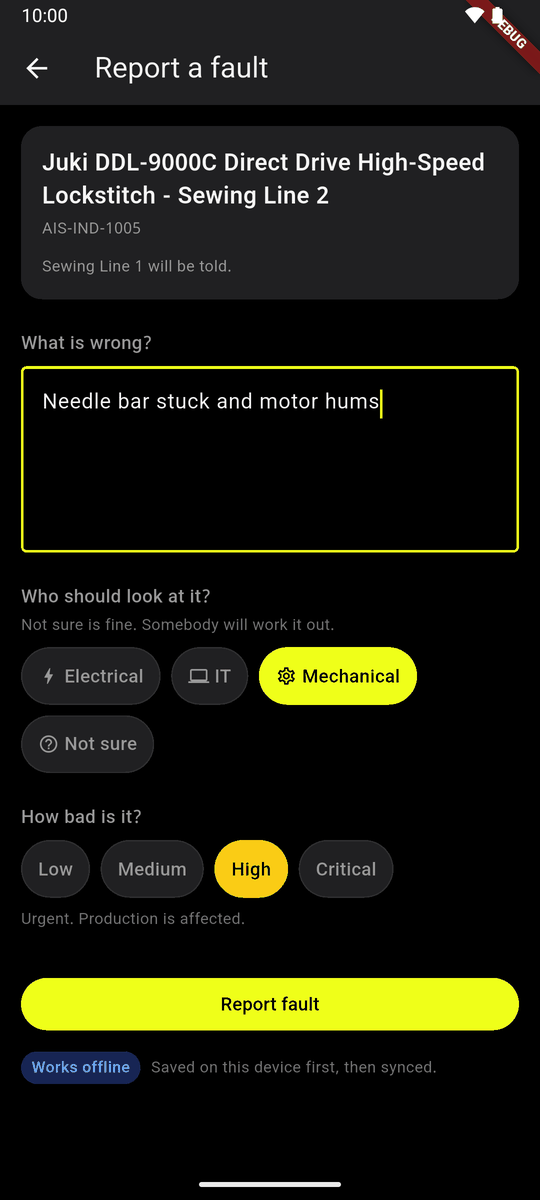
Filled in: Mechanical, High
Works offline: with no signal it is kept on the phone and sent later. On a machine's page you can also tap Report a new fault.
Machines to fix
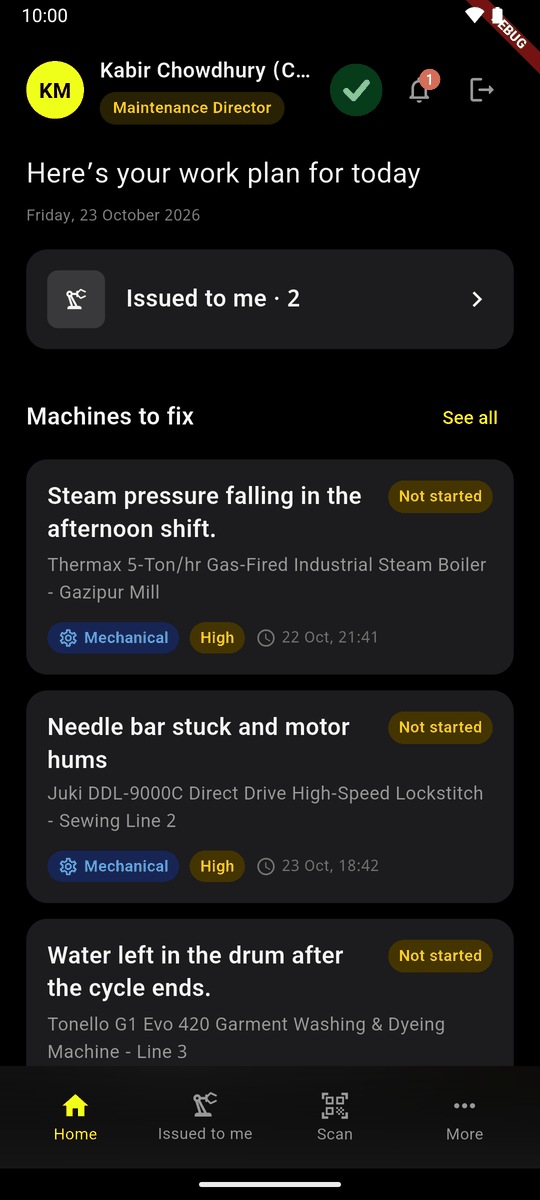
A maintenance manager's Home has Machines to fix: faults nobody has started (Not started) and repairs in hand. See all opens the full list.
Machines to fix The full list has My trades (the kinds of work you cover), All trades and History.
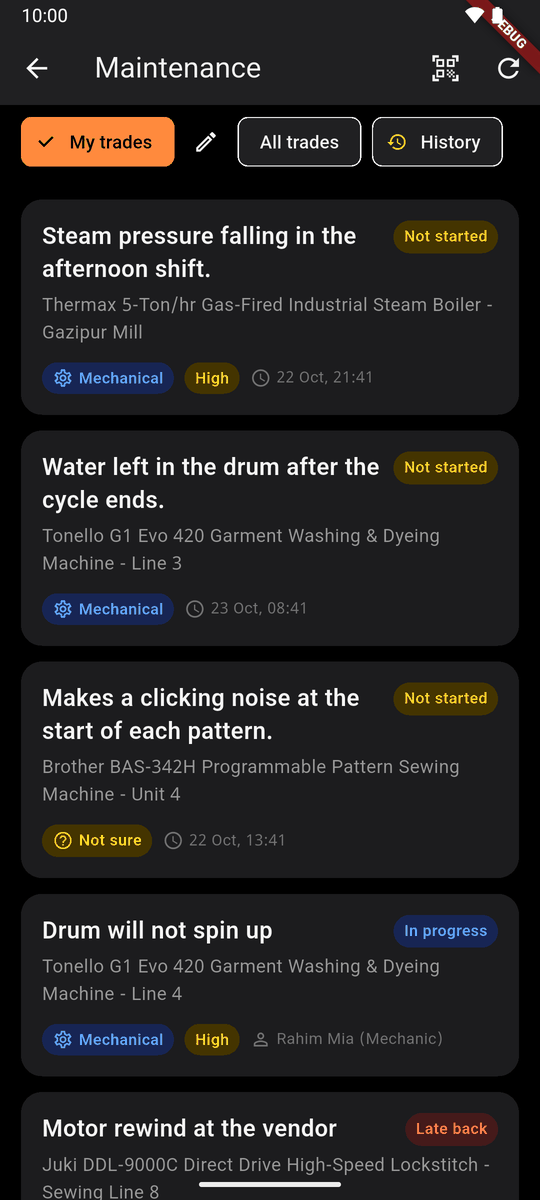
Maintenance: My trades, All trades, History Tap a fault. Tap Start repair. Or Not needed, with a reason that goes back to whoever reported it.
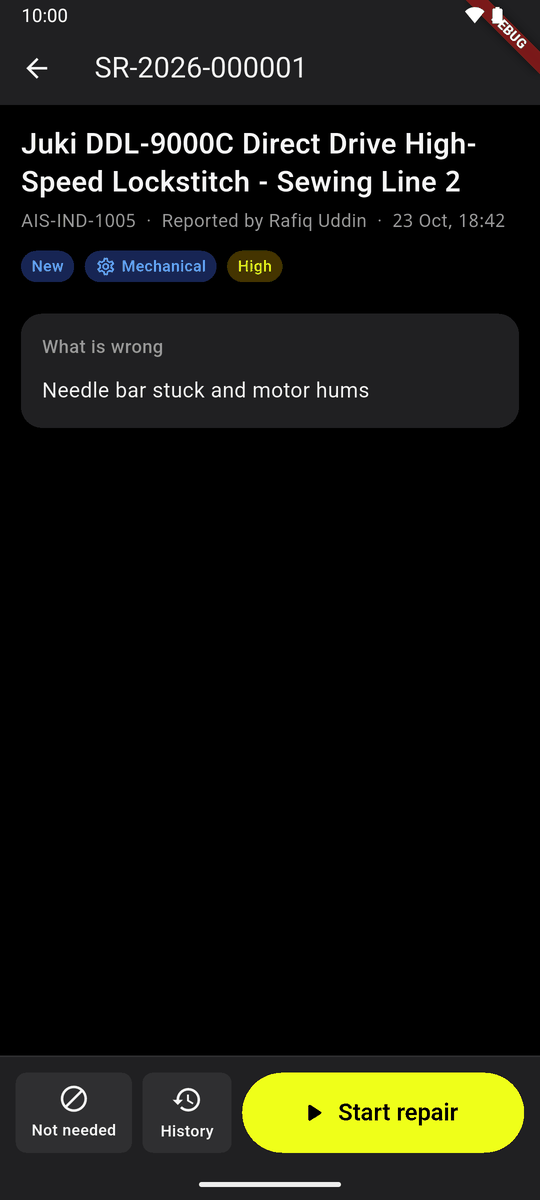
A reported fault: Start repair
A repair
The repair is yours: Repair started. It is yours. At the bottom: Waiting, Send out, Fixed.
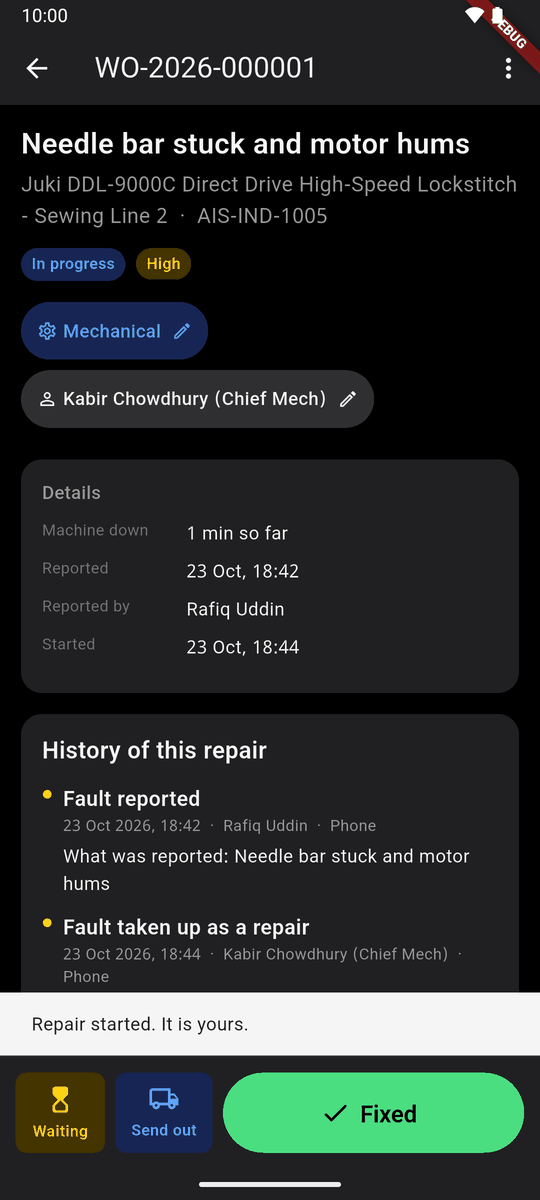
A repair, in progress Waiting asks What is it waiting for? Parts, A specialist, Something urgent came up, The machine to stop, Something else. It is a mark only.
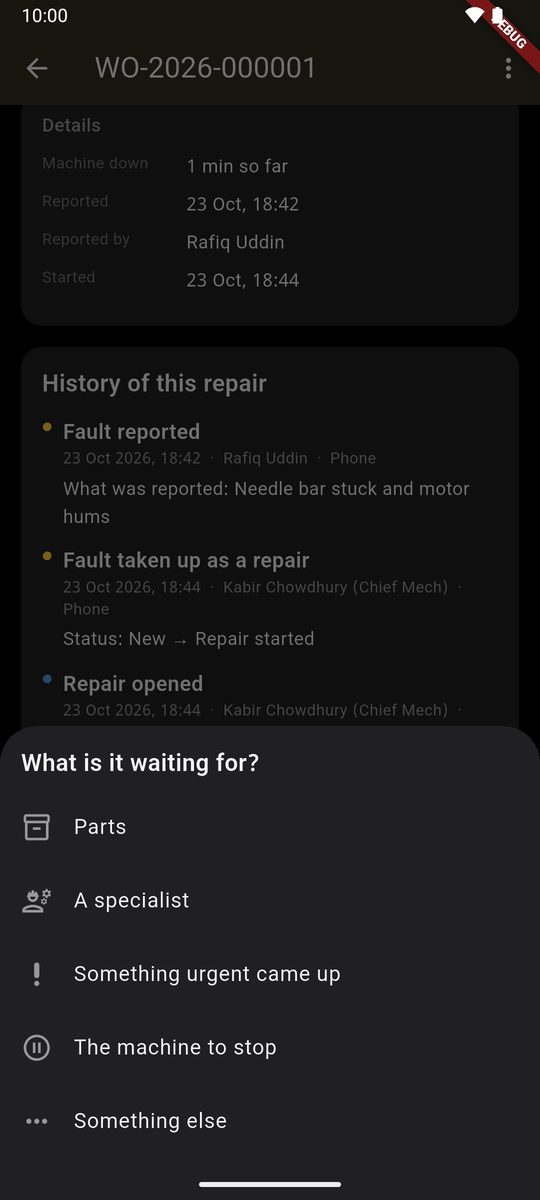
What is it waiting for? 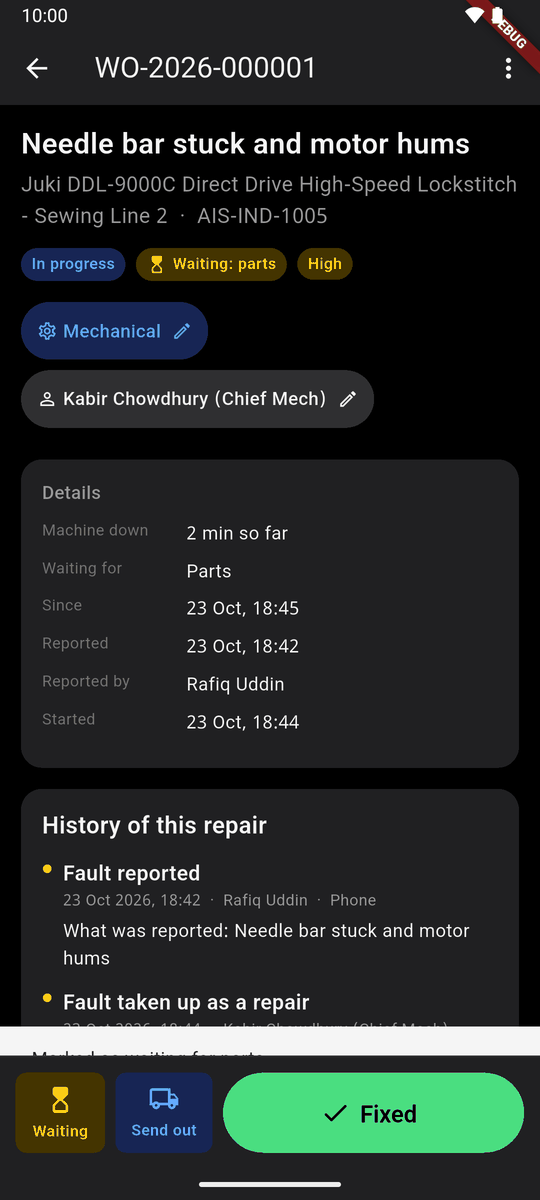
Waiting: parts Send out: the machine goes to a vendor. Give the day it is promised back. When it comes back, mark it back.
Finished? Tap Fixed. What did you do? You can leave it empty; a line helps whoever gets this machine next. The downtime is counted for you. Tap Fixed.
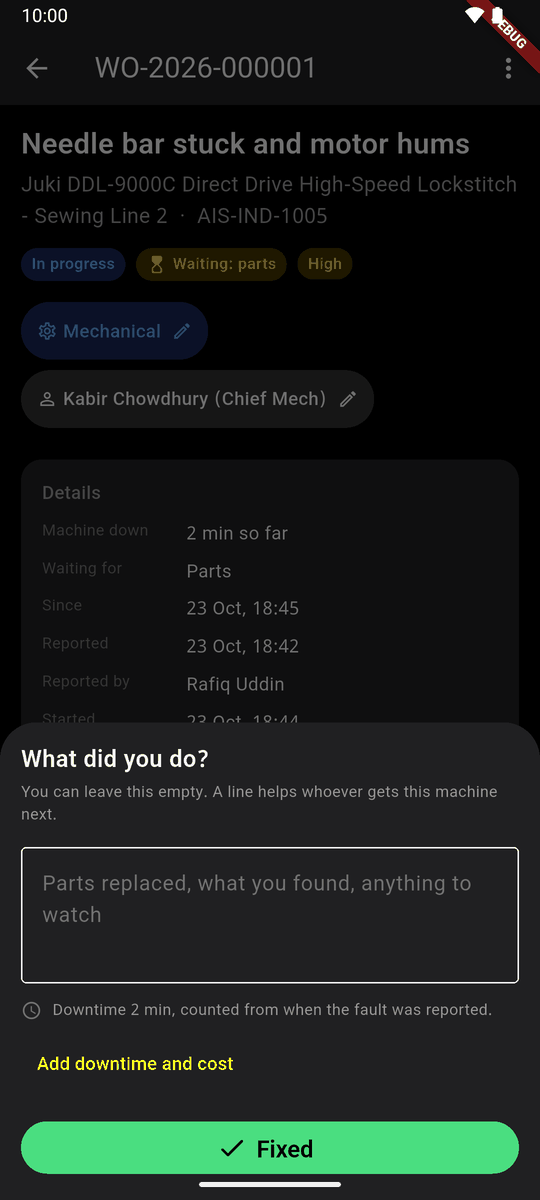
What did you do? 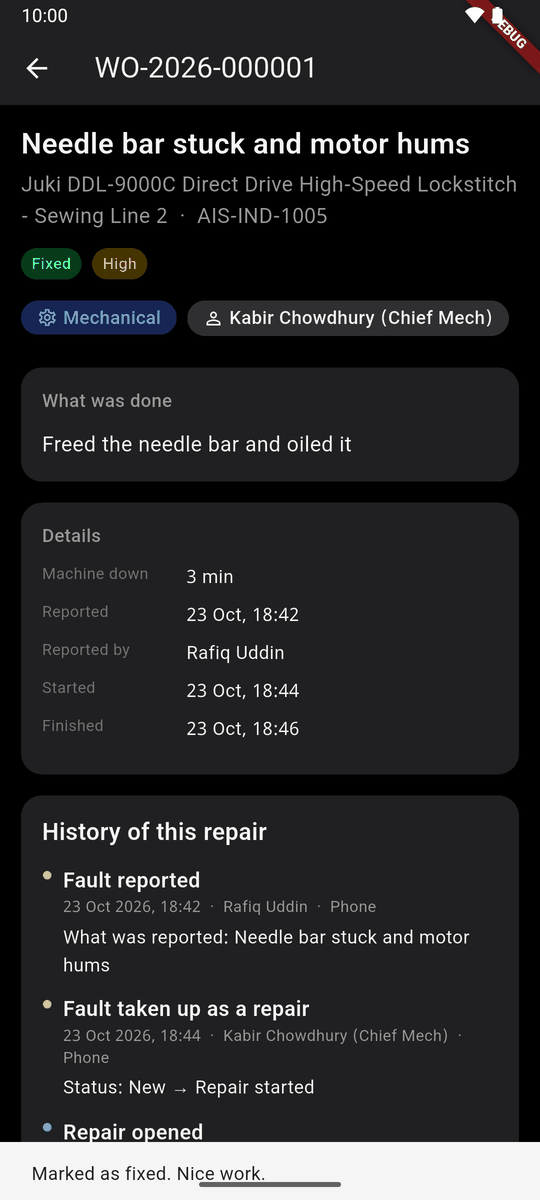
Fixed The ⋮ menu has Recommend scrapping and Cancel this repair.
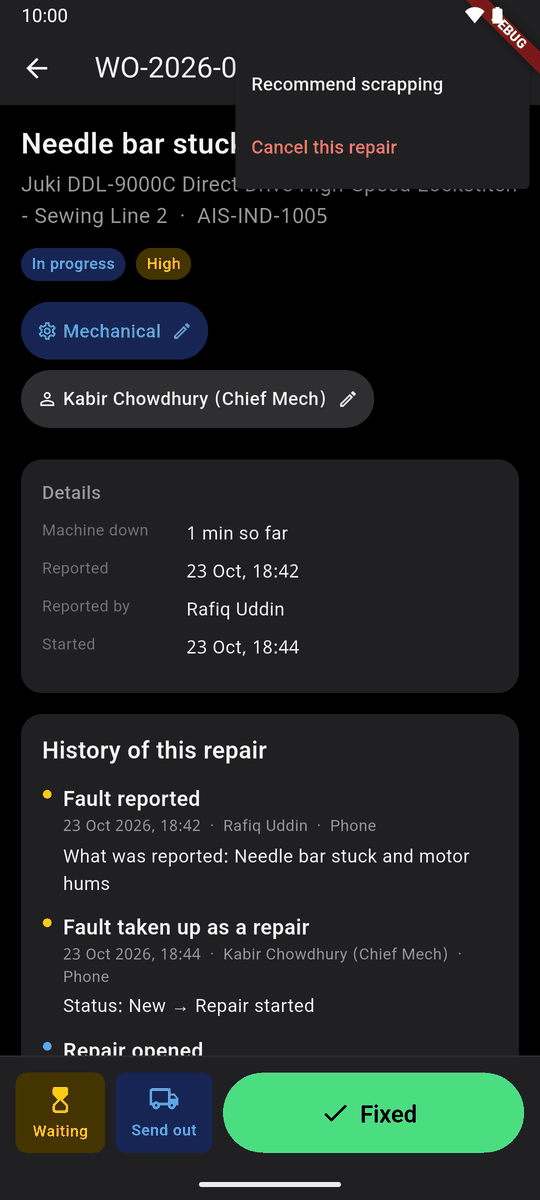
The menu
Changes to a repair are kept on the phone and sent.
Steps
A repair may pass through several people in order (for example: mechanic, then electrician, then test run). Each step is for a kind of work; whoever covers it is told when its turn comes. A repair is not finished while a step is left. Steps are added on the website, on the repair's page.
It has stopped
Some work can be done only when the machine is stopped. Such a repair is marked Waiting: machine to stop.
The repair says so.
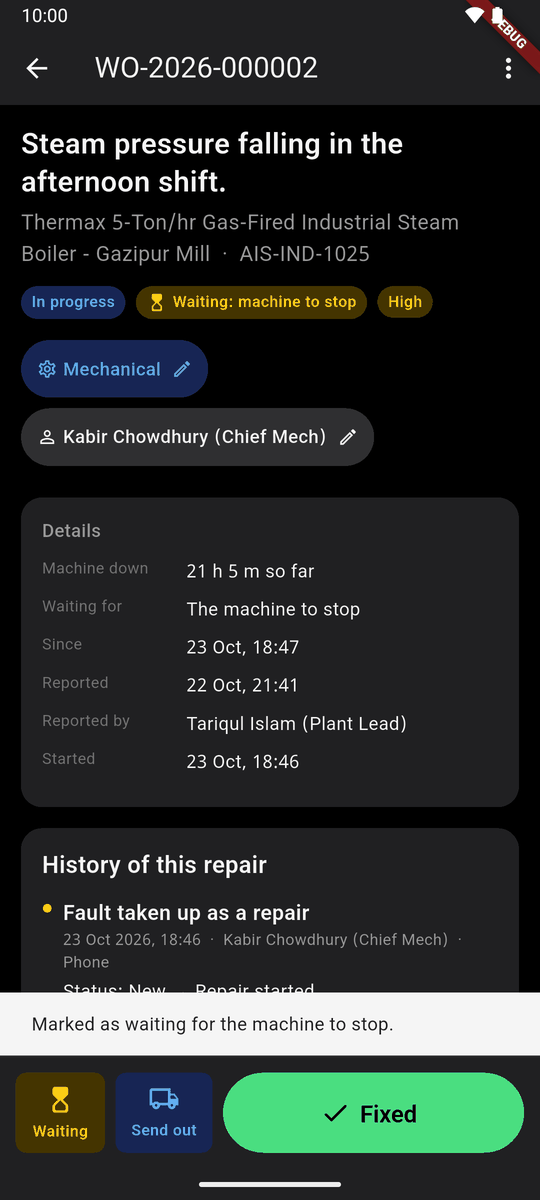
Waiting: machine to stop When the machine stops, anybody at it scans it. Its page says 1 repair is waiting for this machine to stop. Tap It has stopped.
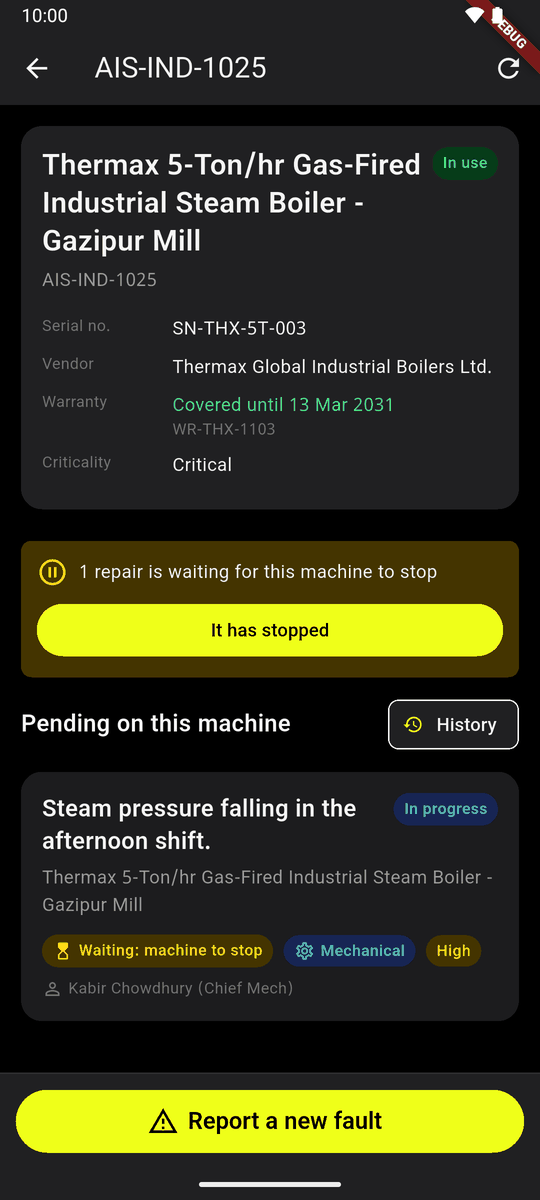
It has stopped Has it stopped? Tap the answer (here Yes, it can be worked on now; a site with stop reasons lists them).
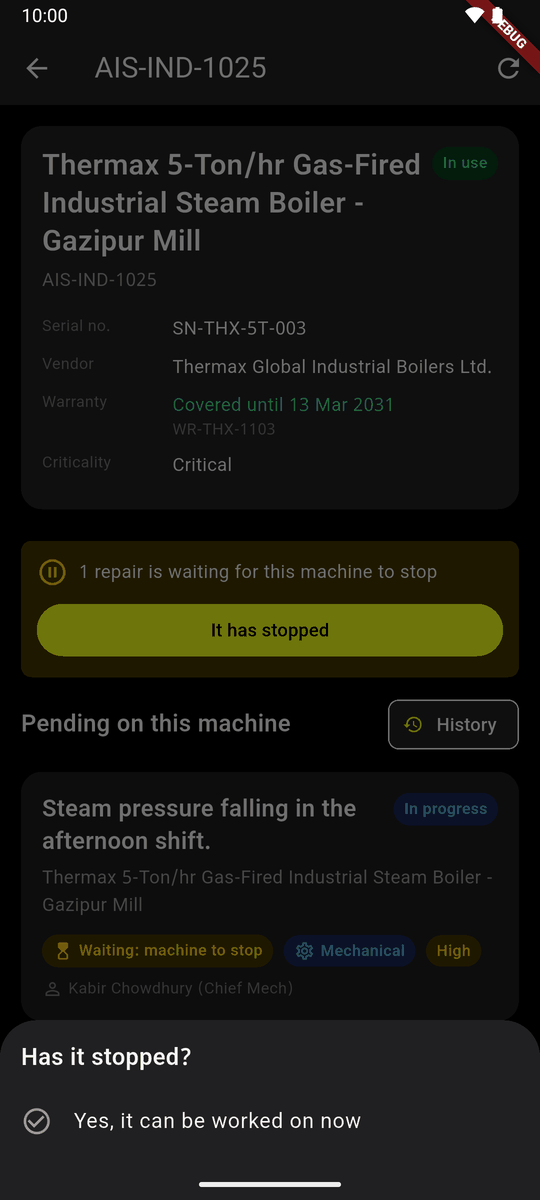
Has it stopped? Whoever has the repair is told at once.
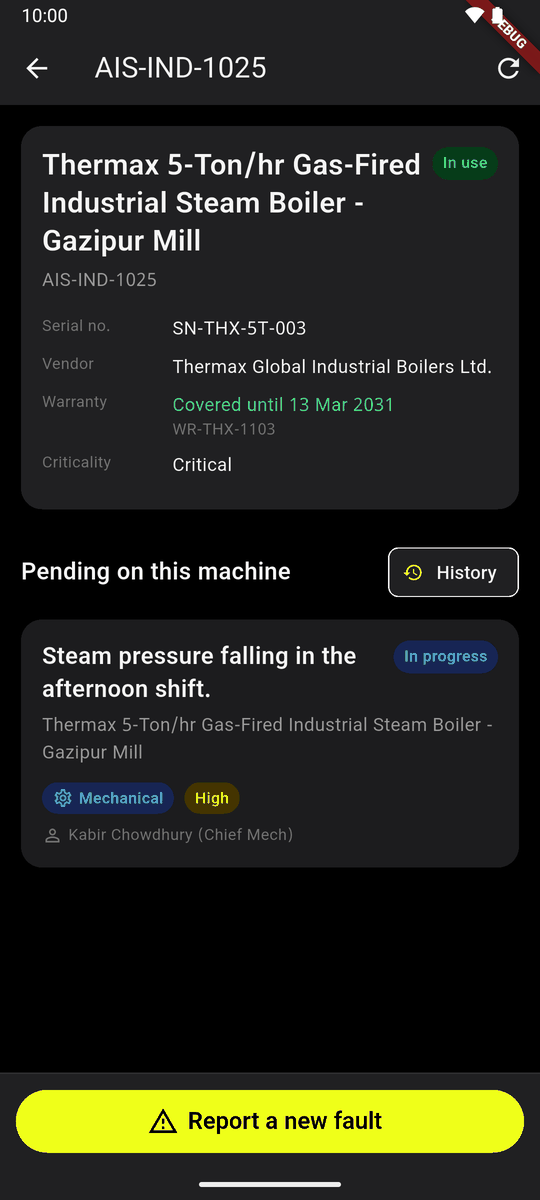
The repair is no longer waiting
It needs a signal: it is about the machine now.
Planned work
Work done by the calendar, for a kind of machine or one machine. It is set on the website (Maintenance → Planned work). As a machine's day comes near, AIS opens an ordinary repair for it, which you see in Machines to fix. The next one is counted from when the last was done.
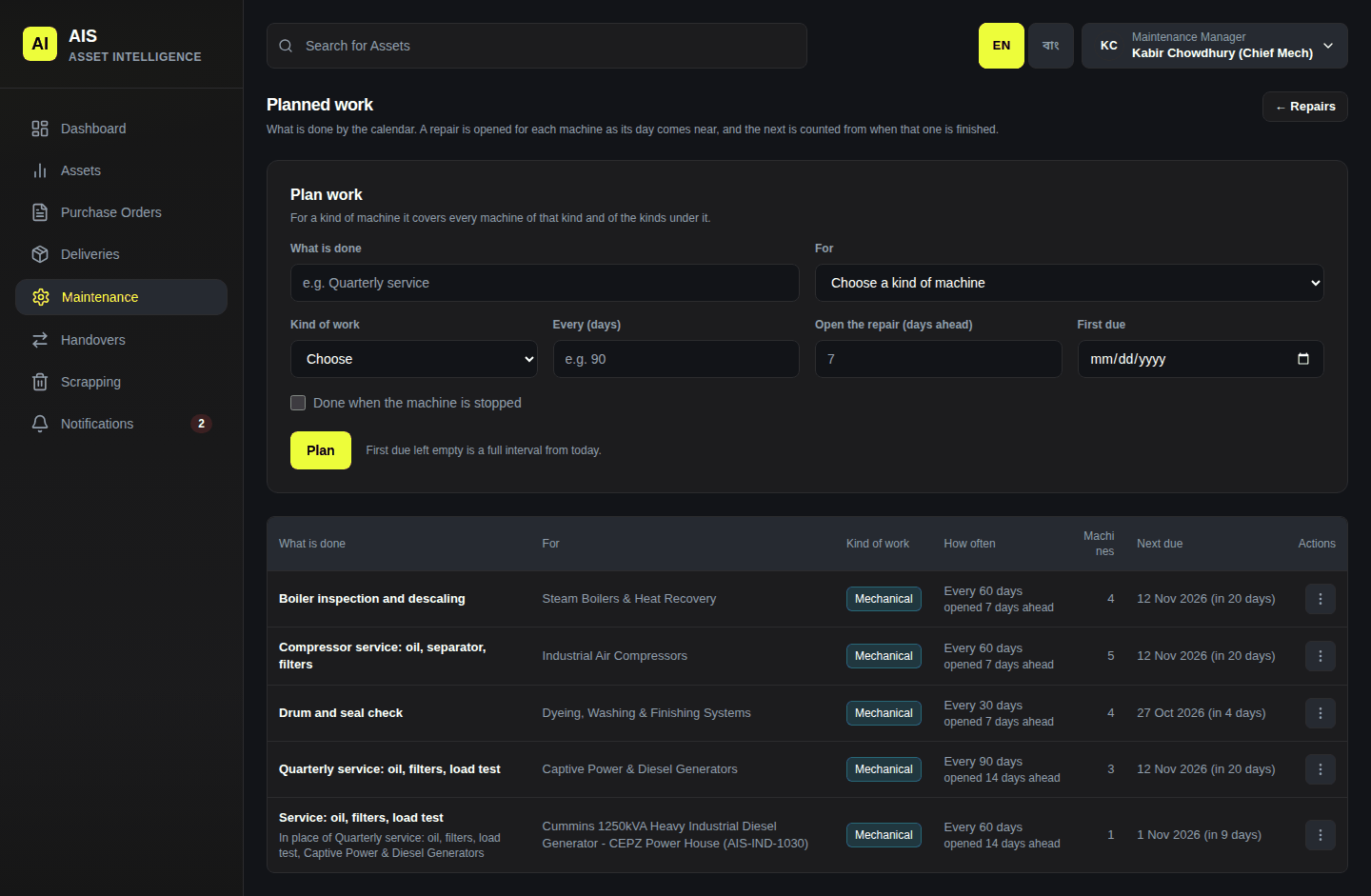
On the website
All repairs, the faults nobody has started, planned work, kinds of work, breakdowns and stop reasons are under Maintenance (chapter 13).