Chapters
Manual homeChapter 5
Tags, serials and details
Who: the office: an inventory manager, a delivery receiver or an administrator. These are the OFFICE WORK rows on Delivery received. None of them stops the floor.
Print tags
On Delivery received, tap Print tags. Under it, For 13 machines says how many machines still need a tag. The sheet Print tags opens with that number filled in. Change it with − and + if you like.
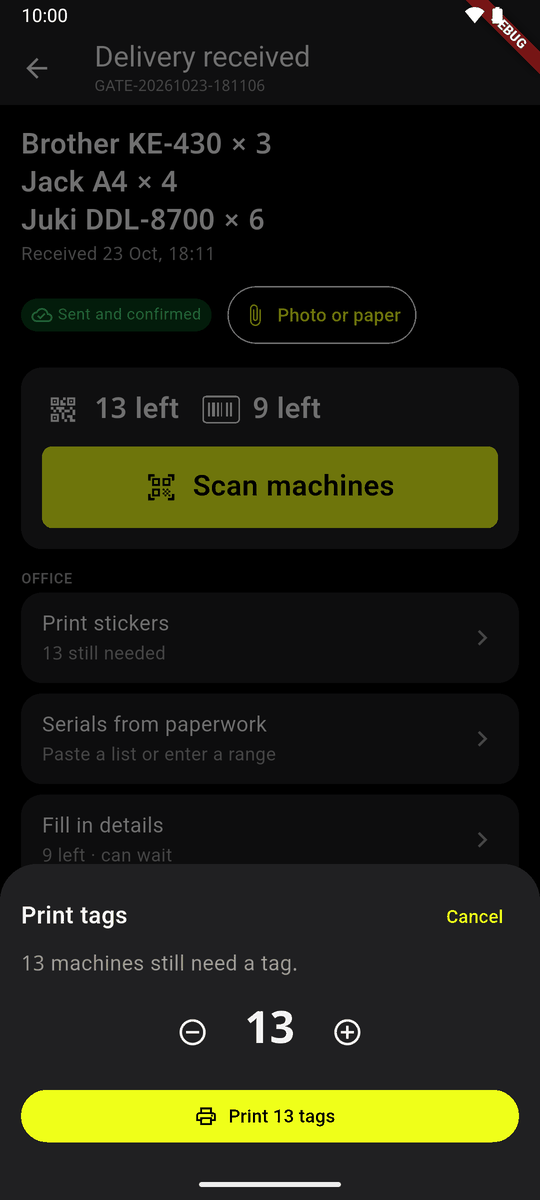
Print tags: 13 machines still need a tag Tap Print 13 tags. The phone makes a sheet of new AIS codes and opens the phone's own print screen. Choose the printer and print.
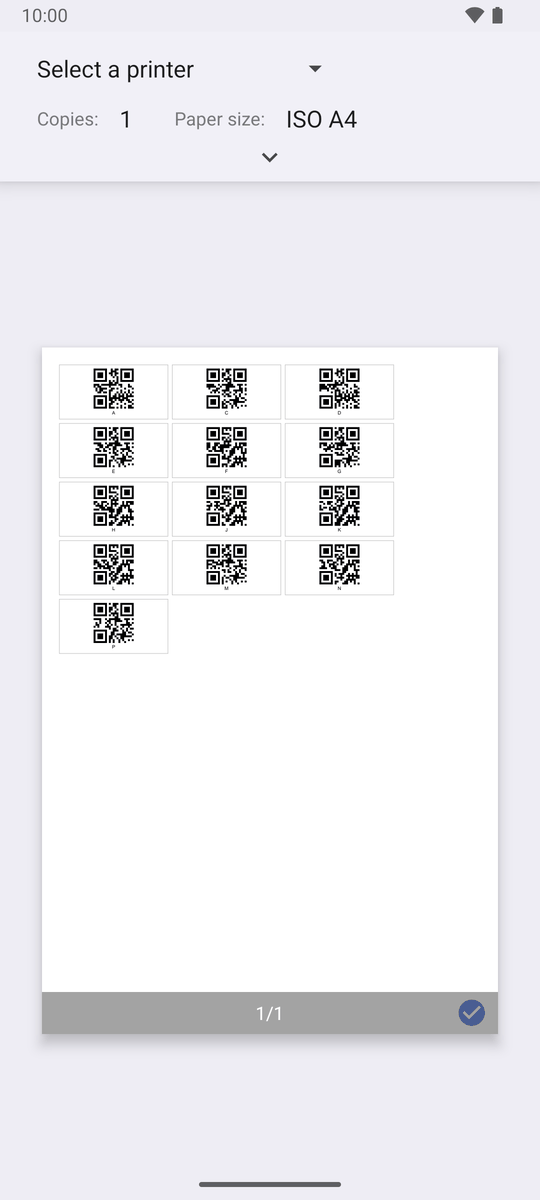
The sheet of tags, in the phone's print screen Anybody can put these tags on any machine; the sheet can be shared.
You can also print from More → Print asset tags. At most 500 at a time. The row goes away once every machine has a tag.
Serials from paperwork
When the supplier's packing list has the serial numbers, put them in here instead of scanning every serial number on the machines.
Tap Serials from paperwork. Which model are the serials for? Tap the model.
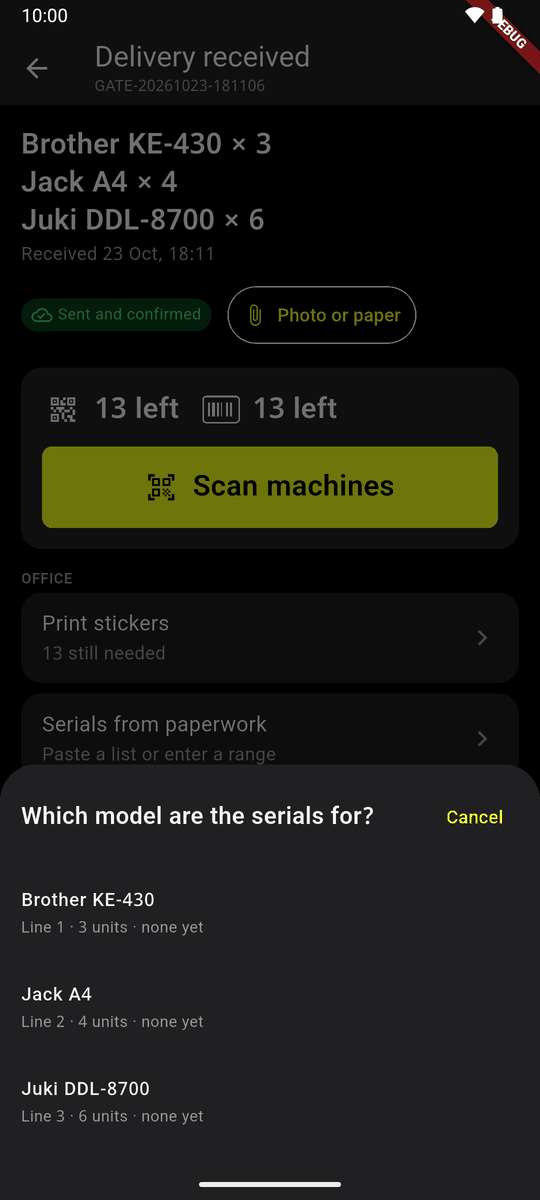
Which model are the serials for? Serial numbers shows how many have a serial and each unit. Choose Paste a list or Enter a range. A model with no serials at all: tap No serial numbers.
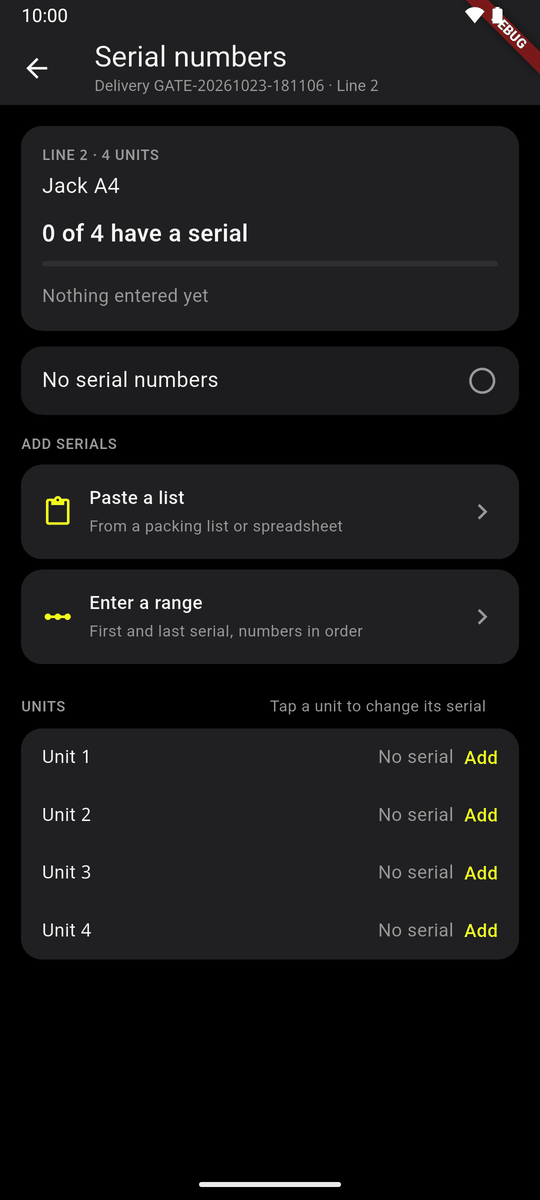
Serial numbers: the ways to add them Paste a list: copy the serials from the packing list or a spreadsheet and paste them in. Spaces, commas or new lines between them all work. It counts them (4 serials found). Tap Check 4 serials.
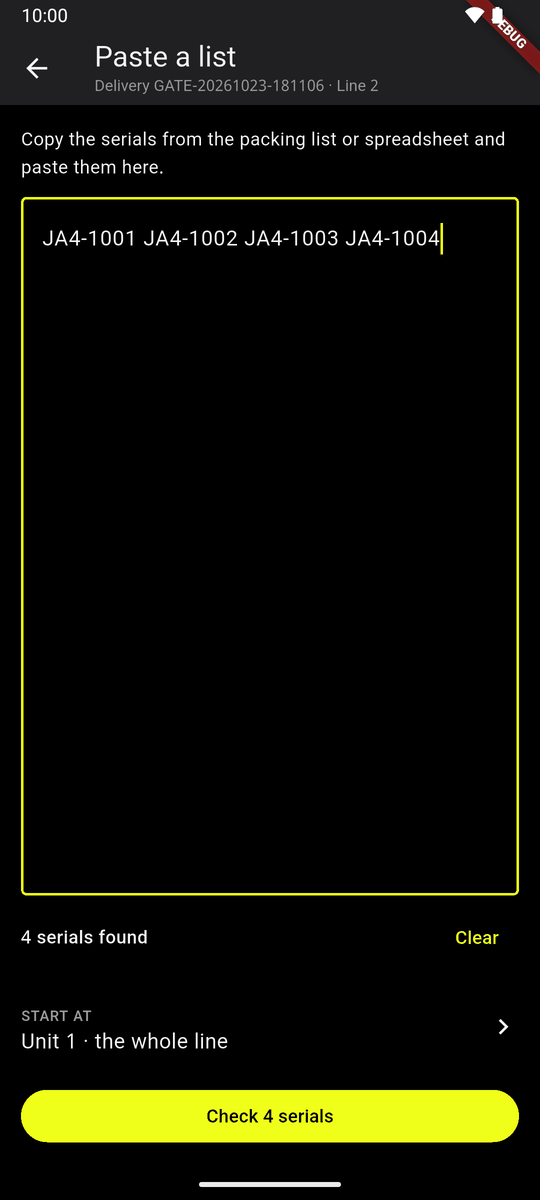
Paste a list Check before saving shows which unit each serial goes on, and the checks: repeats, serials other machines have, units that had one. Tap Save 4 serials, or Back to the list.
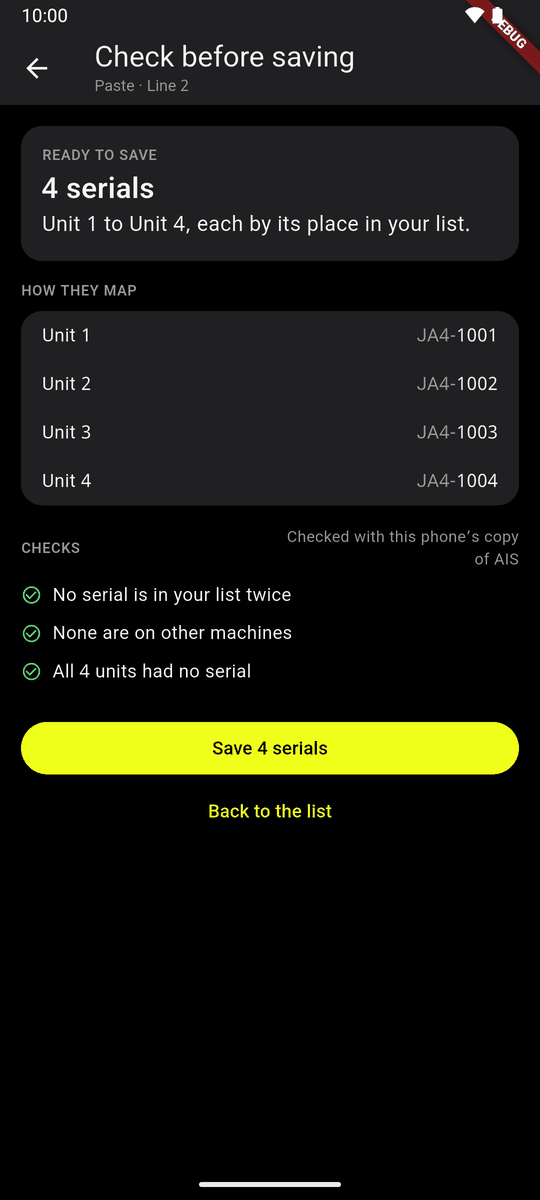
Check before saving Done: All 4 have a serial, and where it has got to, for example Sent and confirmed. Tap a unit to change its serial.
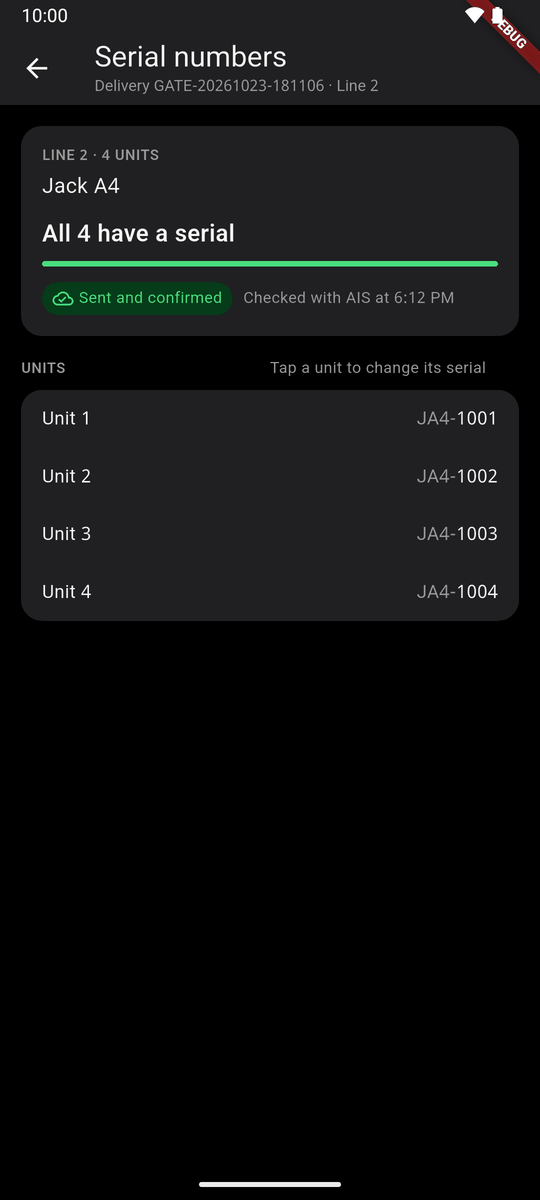
All 4 have a serial
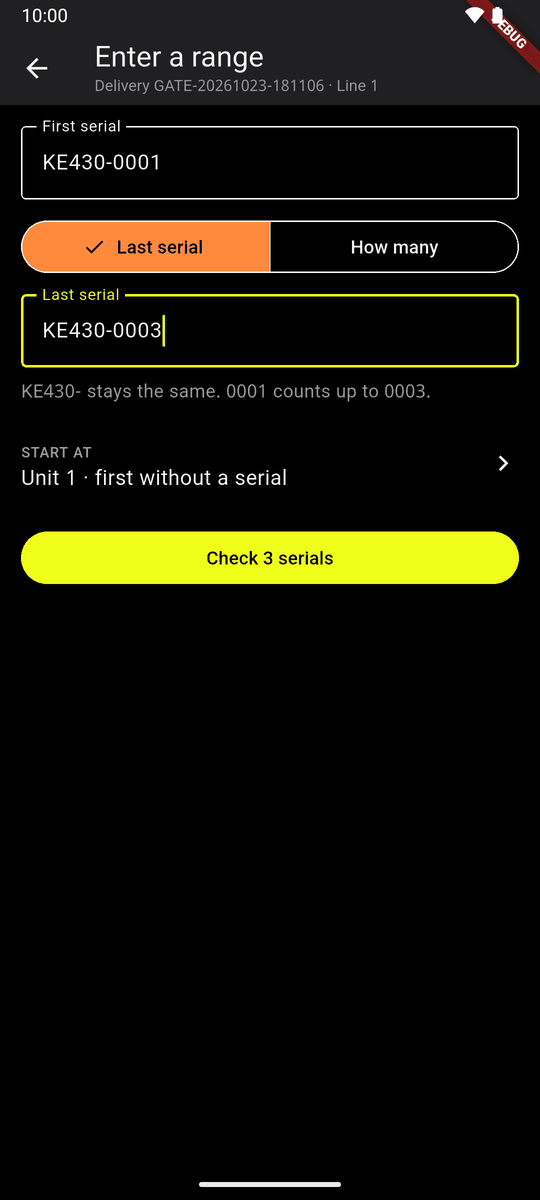
Enter a range
Type the First serial, then the Last serial or How many. The phone says which part stays the same and what counts up. Tap Check 3 serials; the same check follows. Use it only when the serials run with no gaps.
After a pasted list, the floor can scan that model Tags only (chapter 4).
Fill in details
Tap Fill in details. At the top: where it has got to, and how many rows are left (4 left). Whole delivery has the Vendor and where it is Stored at. A padlock means the vendor is locked; only the website changes it.
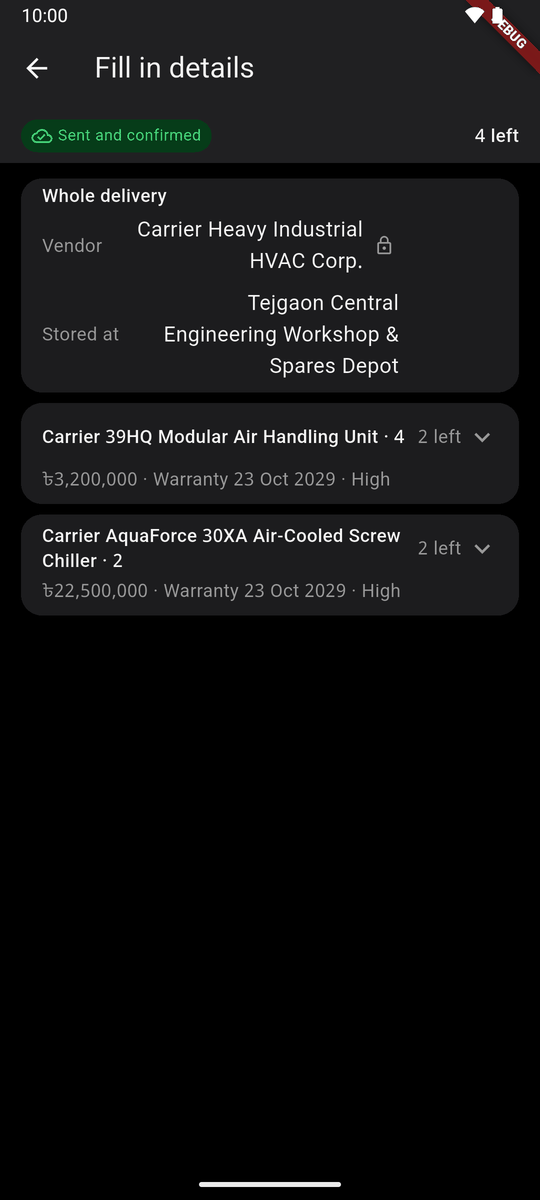
Fill in details Each line folds to one row saying what is filled in, and how many are left. Tap it to open: Model, Brand, Value, Warranty till, Bought on, Criticality. An empty row says Add.
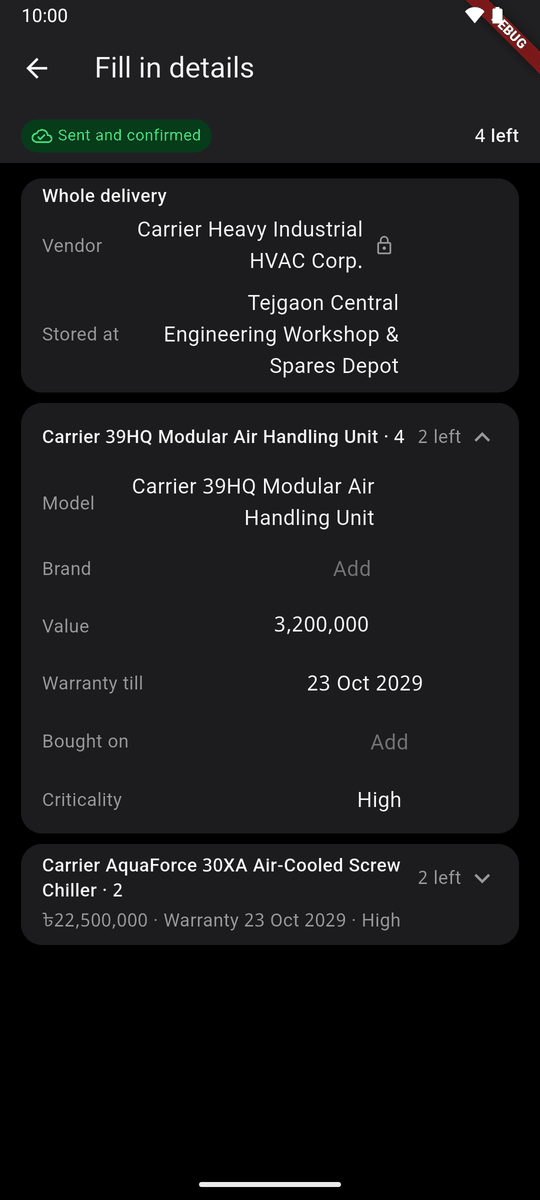
A line opened Tap a row, choose or type. It is saved at once for every machine on that line. The bar at the bottom says Saved, with Undo for five seconds.
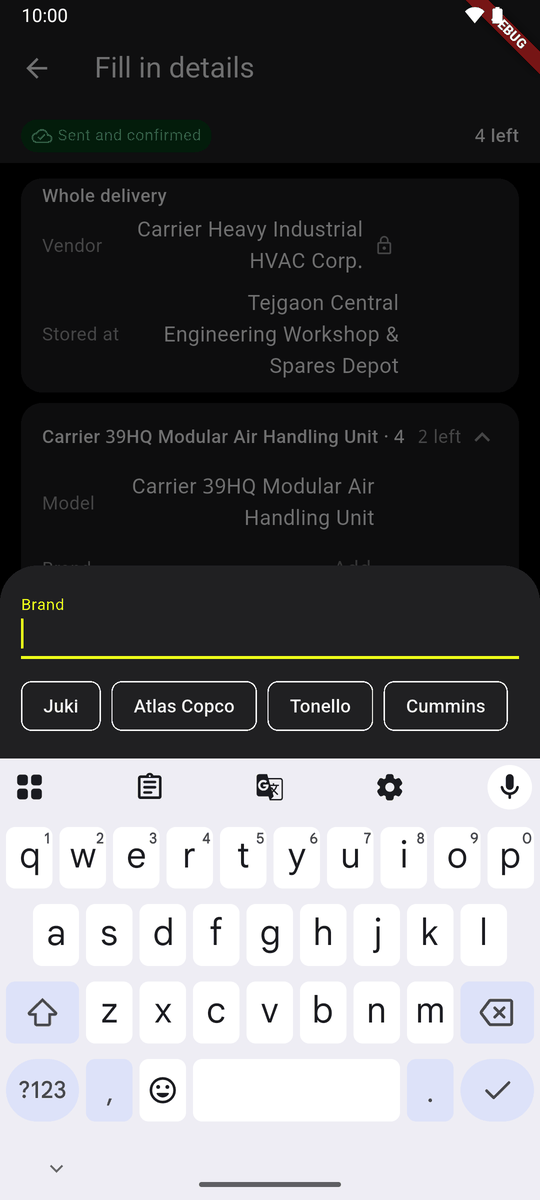
Brand, with suggestions 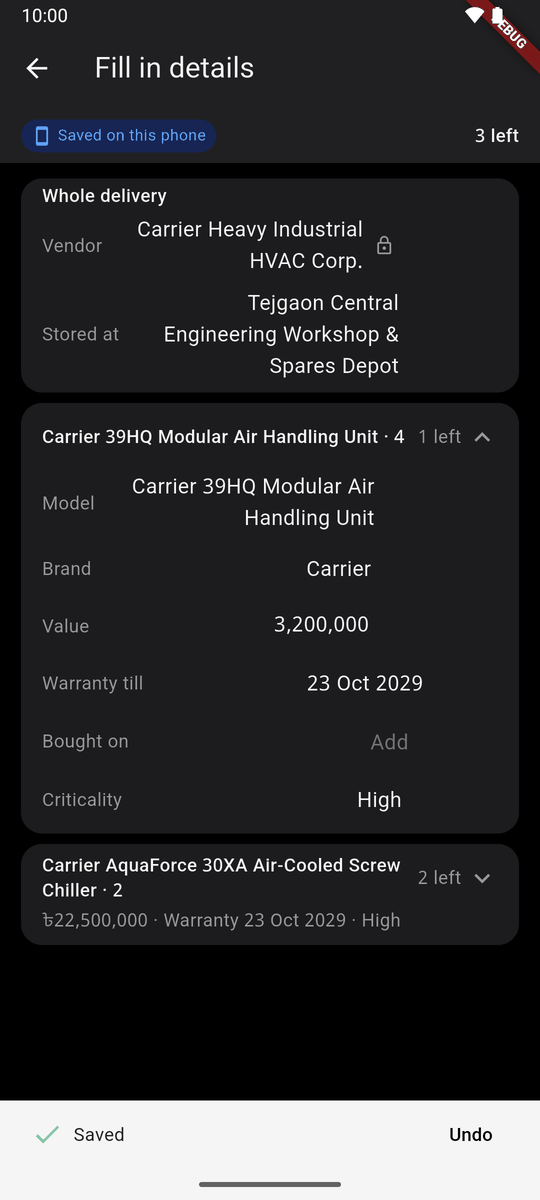
Saved, with Undo Dates come from the phone's calendar. When nothing is left on a line, it has a green tick.
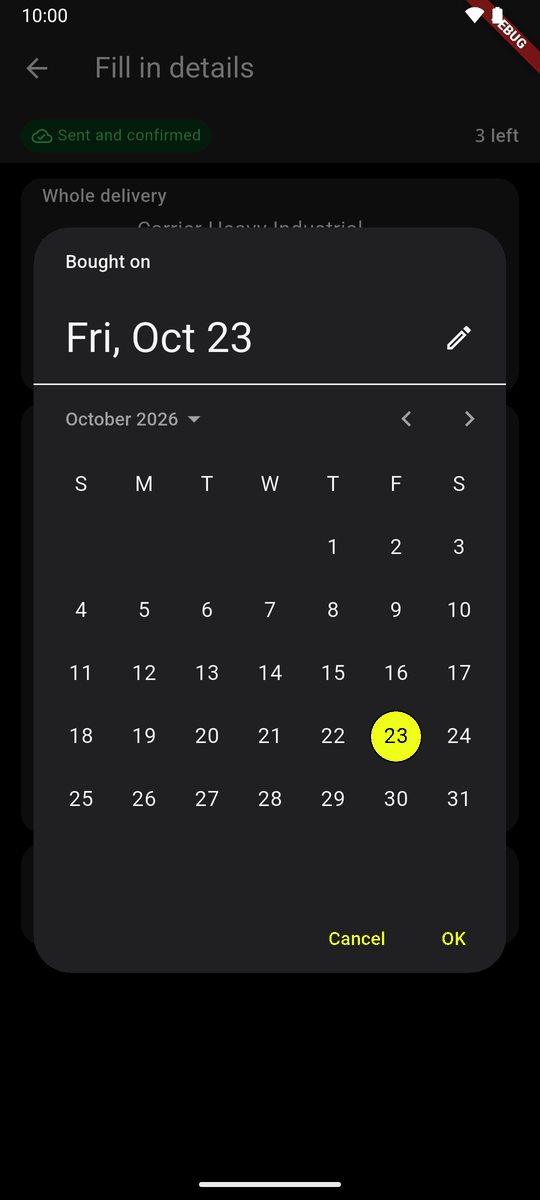
Bought on: the calendar 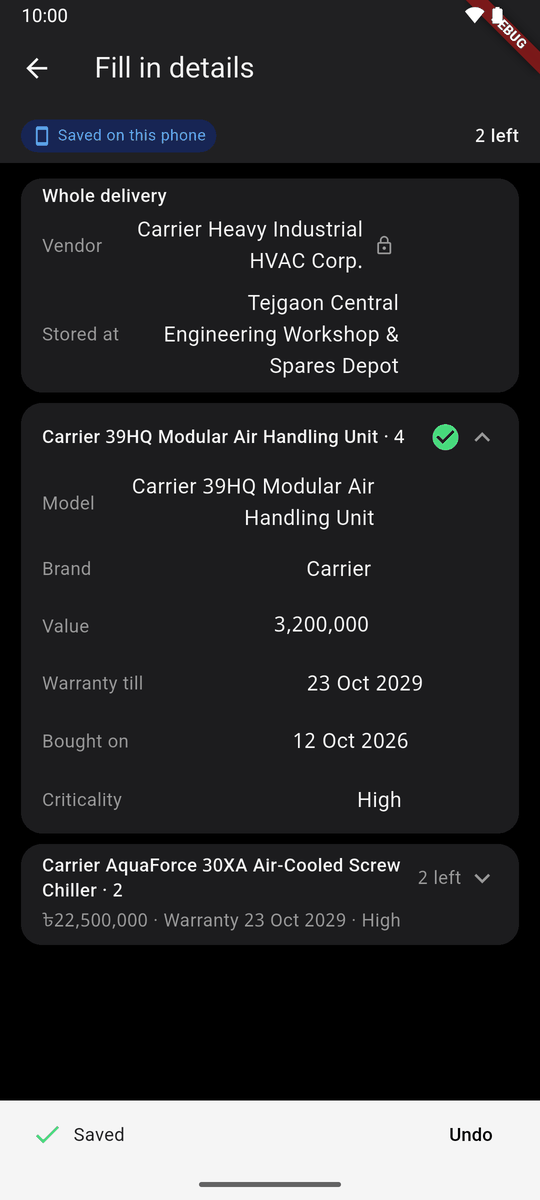
The line filled in
A row somebody else changed first turns red and asks which is right. One machine that differs: change it on its own sheet in the machine list (chapter 3).