Chapters
Manual homeChapter 6
Quantity does not match
Who: a delivery receiver, an inventory manager or an administrator, on the phone. It needs a signal.
When the count at the gate was wrong, change it here. A model's count can be changed once. After that only an administrator can change it again.
Open it
On Delivery received, at the bottom under CORRECTIONS, tap Quantity does not match.
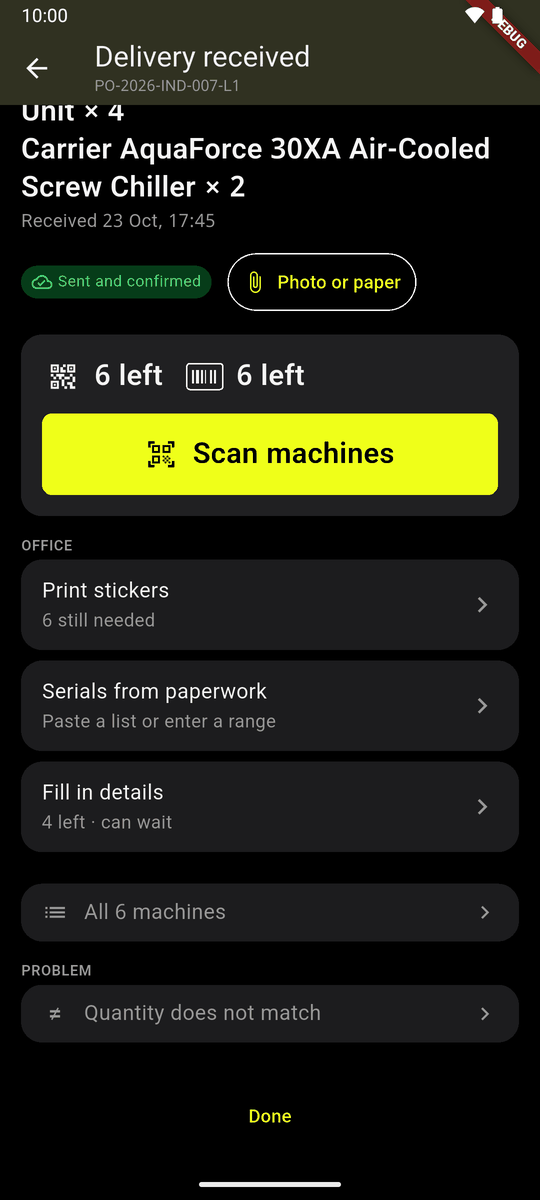
Problem: Quantity does not match If this phone saw a sign of a wrong count, an amber card says so, for example Done was pressed with 2 Juki DDL-8700 still to scan. Is one missing? Its button opens the screen on that model.
Each model has a card: how many were received, scanned and are left to scan, and two buttons: More arrived and Some are missing.
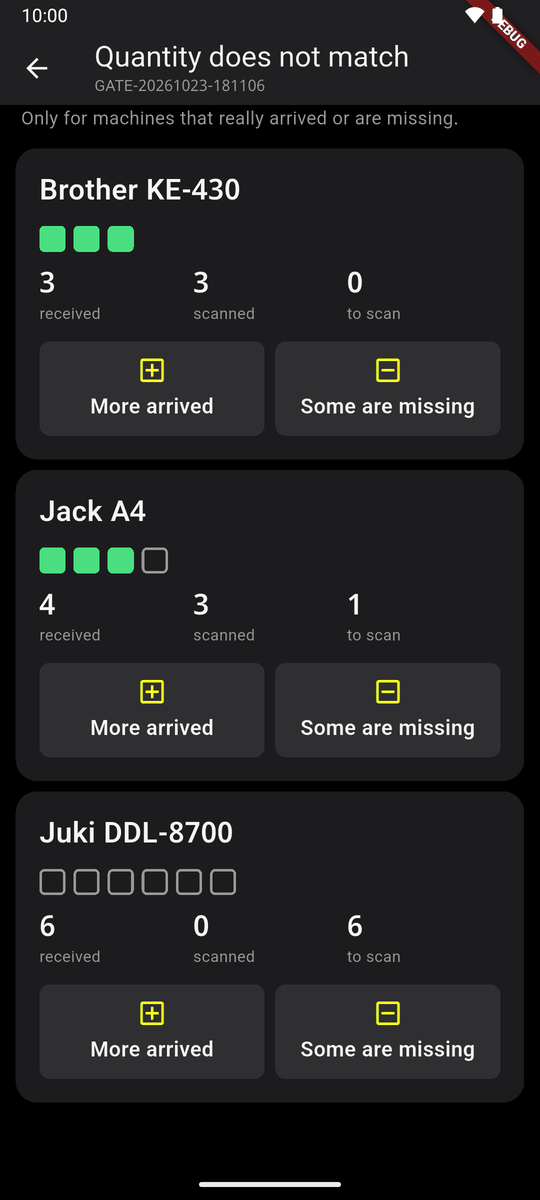
Quantity does not match: a card for each model
More arrived
Tap More arrived. Step the number up with +. The sheet shows the change, for example 3 → 5, and says what will happen.
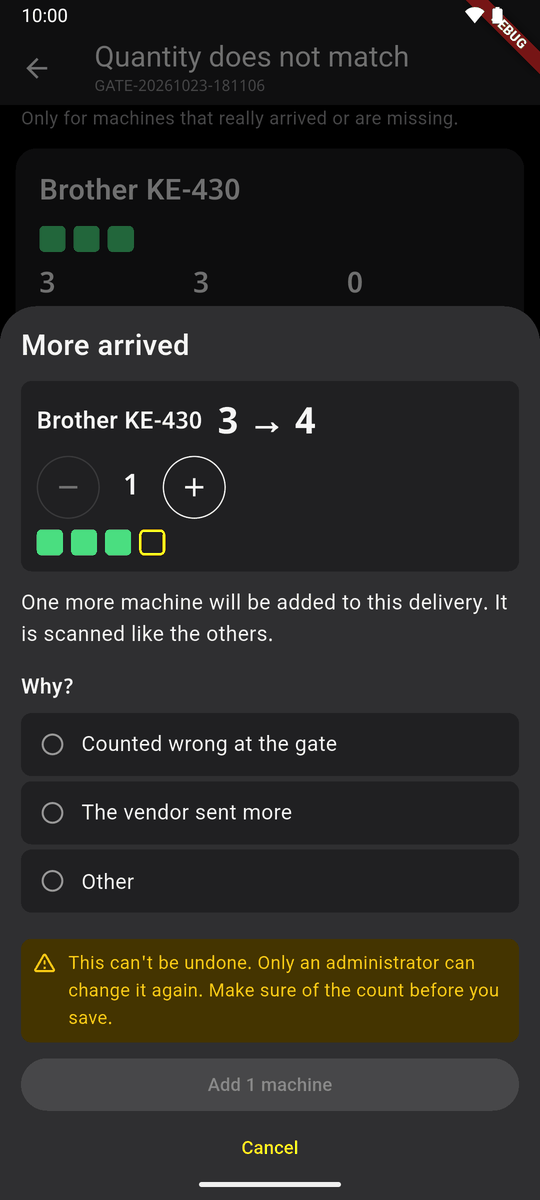
More arrived Under Why? choose the reason: Counted wrong at the gate, The vendor sent more, or Other (with a few words). Read the warning, then tap Add 2 machines.
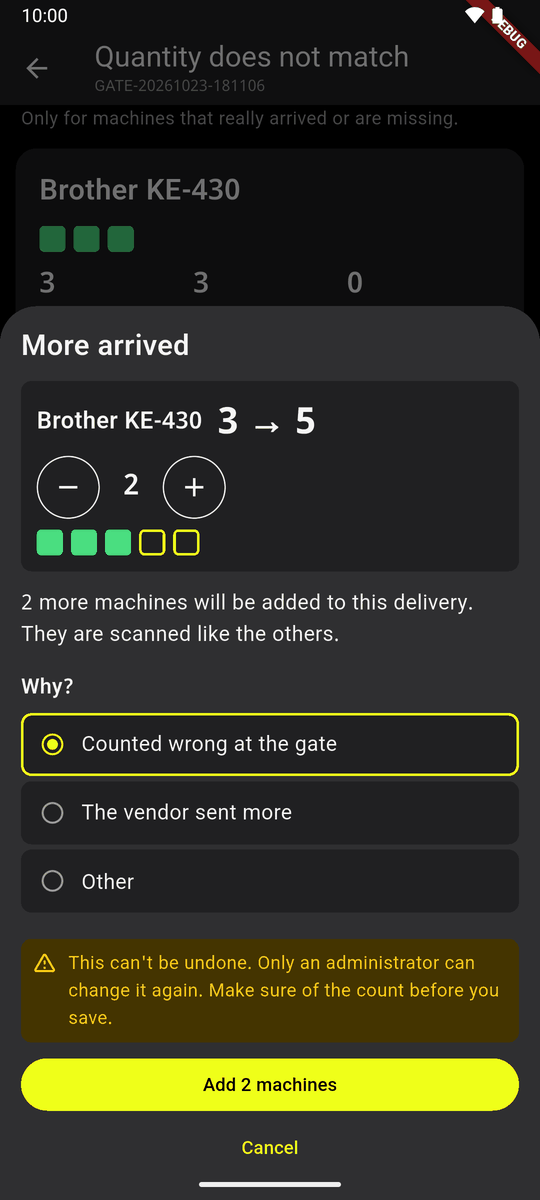
3 → 5, Counted wrong at the gate The phone asks once more: Change the count for good? Tap Yes, change it, or Go back.
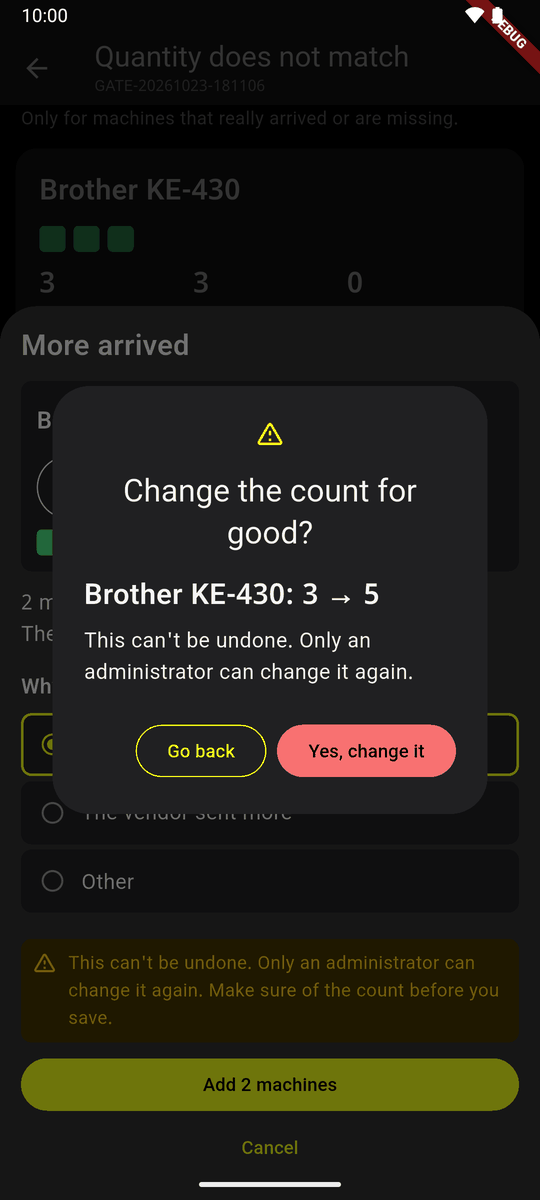
Change the count for good? The new machines are made, with nothing on them yet. Scan them like the others. The model's card now shows who changed it and when, in place of the buttons: Only an administrator can change it again.
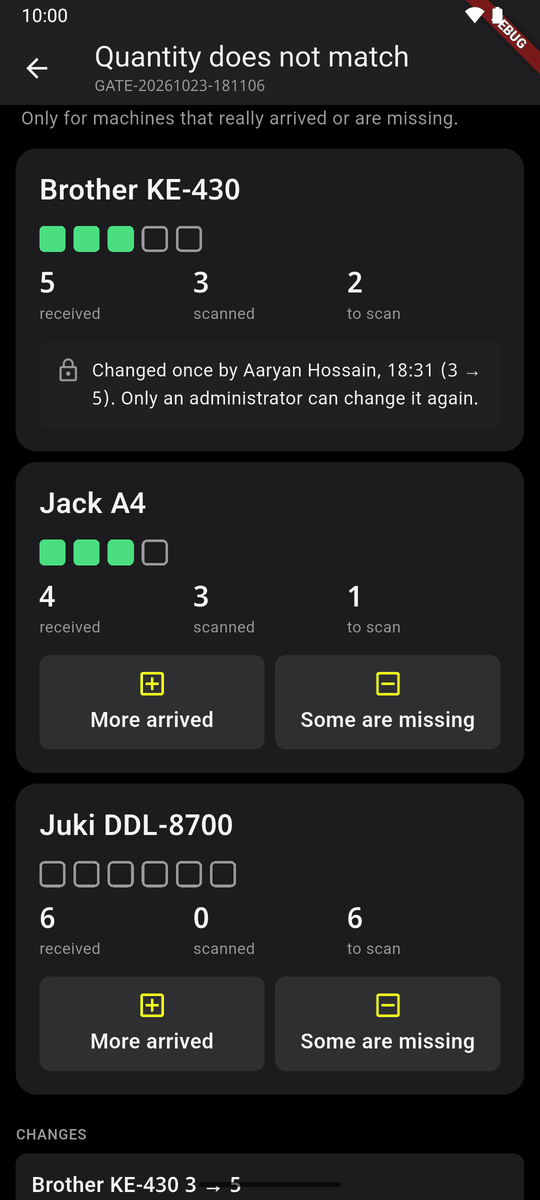
Changed once: the lock
Against an order you can go past what the order still has to come, when the vendor sent more than was ordered. The sheet then says so, for example 2 over the order.
Some are missing
Tap Some are missing. Machines with nothing on them are taken off first.
If every machine of the model already has a code, Which ones are missing? lists them by tag. Tick the ones that are not there, then tap Pick 1.
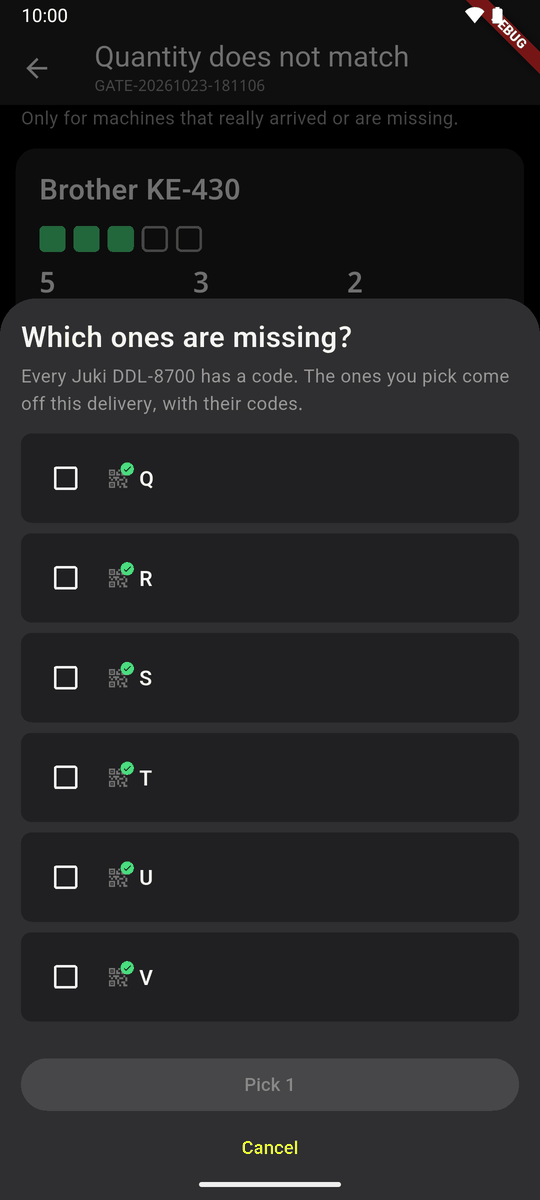
Which ones are missing? 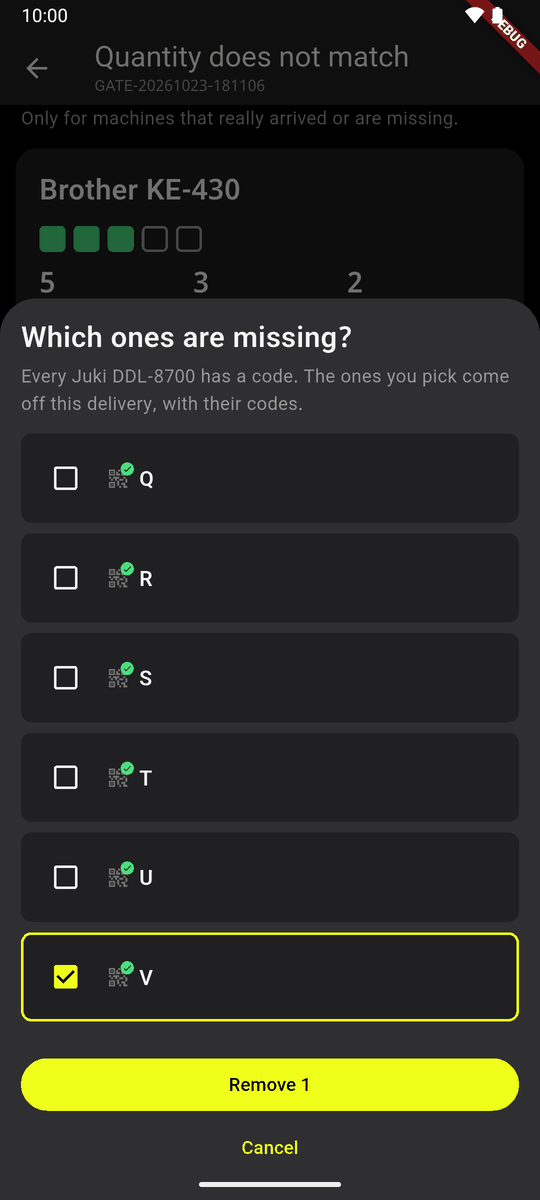
One ticked: Pick 1 The sheet shows the change, for example 6 → 5, and what to do: If it turns up, peel tag V off. Choose the reason (Counted wrong at the gate, The vendor sent fewer, Sent back to the vendor, Other) and tap Remove 1 machine. Confirm as above.
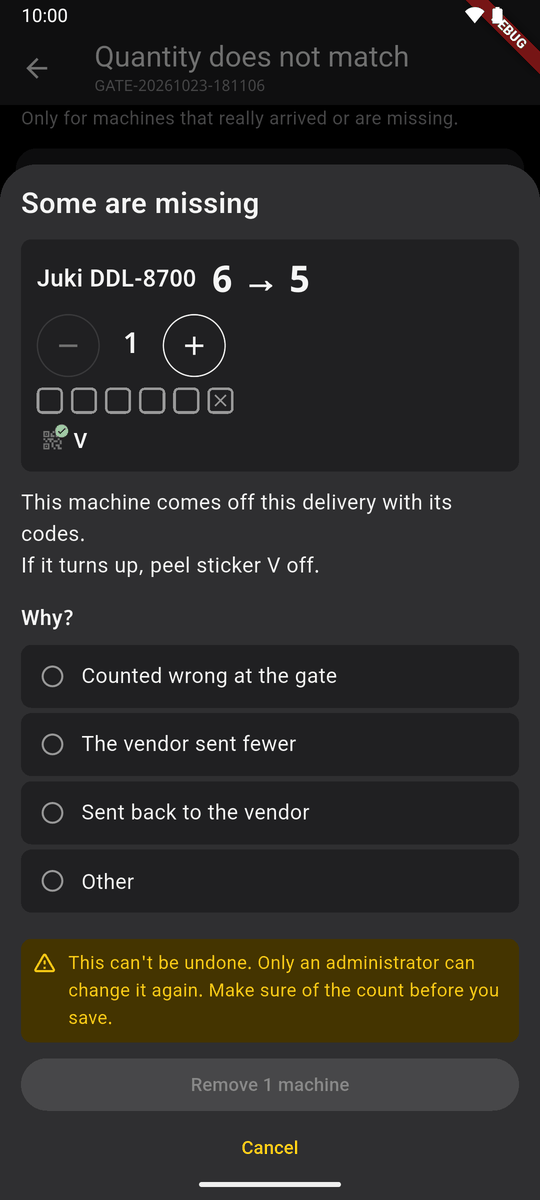
Some are missing: 6 → 5
A model can go down to 0. It then reads × 0 was 1 on Delivery received.
After a change
Every change is listed under Changes, newest first: from and to, why, who and when. The website shows them on the delivery's page.
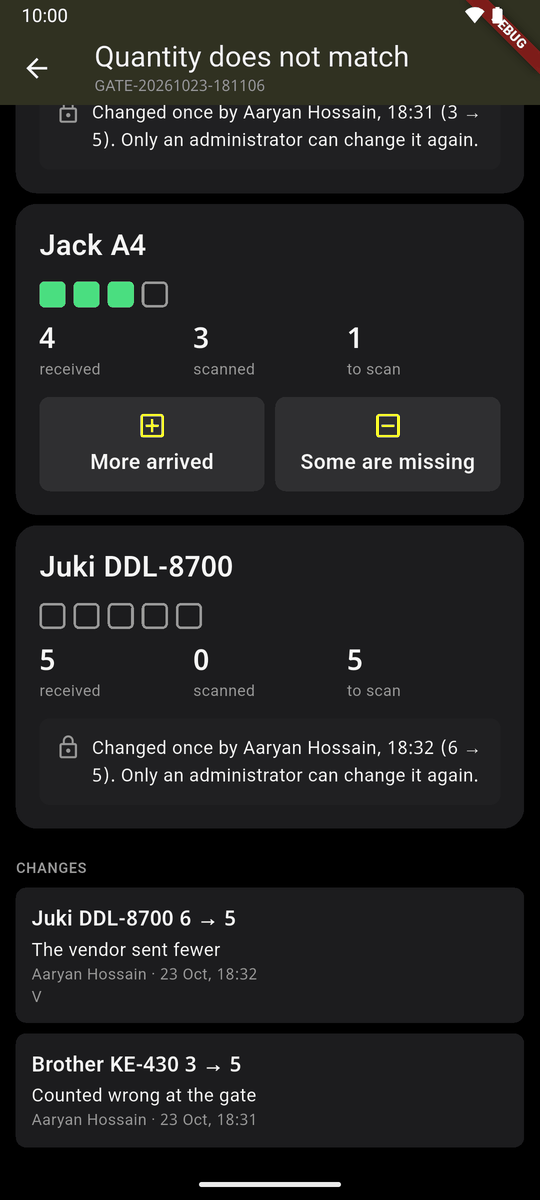
Changes Delivery received shows the new counts: × 5 was 3, × 5 was 6.
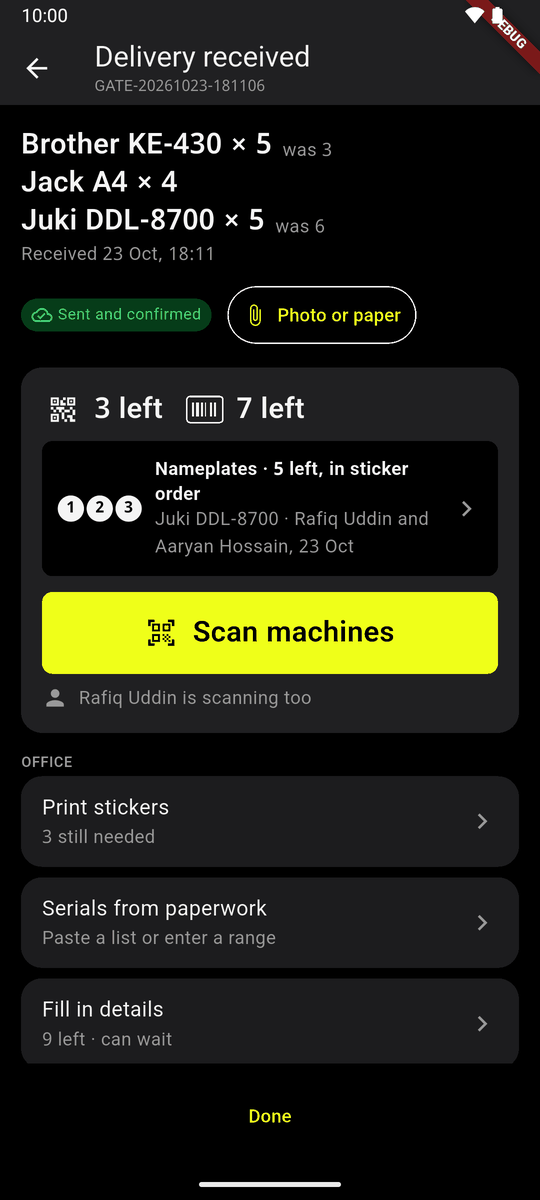
× 5 was 3
No signal, or refused
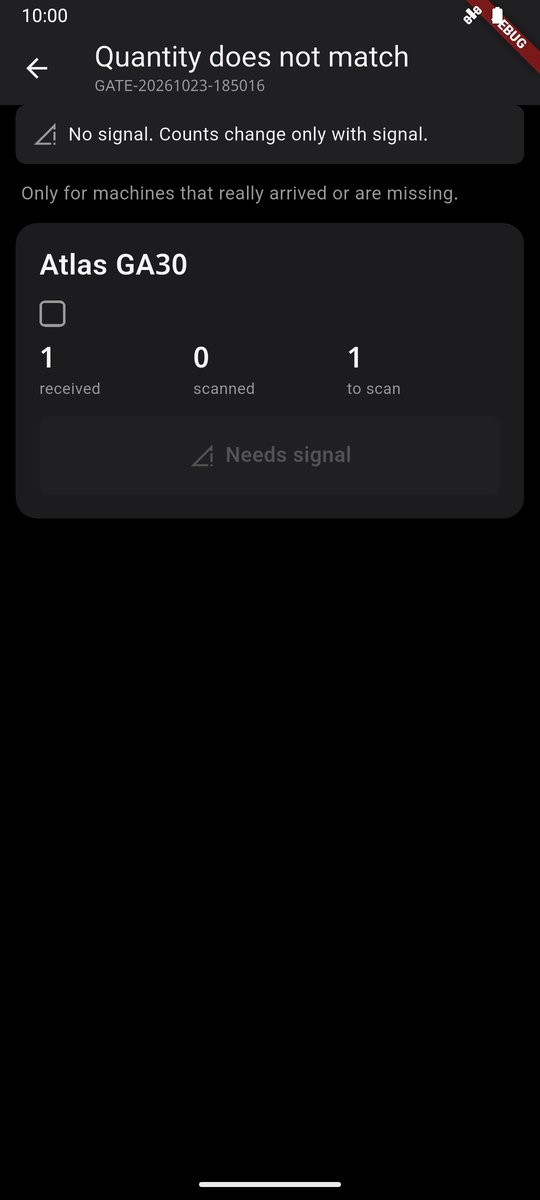
- No signal. Counts change only with signal. The buttons say Needs signal until it is back.
- It just got a tag: somebody scanned one of those machines meanwhile. Pick which ones are missing.
- Someone changed it first: tap Look again and see the new count.