Chapters
Manual homeChapter 4
Scan machines
Who: whoever tags machines: a delivery receiver, an inventory manager or an administrator.
Every machine has two codes. You scan both:
- The tag: the AIS tag, a square QR code. You stick it on the machine, then scan it.
- The serial number: the barcode on the maker's plate. It can be of any kind.
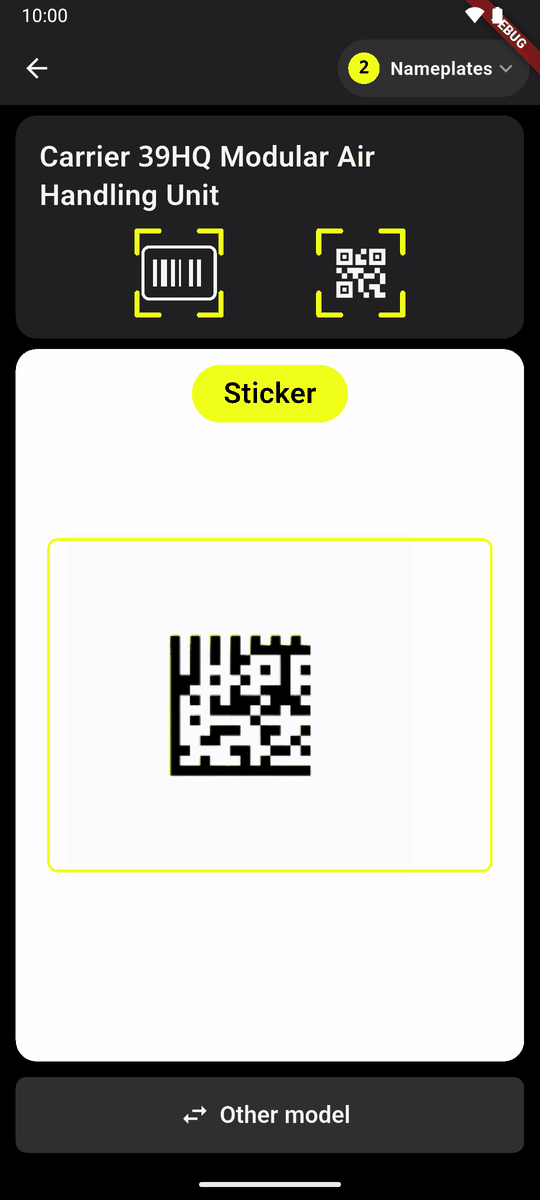
The card at the top shows the two codes as pictures. A picture with corners is the one to scan now. A tick means done. Above the camera is one word: Tag, Serial no. or Scan (either).
Print the tags first (Print tags, chapter 5). Only AIS tags are taken. There is nothing to type a tag into.
Start
On Delivery received, tap Scan machines.
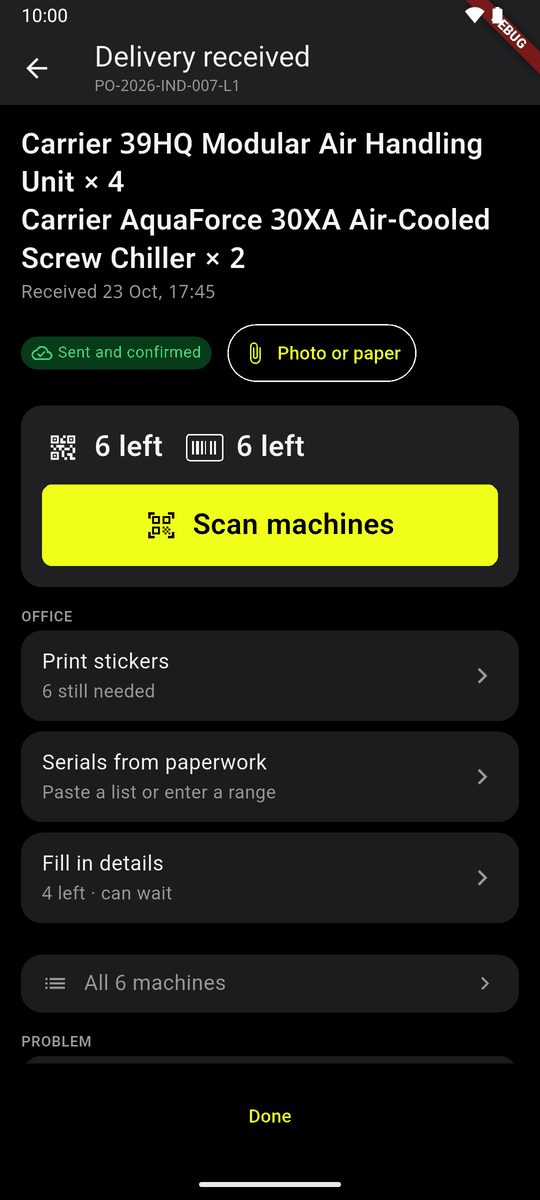
Delivery received, Scan machines A delivery is shown as its models. The first model with something left opens. The button at the bottom with the model's name and two arrows (Other model) opens Which machine?: each model, with how many serial numbers and tags it still needs. Tap one to switch.
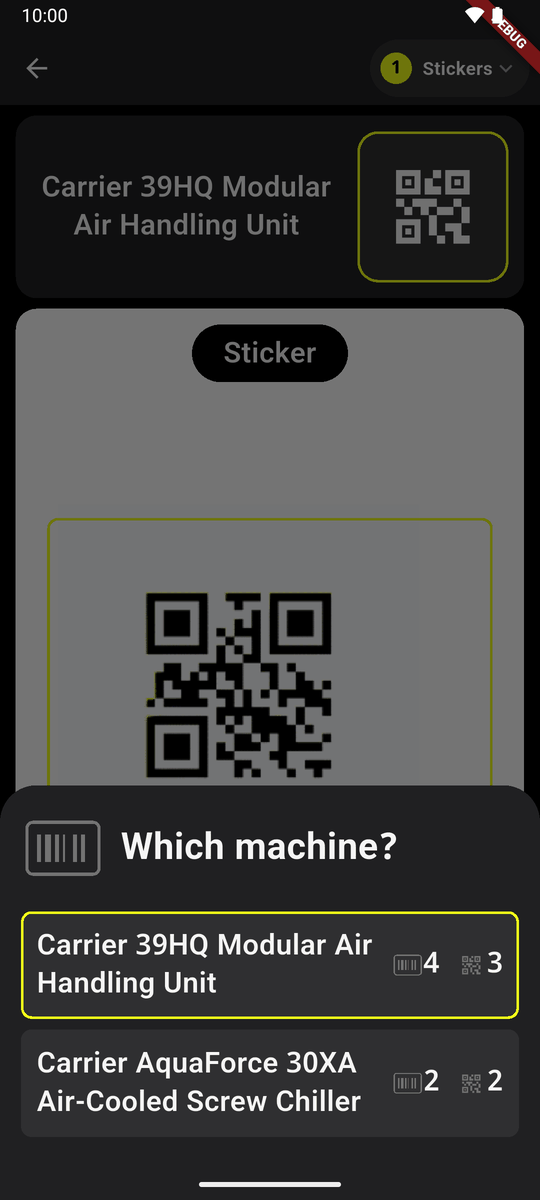
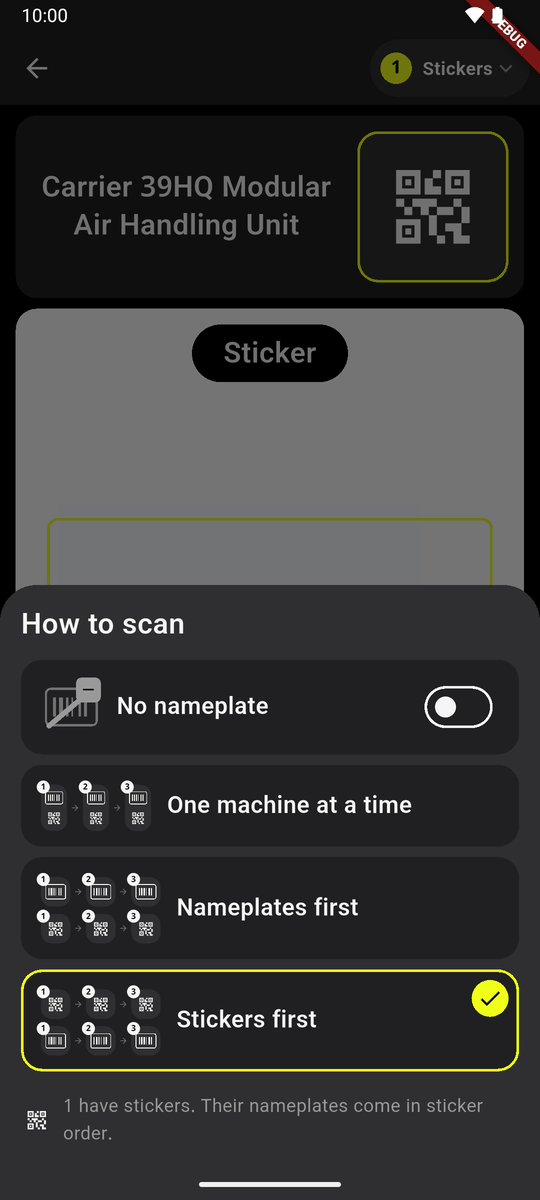
Which machine? Each model and what it still needs The first time a model is opened on this phone, choose how to scan it. Nothing is picked for you.
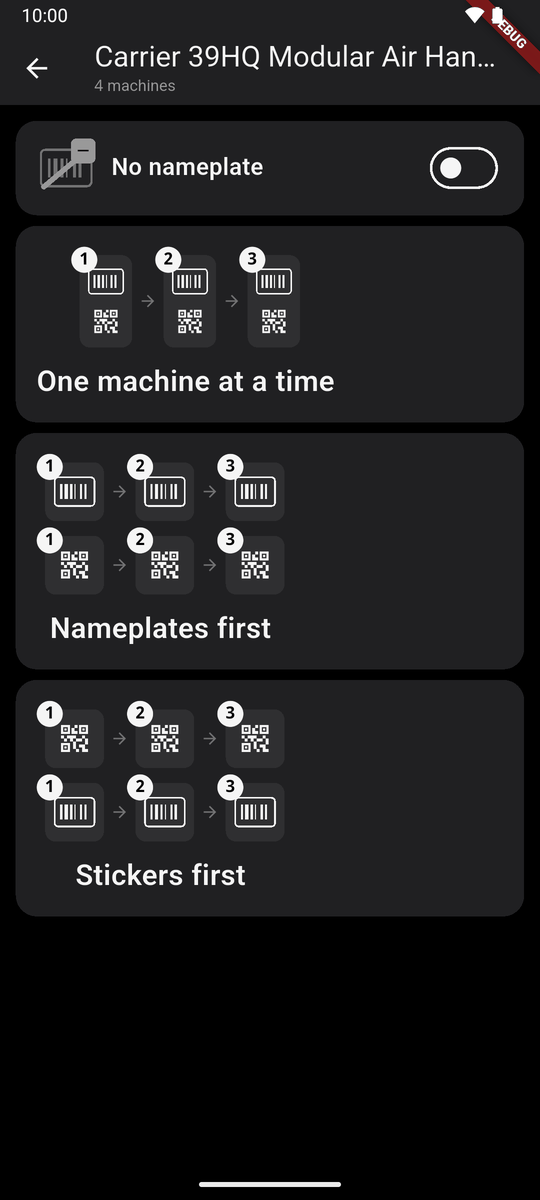
The No serial number switch and the three ways
The three ways
| Way | What you do | Good for |
|---|---|---|
| One machine at a time | Tag and serial number of one machine, then the next machine. | Machines far apart, or a few. |
| Serial numbers first | Walk the row reading every serial number. Then walk it again putting on tags. | A long row, two passes. |
| Tags first | Walk the row putting on every tag. Then walk it again reading serial numbers. | A long row, two passes. |
The way you chose shows at the top right of the scanner, for example Both or 1 Tags. Tap it to open How to scan and change it at any time. The way in use is ticked. Nothing scanned is lost.
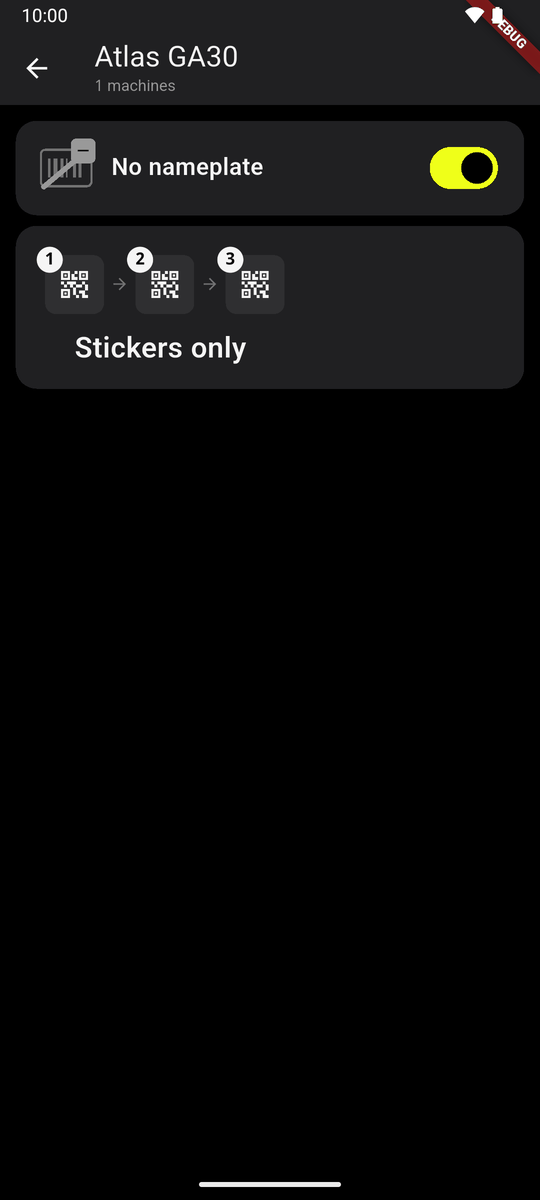
The No serial number switch
Above the three ways is the No serial number switch. Turn it on for a model whose machines have no serial number (racks, trolleys, tables). Then only Tags only is left: one tag on each machine. Tap it to start.
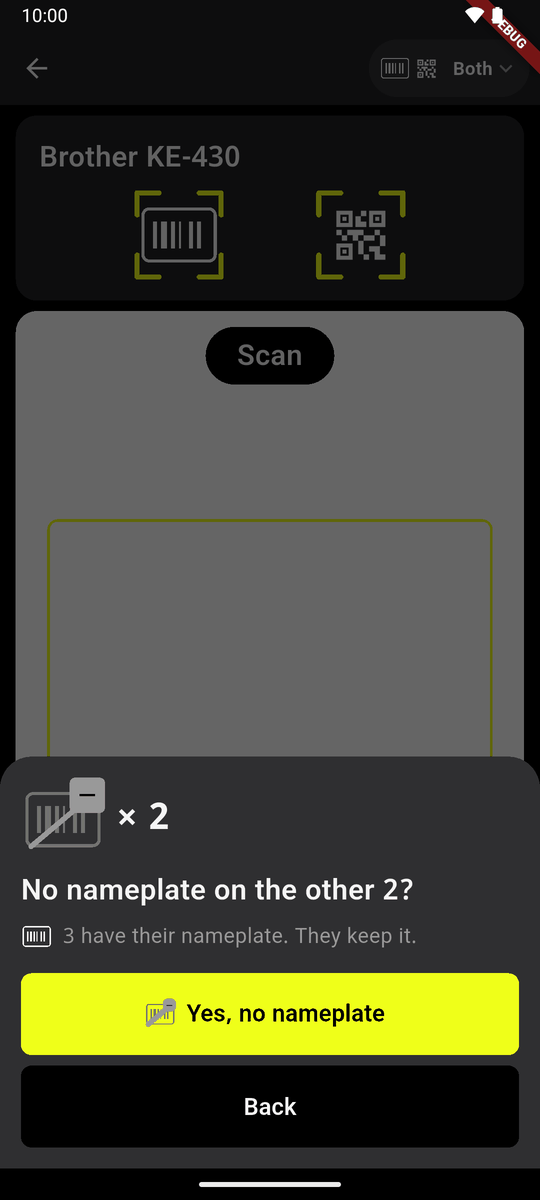
If some machines already have their serial number, the phone asks once, for example No serial number on the other 2? The ones that have it keep it. Tap Yes, no serial number, or Back.
One machine at a time
The card shows both codes with corners, and the camera says Scan: start with either code.
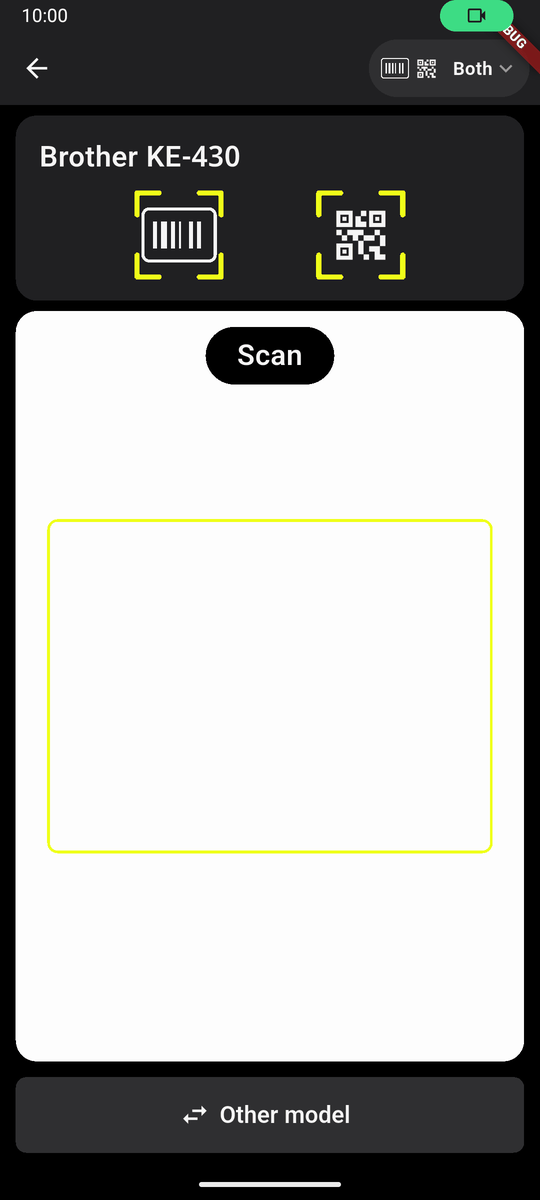
One machine at a time: scan either code Scan the serial number (or the tag). It turns green with a tick and a beep. The card shows the serial, last four large, and asks for the other code: Tag.
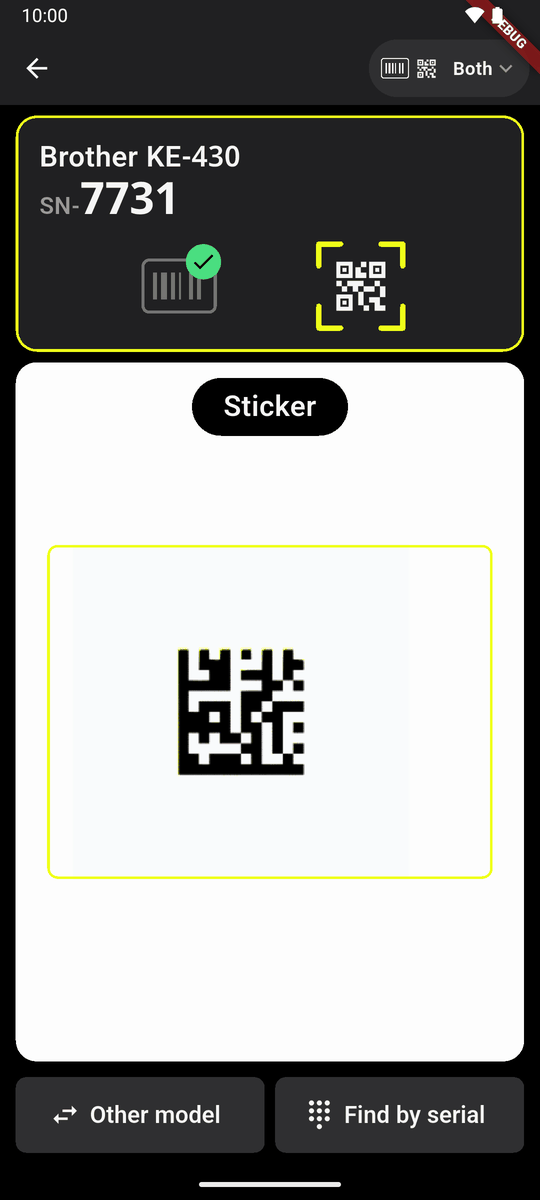
The serial number is in: now the tag Stick a tag on the same machine and scan it. The two join because you scanned them one after the other.
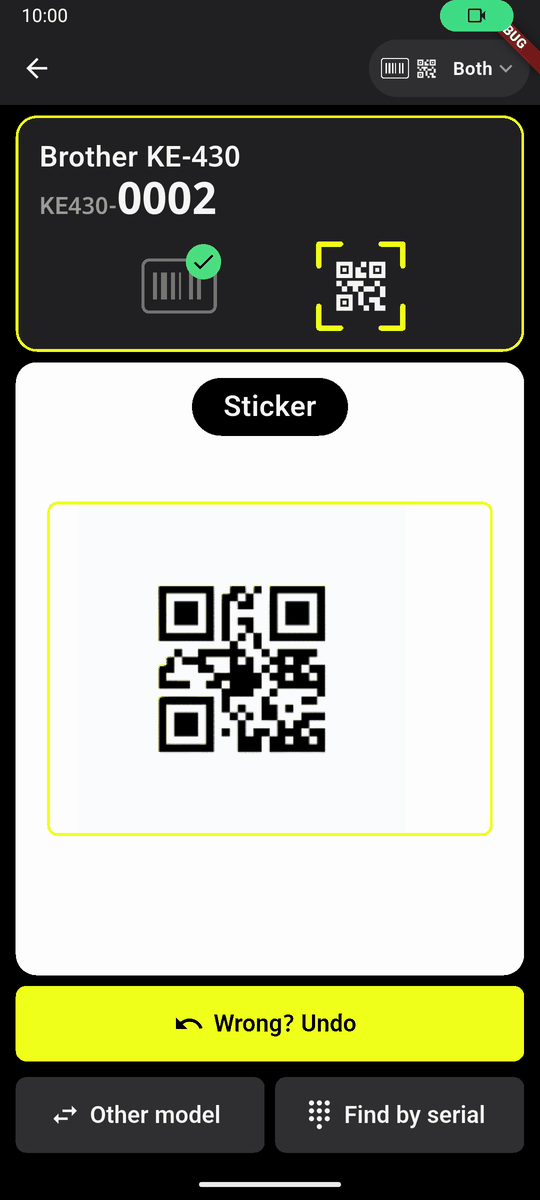
The tag saved Each save shows Wrong? Undo for three seconds. When a machine has both its codes, its card turns green for a moment with Done, its serial and its tag. Then go to the next machine.
When the model is finished, Which machine? opens by itself, with Brother KE-430 done in green at the top. Tap the next model. If you close it, the card stays green, Done · all 5, and asks for nothing; the camera says Other model and the lit button under it opens the list again.
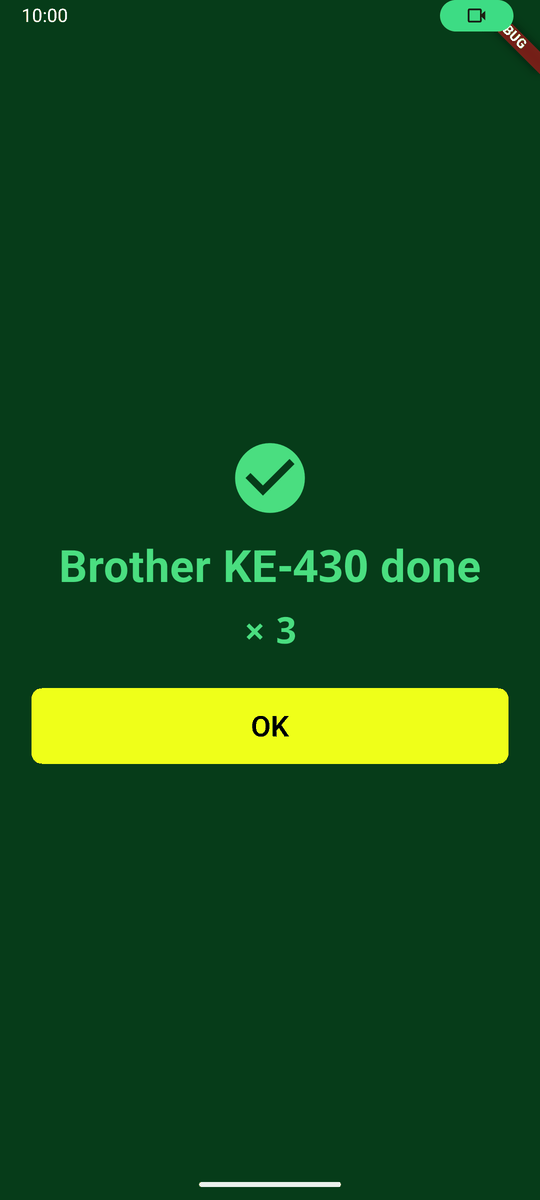
A model done
Two passes: a walk
Serial numbers first and Tags first are the same, the other way round. Your first pass down the row is a walk. The second pass follows the walk in the same order.
The first pass
The card shows one big code. With Tags first the camera says Tag: put a tag on each machine down the row and scan it.
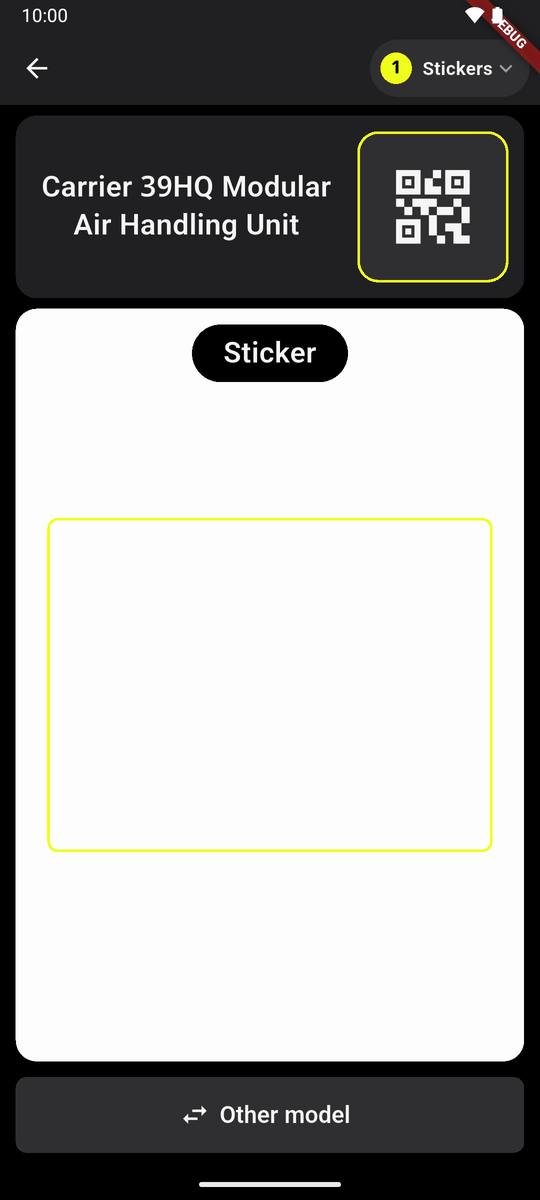
Tags first, the first pass Each tag saved turns green with a tick, and the card shows its code. A code of the other kind is passed over with a short buzz; nothing is saved for it.
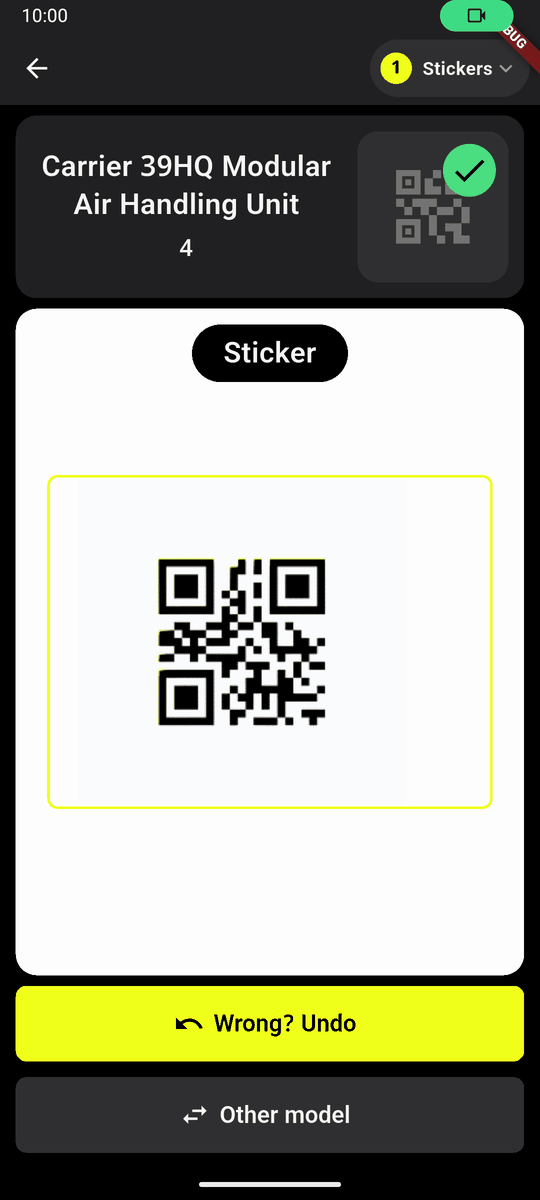
A tag saved: the tick, and Wrong? Undo With Serial numbers first the camera says Serial no.: read each serial number. A machine with none: tap No serial number.
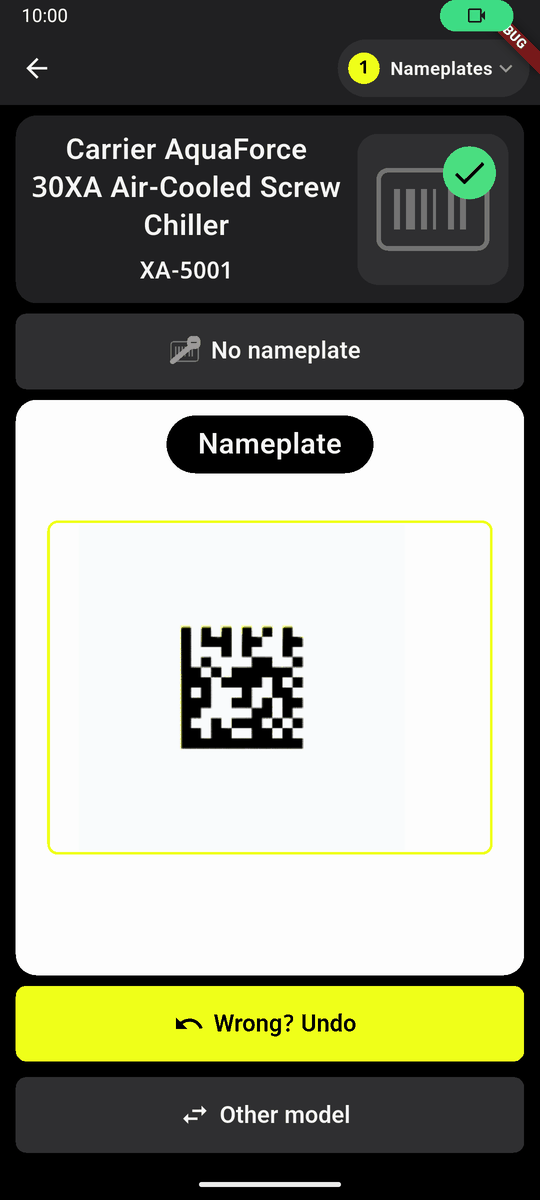
Serial numbers first: a serial number saved At the end: Tags done (or Serial numbers done) and how many of the other code are left. Tap Serial numbers now (or Tags now) to start the second pass at once, or … later to go back.
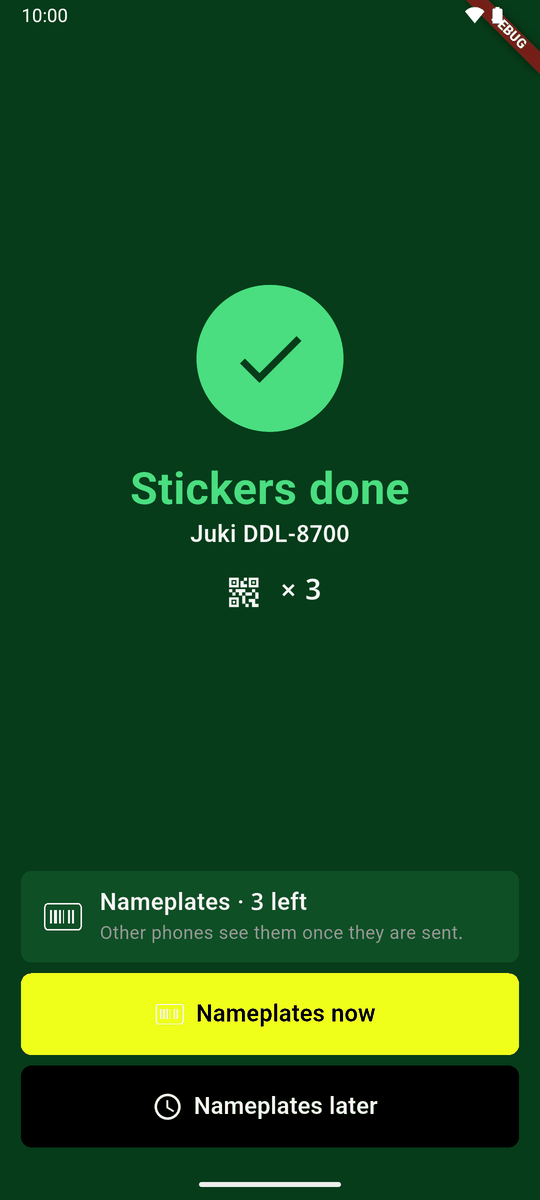
Tags done 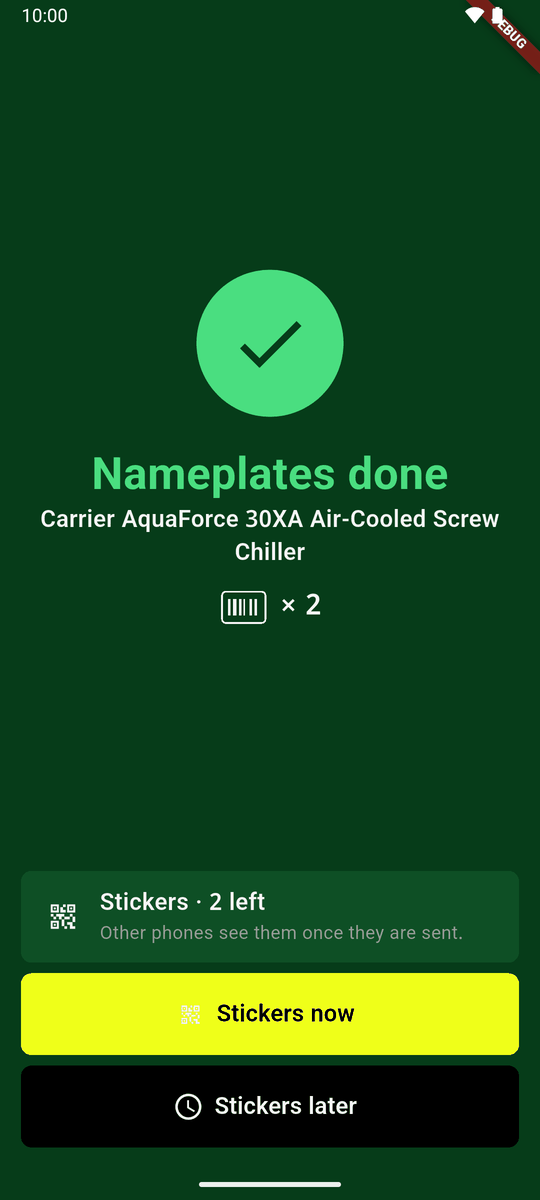
Serial numbers done
The second pass
It opens on its start: Serial numbers, in tag order, whose walk it was and when, and its first and last machine. Go to the first machine and tap Start serial numbers.
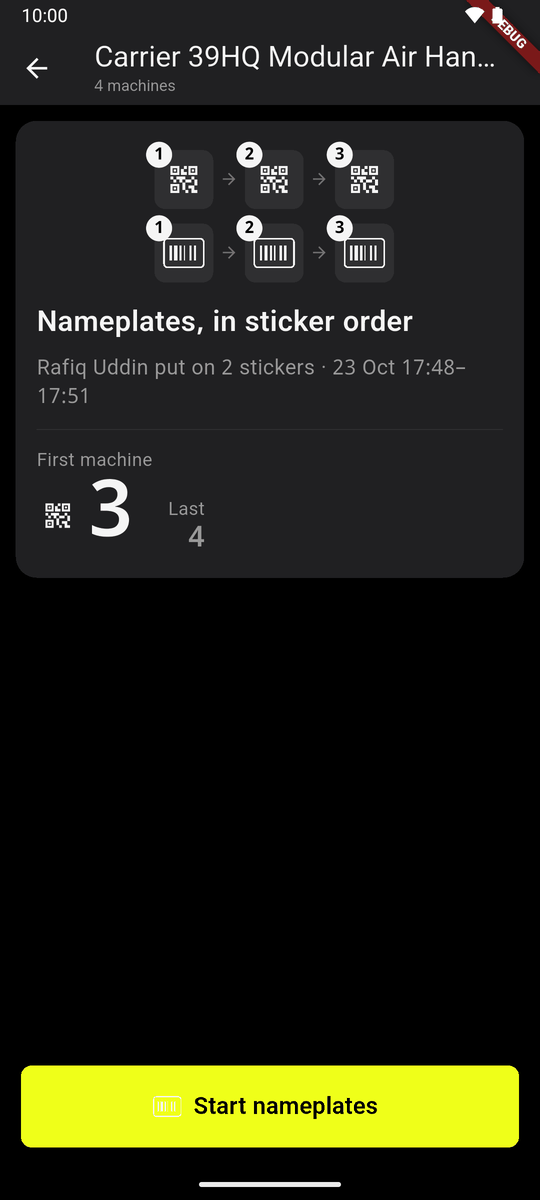
The start of the second pass The card names the machine by its first code: the tag code large, or the last four of its serial large. The squares show the walk: green done, lime this one, grey to do.
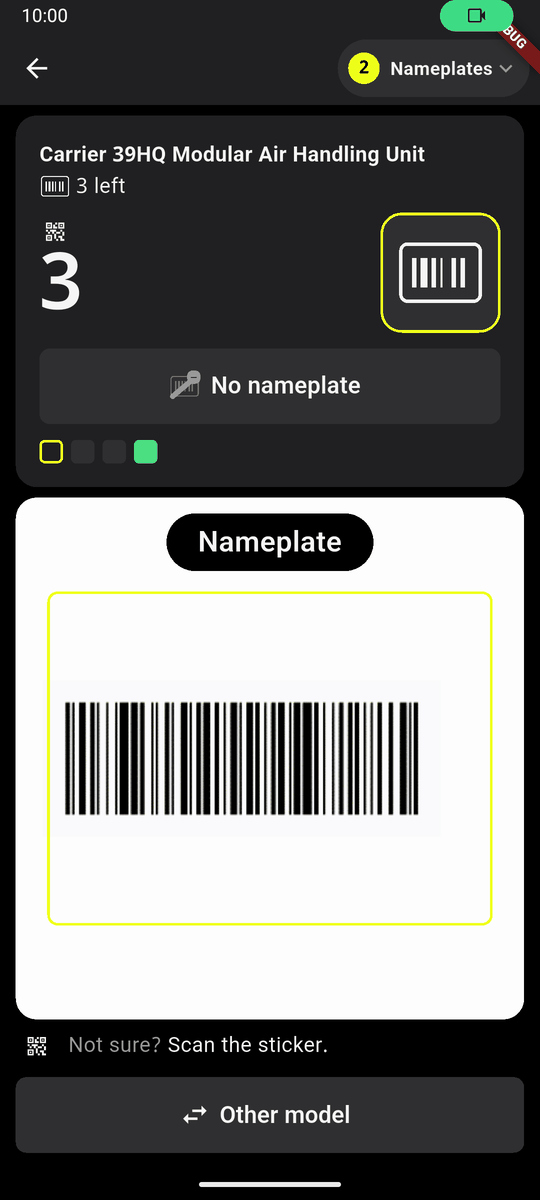
Serial numbers pass: the machine with tag 3 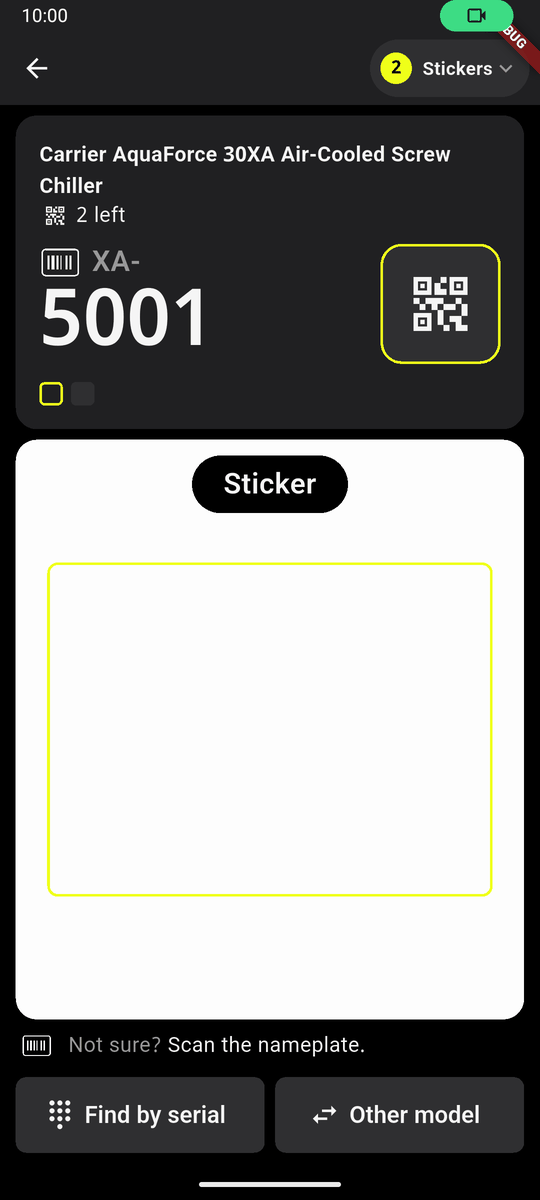
Tags pass: the machine with serial XA-5001 Scan its other code. The card turns green, for example HQ40-1002 is on 4, with Wrong? Undo for three seconds. Go on down the row in the same order.
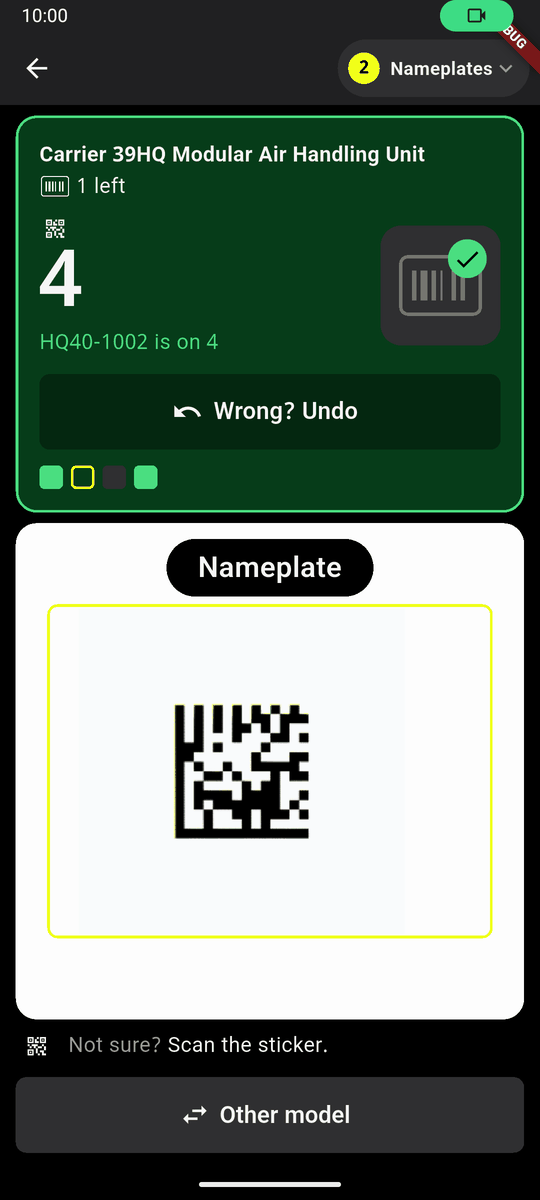
A serial number saved on its machine 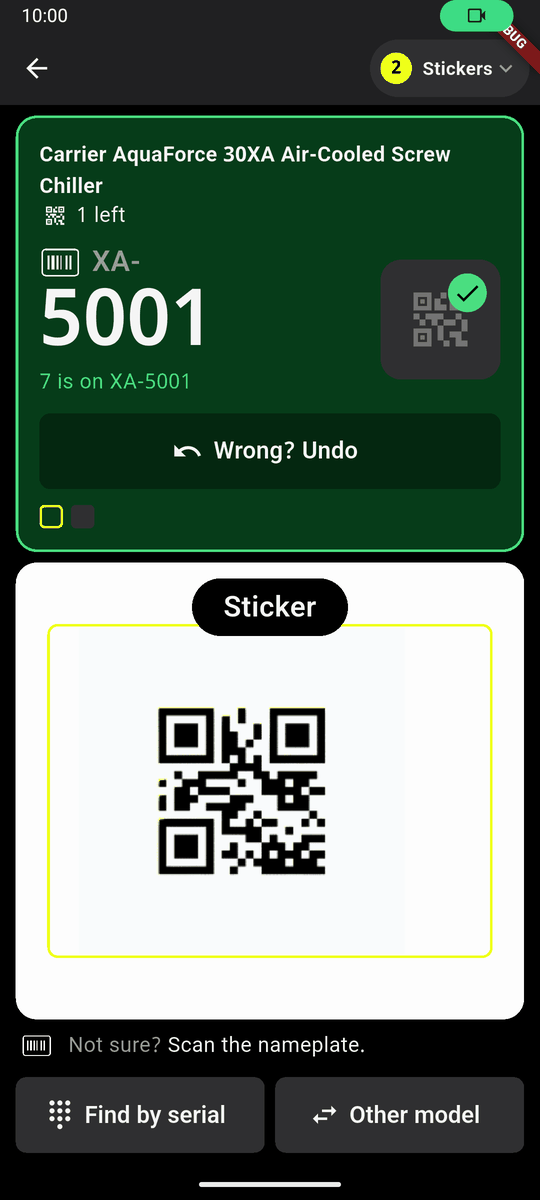
A tag saved on its machine Not sure which machine you are at? The line under the camera says it: Not sure? Scan the tag. Scan the machine's first code again. That picks the machine (Picked by its tag) and the walk carries on from it.
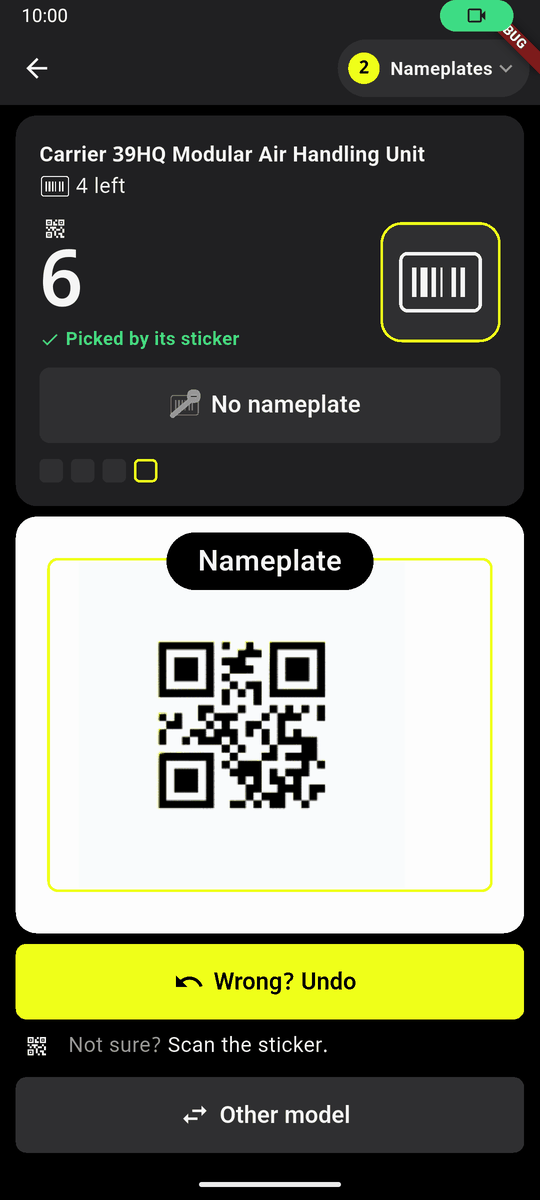
Picked by its tag In the serial numbers pass, a machine with no serial number: tap No serial number in the card.
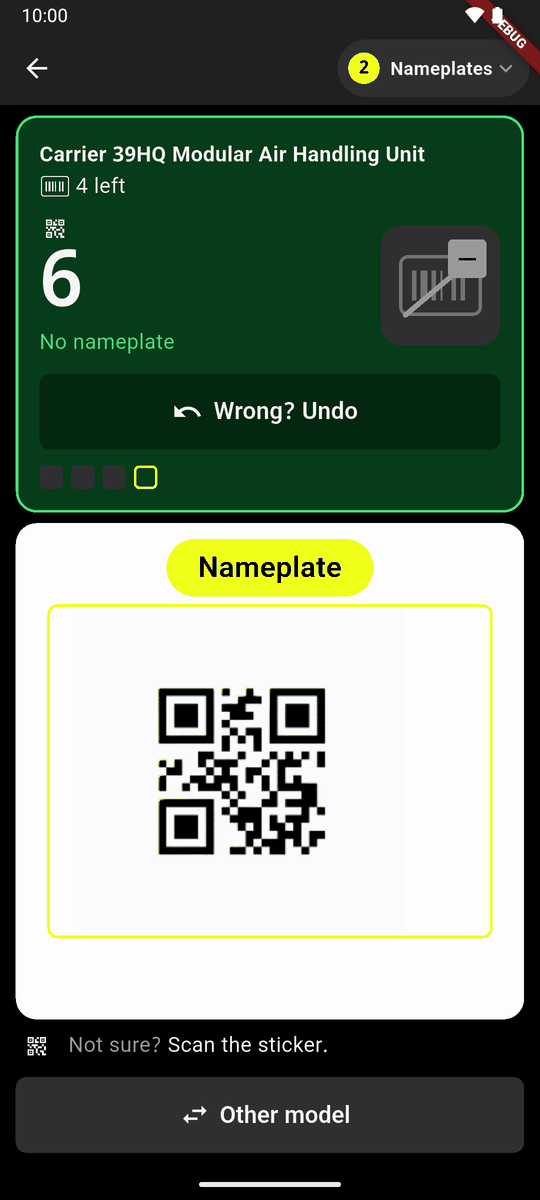
No serial number marked on machine 6 Machines you passed come back at the end: Passed earlier.
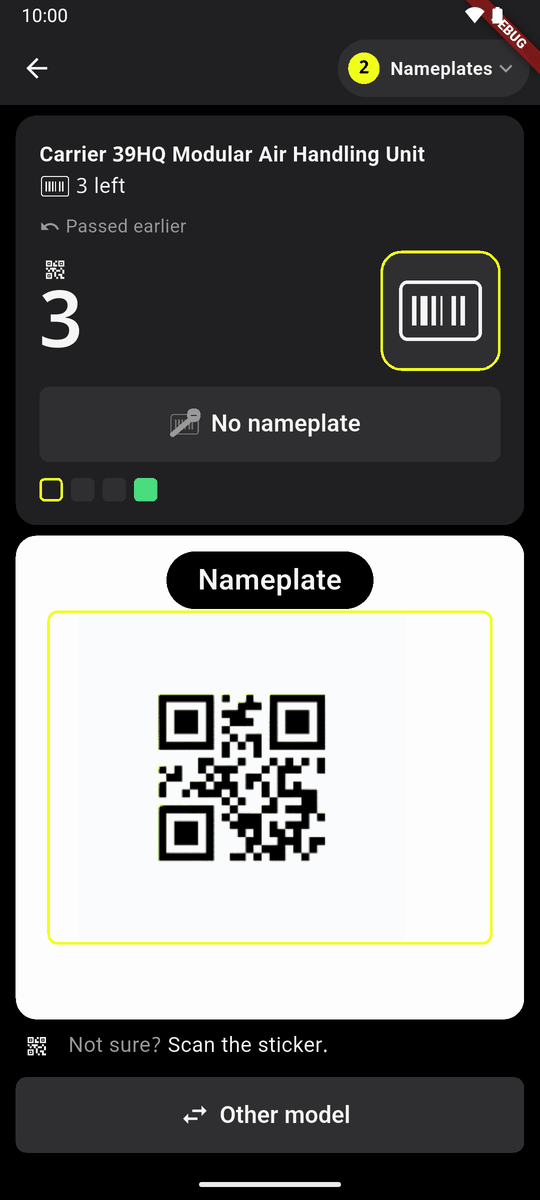
Passed earlier
If you scan a serial number while a machine that has its tag still waits for its serial number, the camera word changes to Tag: scan that machine's tag first, so the phone knows which machine it is.
Same order both times. The scanner does not check the order. The second pass must go down the row the way the first did. Not sure? Scan the first code again. One person per line.
Picking a walk up later
Delivery received shows a row for each walk waiting, for example Serial numbers · 2 left, in tag order, with whose walk it was and when.
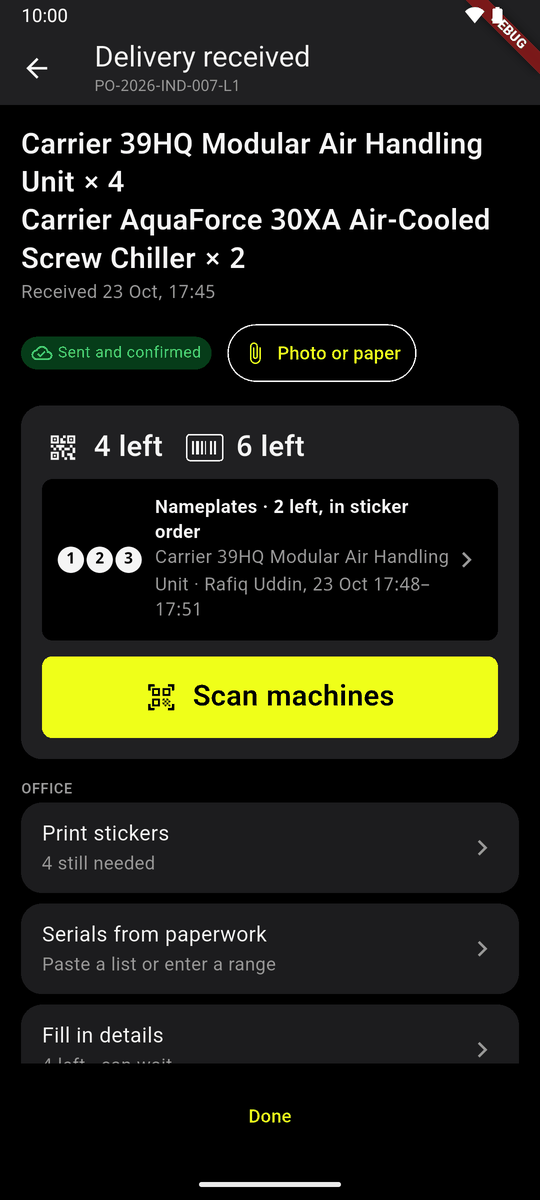
A walk waiting on Delivery received Tap it. The start of the second pass opens. Tap Start serial numbers (or Start tags). Any phone can do this.
If two people walked the same model, the row names both. Tapping it asks Whose order? Tap a name, or scan any tag of either walk.
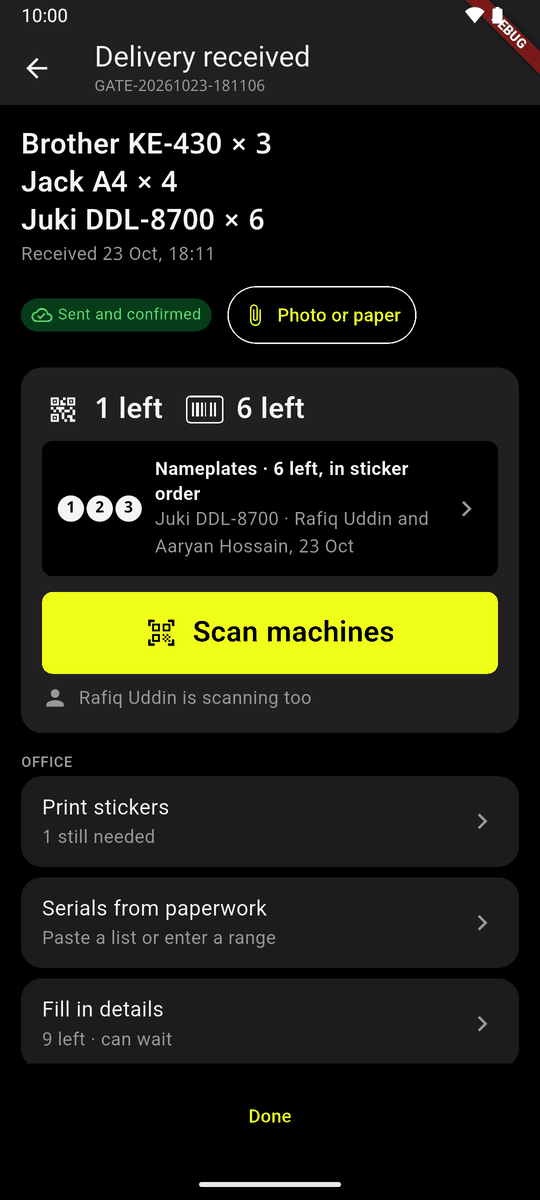
One row, two people's walks 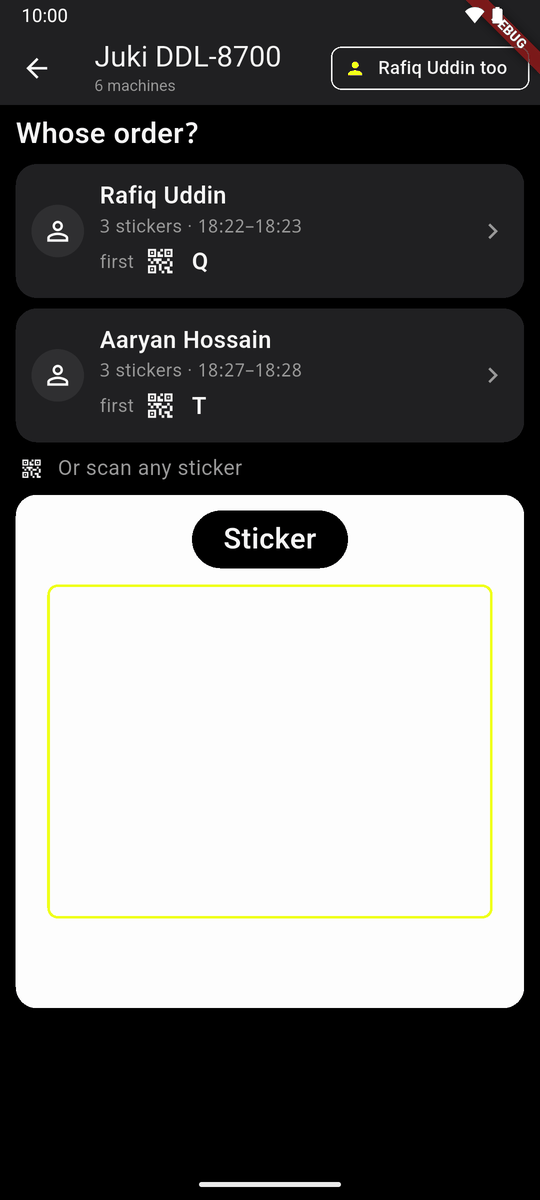
Whose order? The walk you picked opens on its start, with its first and last machine.
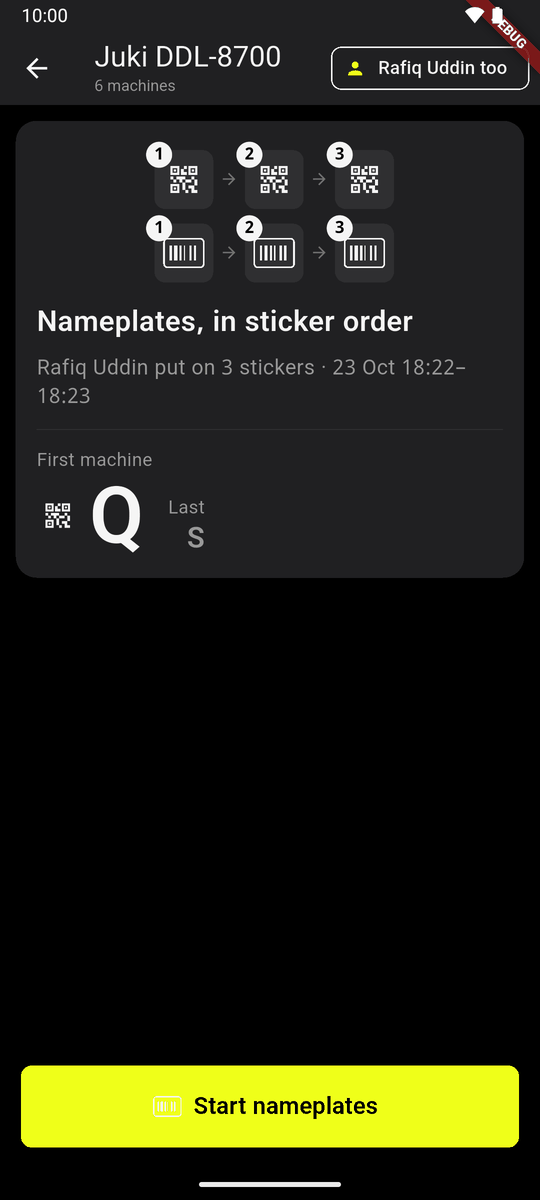
Rafiq's walk, ready to start When somebody else is scanning the same delivery, the card says so, for example Rafiq Uddin is scanning too.
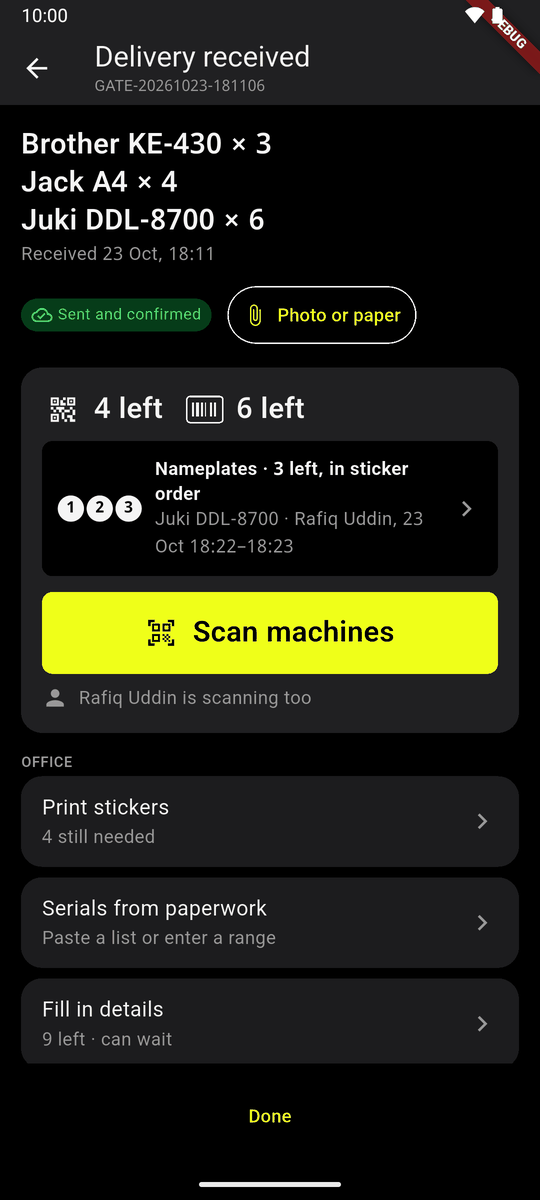
Rafiq Uddin is scanning too
The wall card
Print the wall card and put it where machines are scanned. It is the rule for walks, in pictures.
It is also on the website, at the top of Deliveries.
Undo
After each save, Wrong? Undo shows for three seconds. Tap it to take the save back.
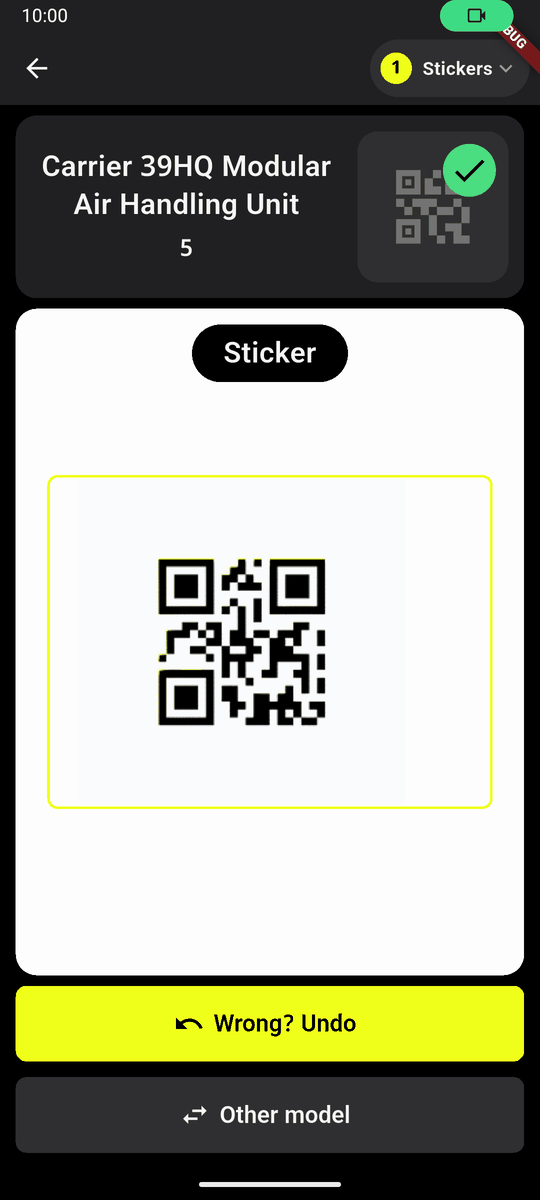
Wrong? Undo A tag taken back says Peel it off, with the model. Peel the tag off the machine and tap OK. The tag can go on another machine.
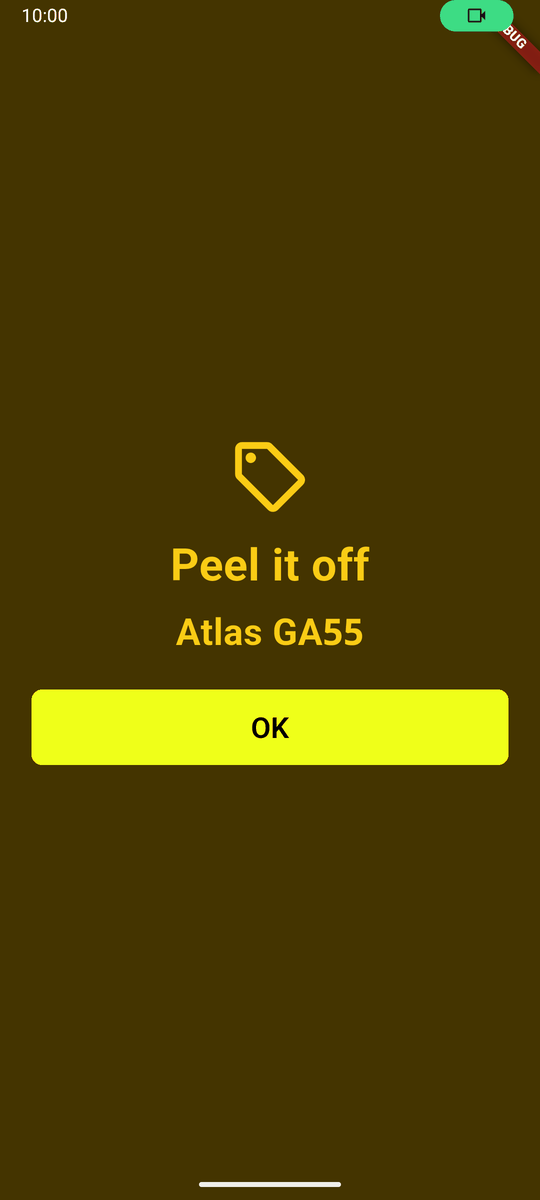
Peel it off
The last tag stays on the phone until your next save, so Undo works with no signal.
On a small phone or with large text, Wrong? Undo is a black button at the bottom of the camera picture. The card may also shrink to one line, with the model at the top.
When something is not right
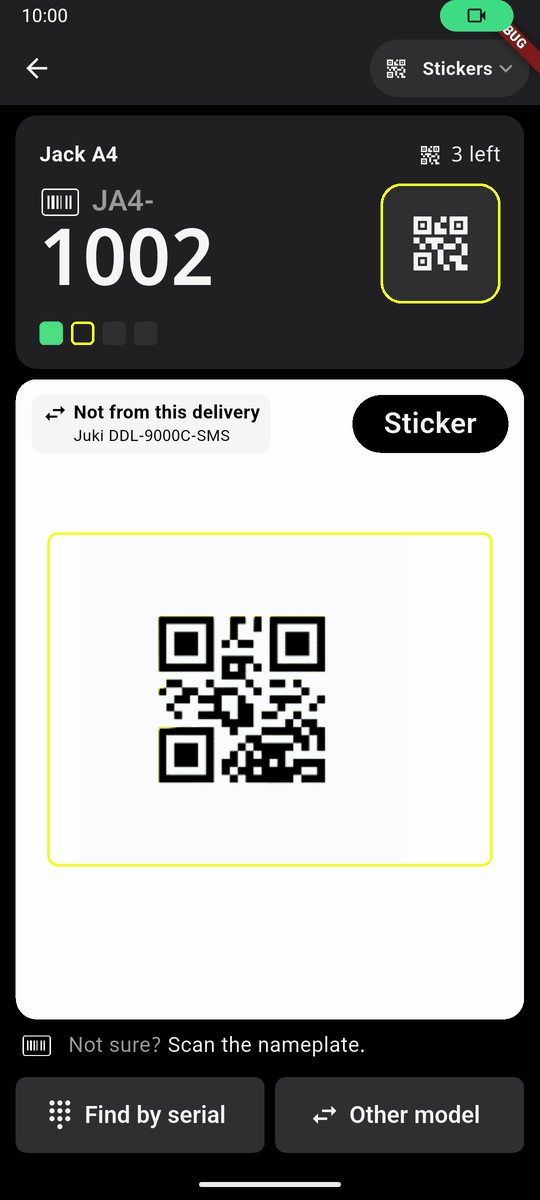
Not from this delivery
A tag of another delivery's machine. Small words in the top left corner of the camera, Not from this delivery, with that machine. Nothing is saved. Carry on.
Duplicate?
A serial number another machine already has. A small amber Duplicate? shows in the camera's corner. Nothing is saved; you can carry on.
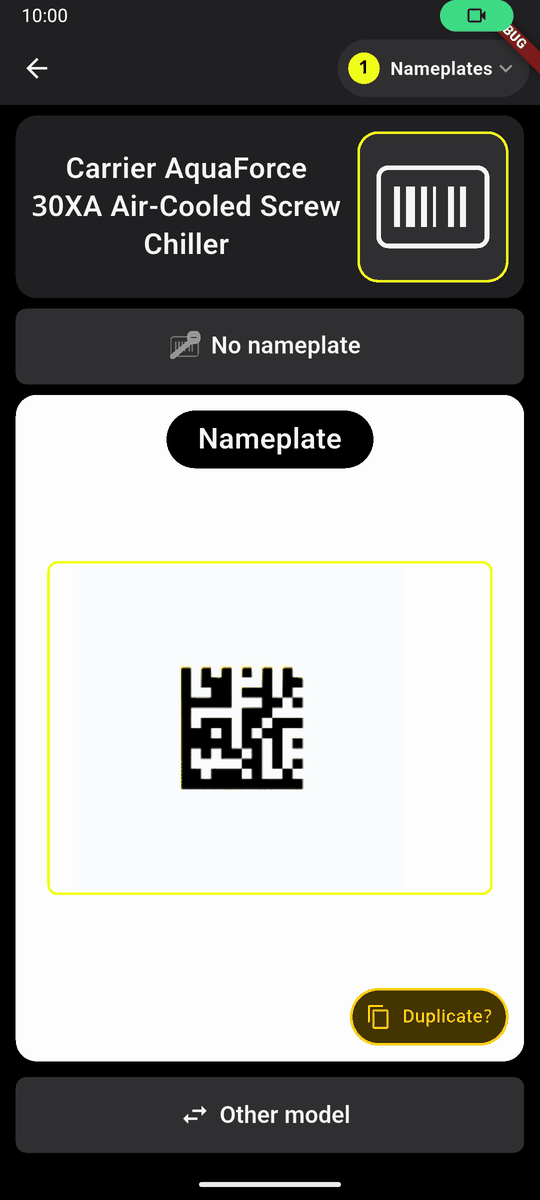
Duplicate? in the corner Tap it to decide. Duplicate serial shows the number and the other machine.
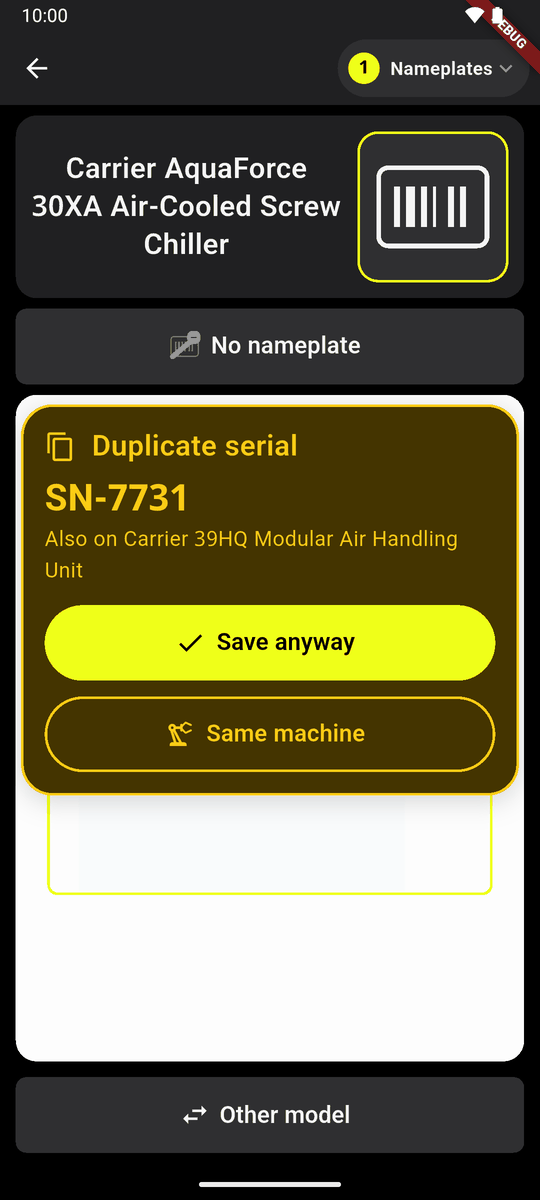
Duplicate serial Save anyway: it is a different machine with the same serial. Same machine: it is that machine (Don’t save when the machine is another delivery's).
One code too many
A tag when every machine of the model already has one, or a serial number when every serial is in: often the tag next to it on the sheet. Nothing is saved and nothing stops you. The scanner carries on as if it had not seen it. With Tap to capture on, All 6 done shows over the camera for a moment, with a short buzz.
The scanner never goes past the count. If more machines really came, see chapter 6.
Find by serial
A serial number that will not scan: tap Find by serial and Type the last numbers of it.
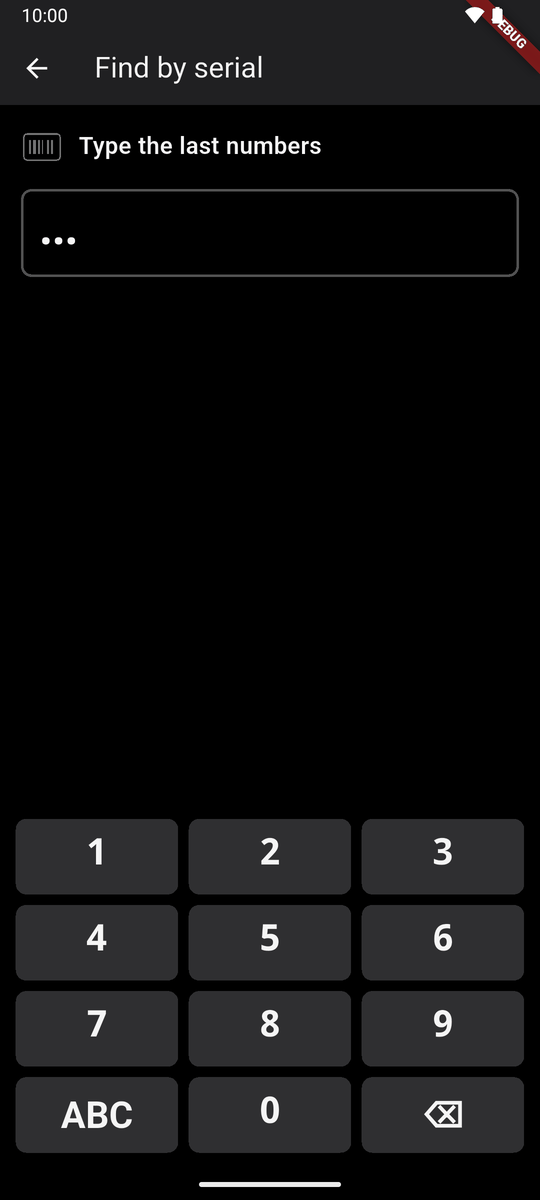
Find by serial The matching serial shows large. Tap This one. The card then says Picked by its serial number.
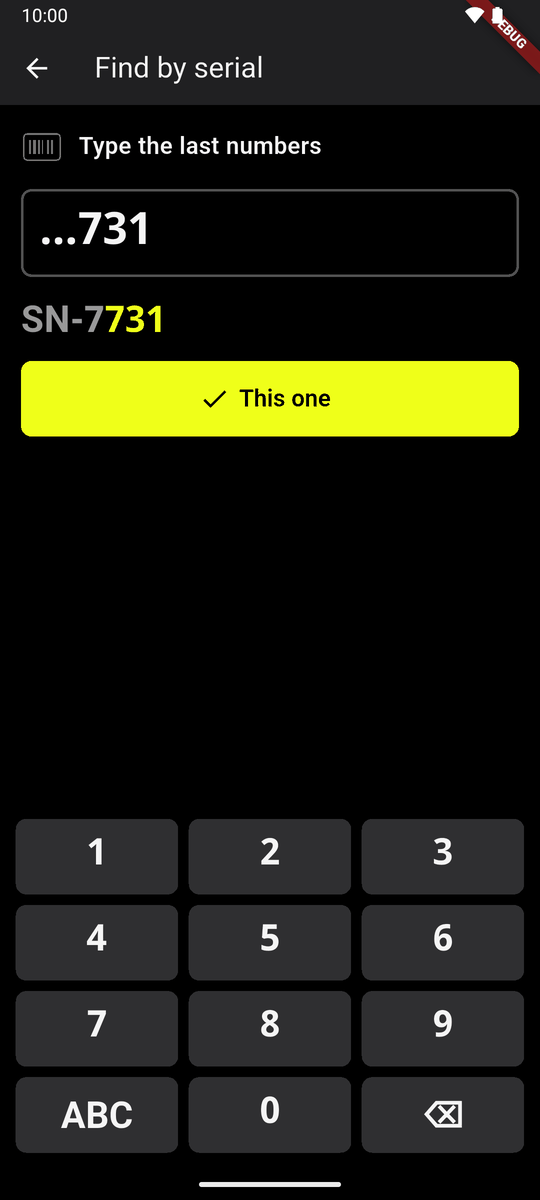
One match: This one 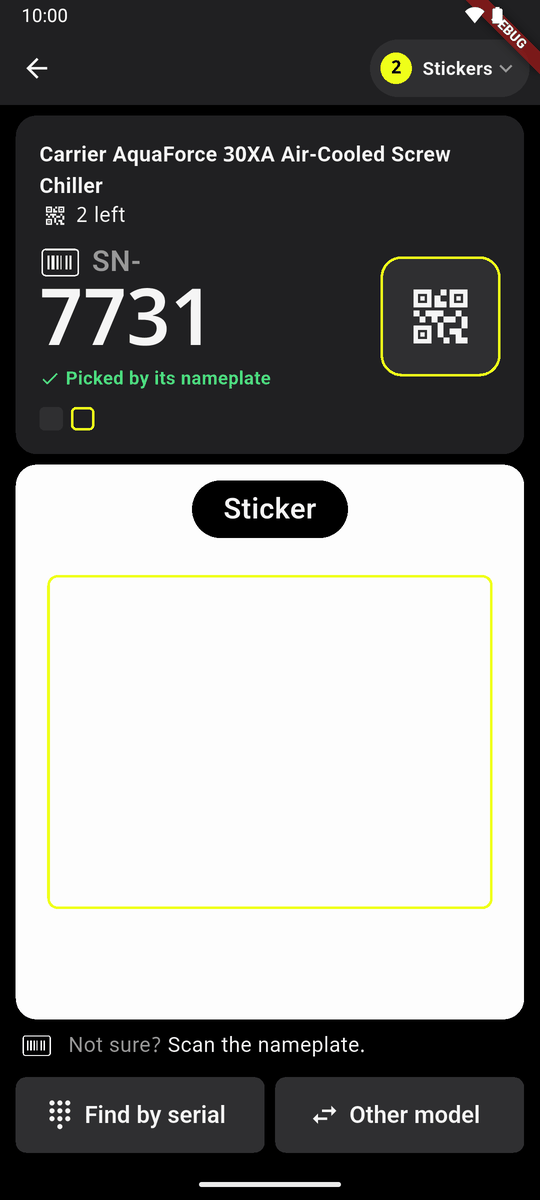
Picked by its serial number
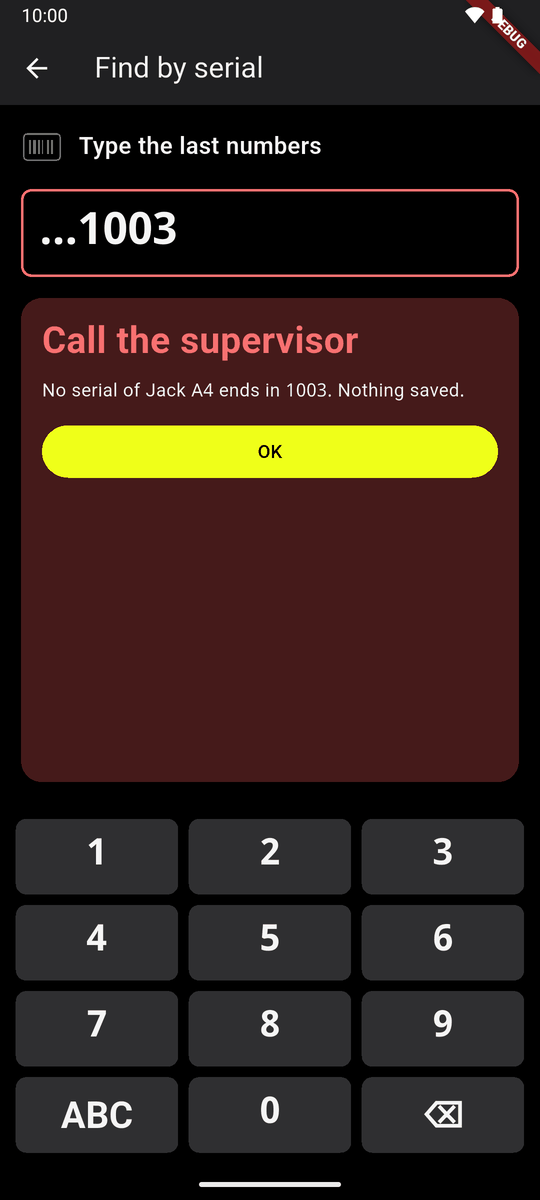
Call the supervisor
Red: Call the supervisor. Something is not sure: for example a second tag on one machine, a serial number that is not this machine's, or numbers no serial ends in. While you scan it is a red strip over the camera, with a long buzz; the camera carries on. Nothing is saved, and the case is kept in To look at.
Serials from the packing list
A model whose serials came from the packing list (chapter 5) has two ways: One machine at a time or Tags only.
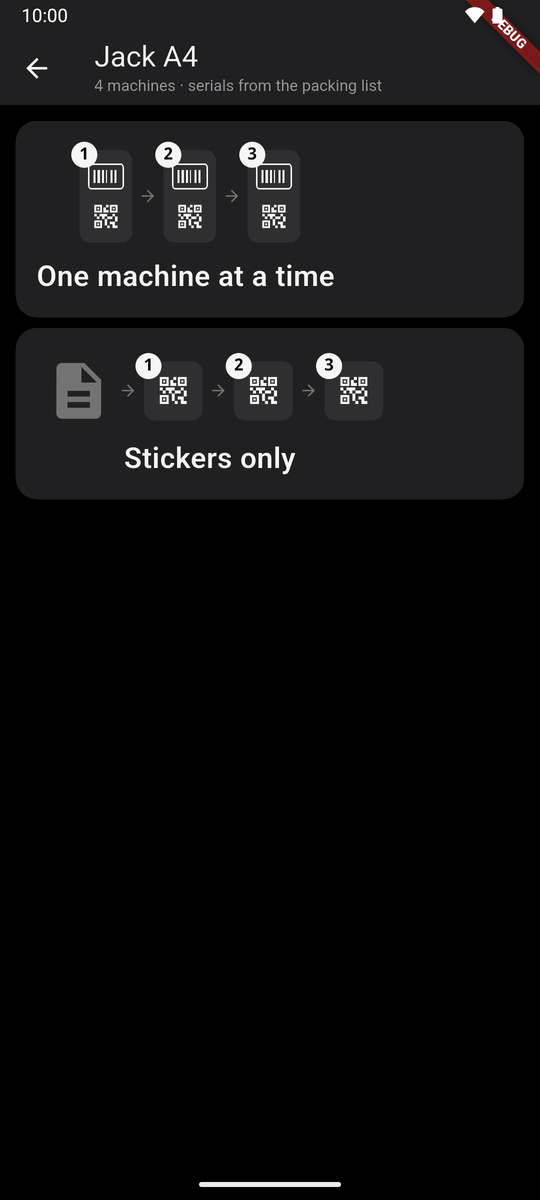
Serials from the packing list: two ways With Tags only the card shows the serial the next tag goes on, in the list's order. Stick it on that machine and scan it.
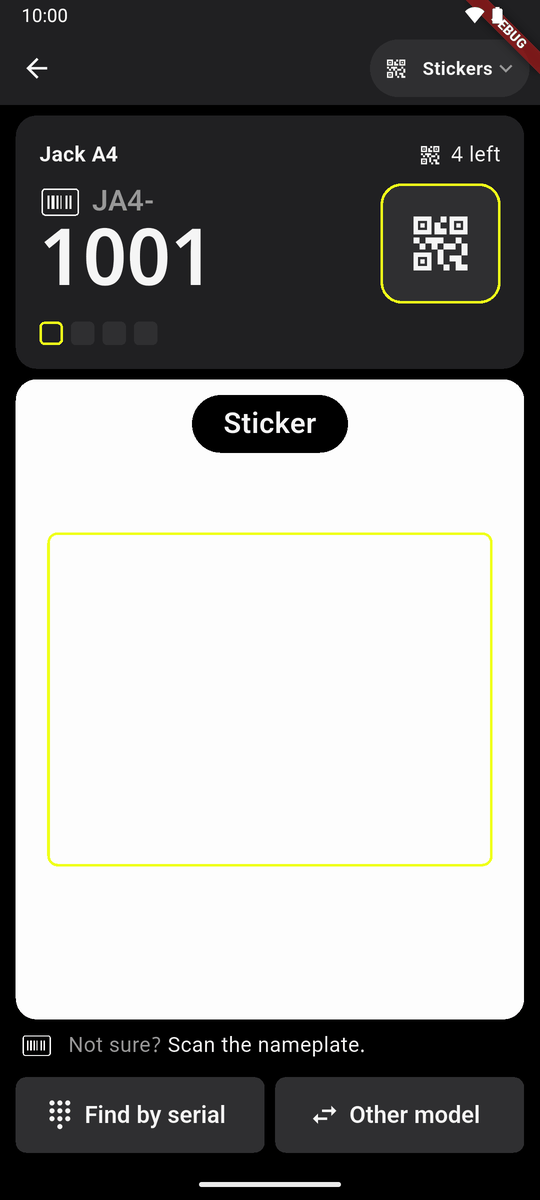
The serial the tag goes on 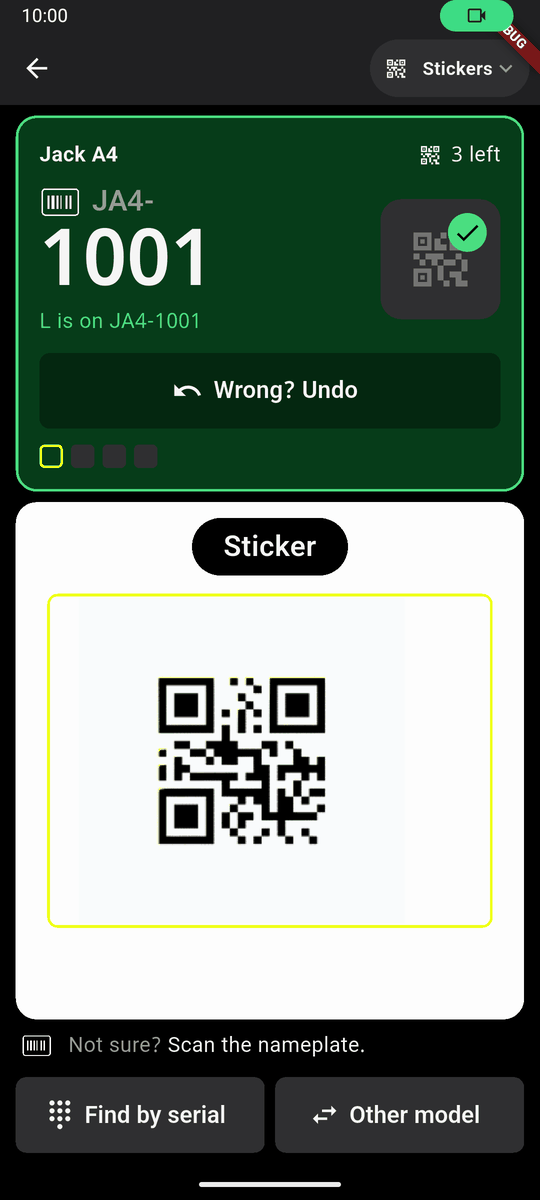
The tag saved on it A serial number that is not on the list shows amber: ? Not listed. It is kept for To look at.
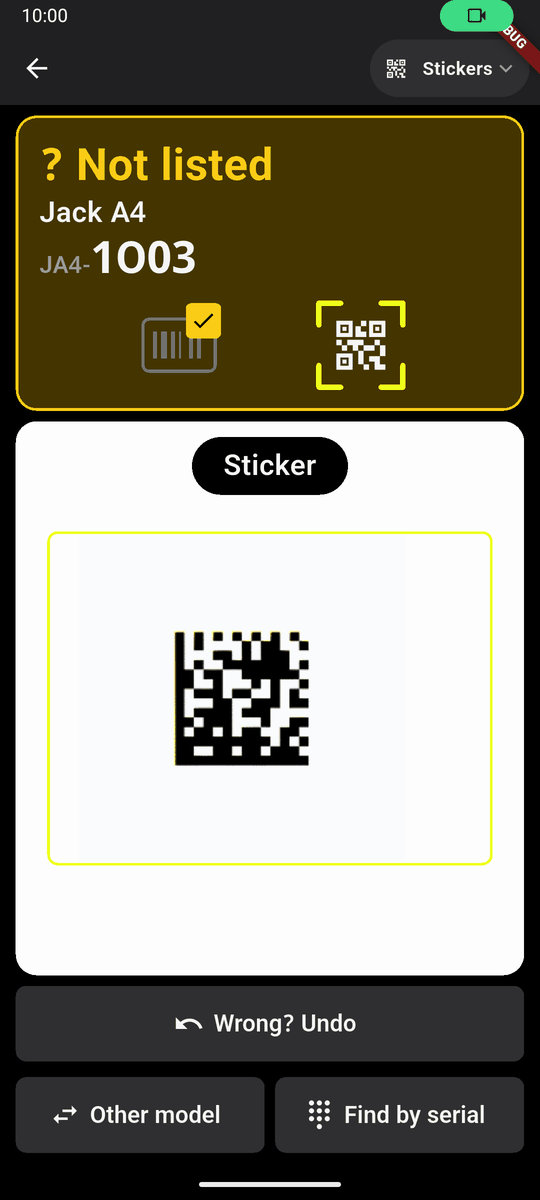
? Not listed
To look at
Delivery received shows a row, 1 to look at: red when something is red, amber when all are amber. Tap it.
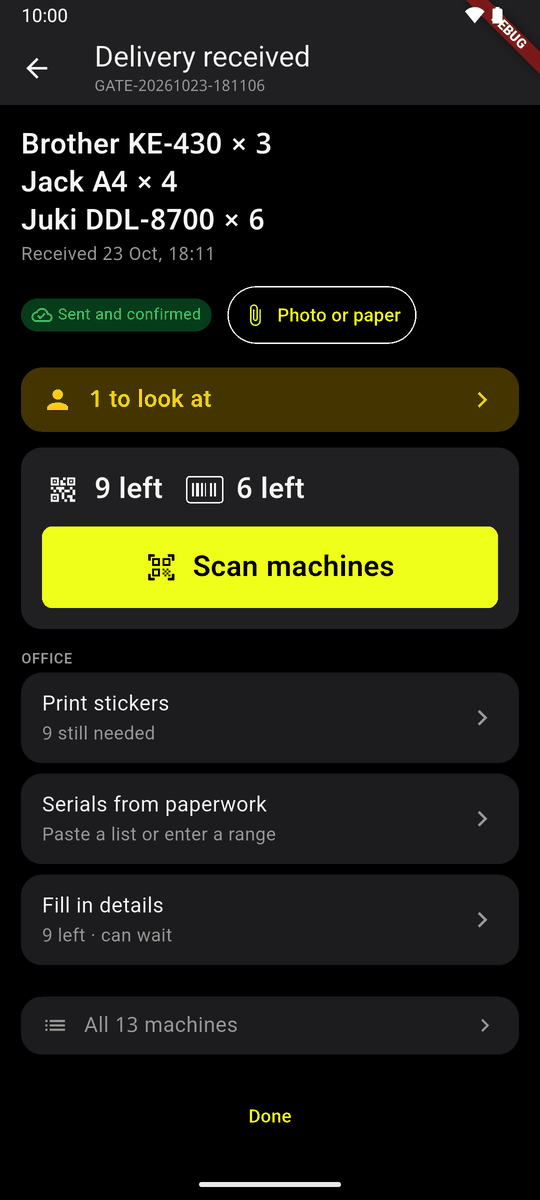
1 to look at Each case shows the model, what happened, who and when. They are Kept on this phone until the server can take them.
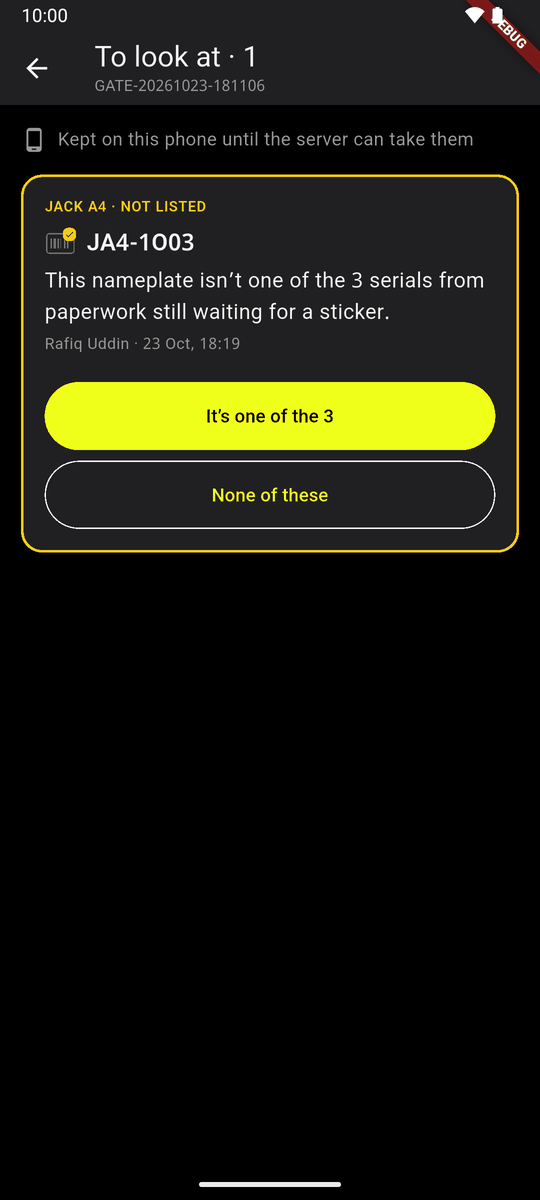
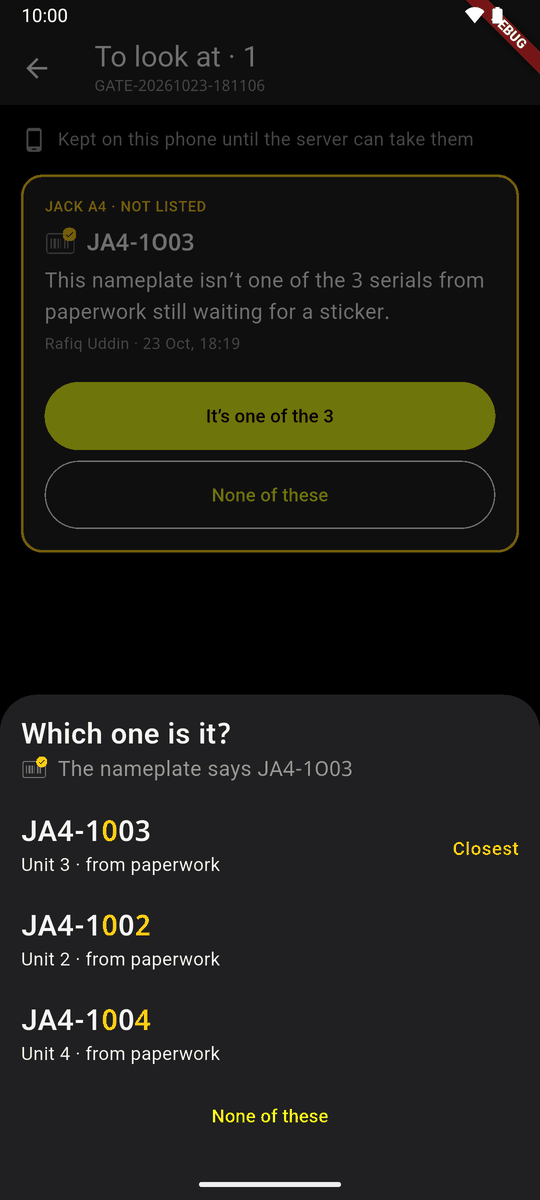
A Not listed case For Not listed: tap It's one of the 3. Which one is it? lists the serials still waiting, closest first. Tap the right one. Or tap None of these.
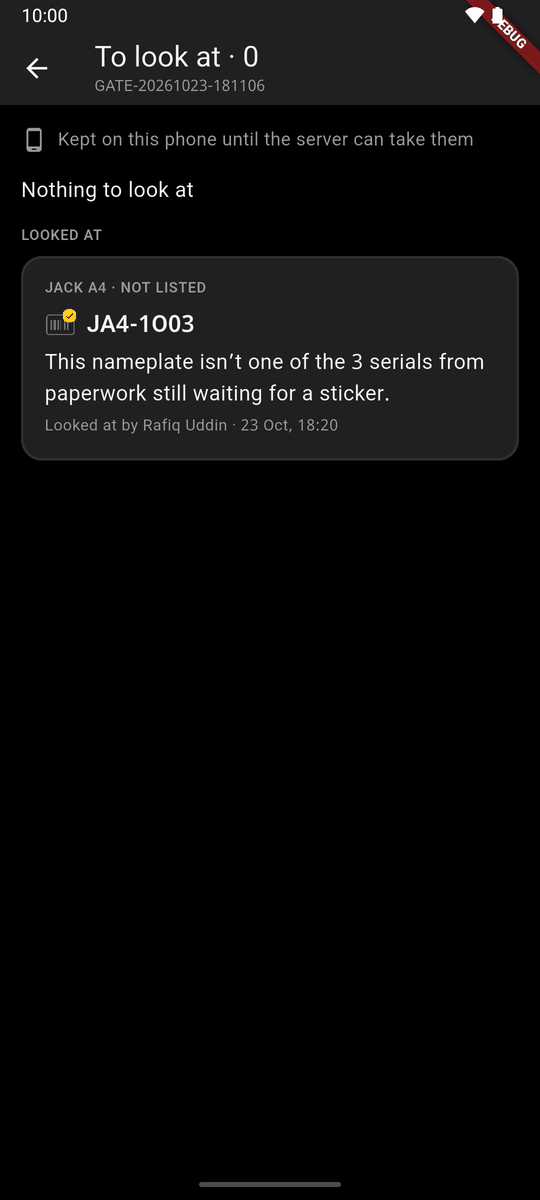
Which one is it? The case moves under Looked at.
Looked at A red case: whoever scanned it may tap Not a problem; whoever keeps the machines taps Looked at. Neither changes the delivery.
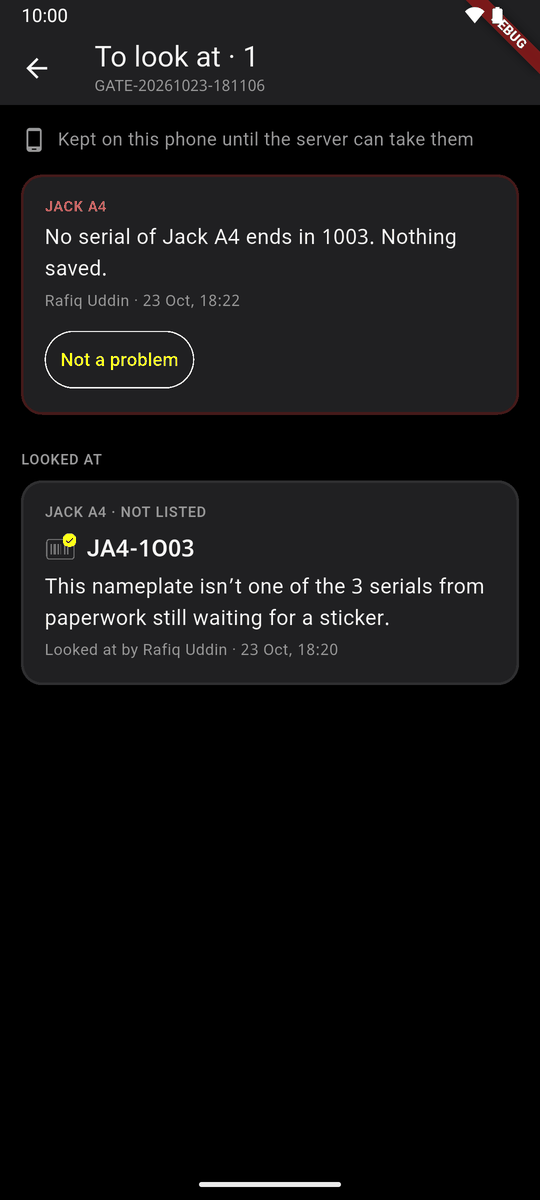
A red case, with Not a problem
Help with scanning
- The light: on a phone with a torch, a round button at the bottom left of the camera turns the light on, for a dark corner.
- Tap inside the box: the camera focuses there and reads the code again.
- Tap to capture: a switch at the bottom of How to scan. On, the camera reads only when you tap inside the box: tap on the code you want, and that code is read, one code a tap. The box turns thick lime while it waits, and flashes green when it has the code. If it finds nothing, the box goes back with a short buzz: tap again. Use it for tags on a sheet, so that the one next to it is not read. The phone keeps it on until you turn it off.
- One code: two codes are in view. Point at one. (With Tap to capture on, tap the one you want instead.)
Finished
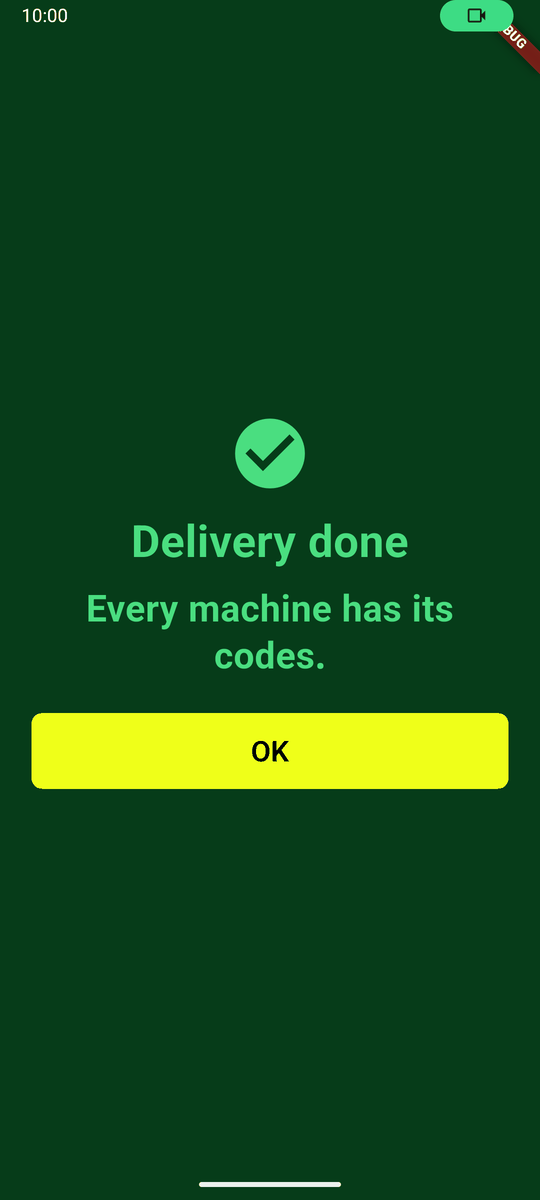
A finished delivery says Delivery done · Every machine has its codes. Tap OK. On Delivery received the card becomes a tick, Scan machines · Done.