Chapters
Manual homeChapter 1
Getting started
Who: everybody.
On the phone
Sign in
Open the AIS app. To read it in Bangla, tap বাং at the top. Tap EN for English. The phone keeps your choice.
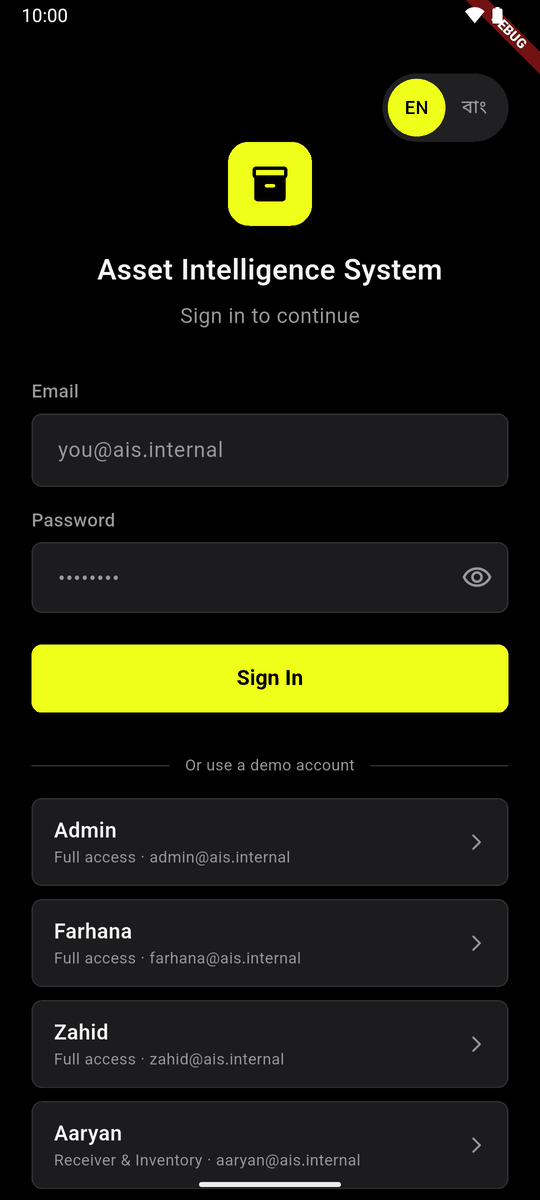
The sign-in screen. EN and বাং are at the top. Type your Email and Password, then tap Sign In. On a demo phone you can tap a demo account under Or use a demo account instead: it fills in both.
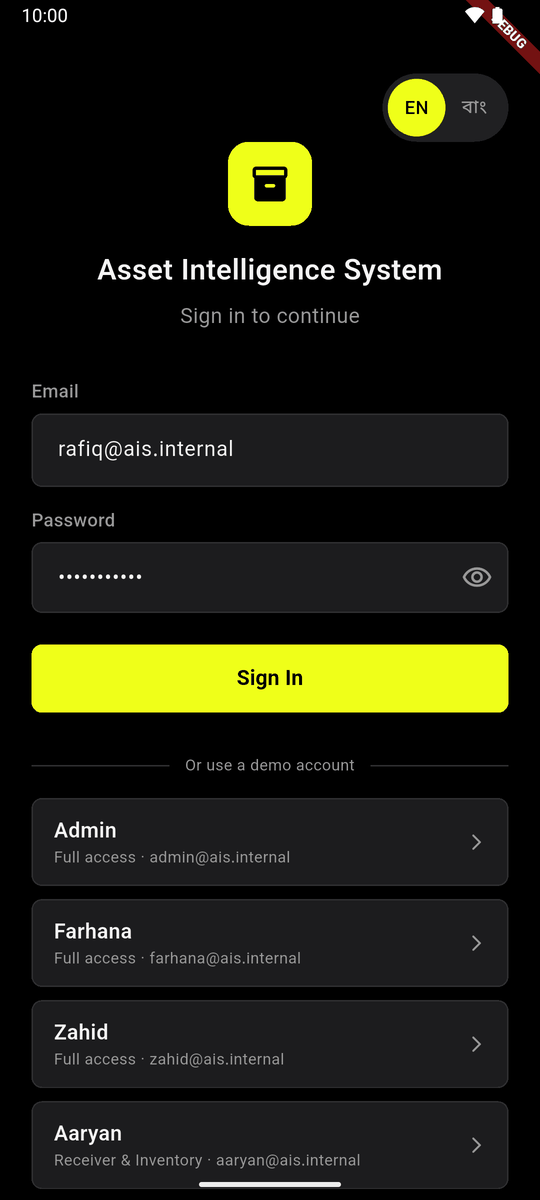
Email and password filled in Home opens: Here’s your work plan for today. It shows your own work. Your name and role are at the top.
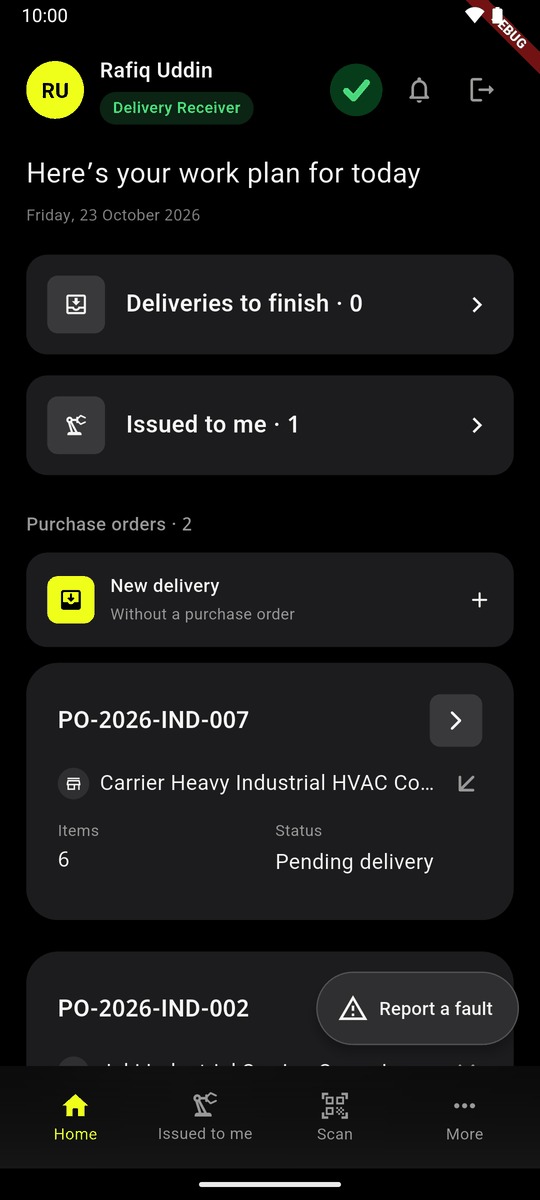
Home, for a delivery receiver
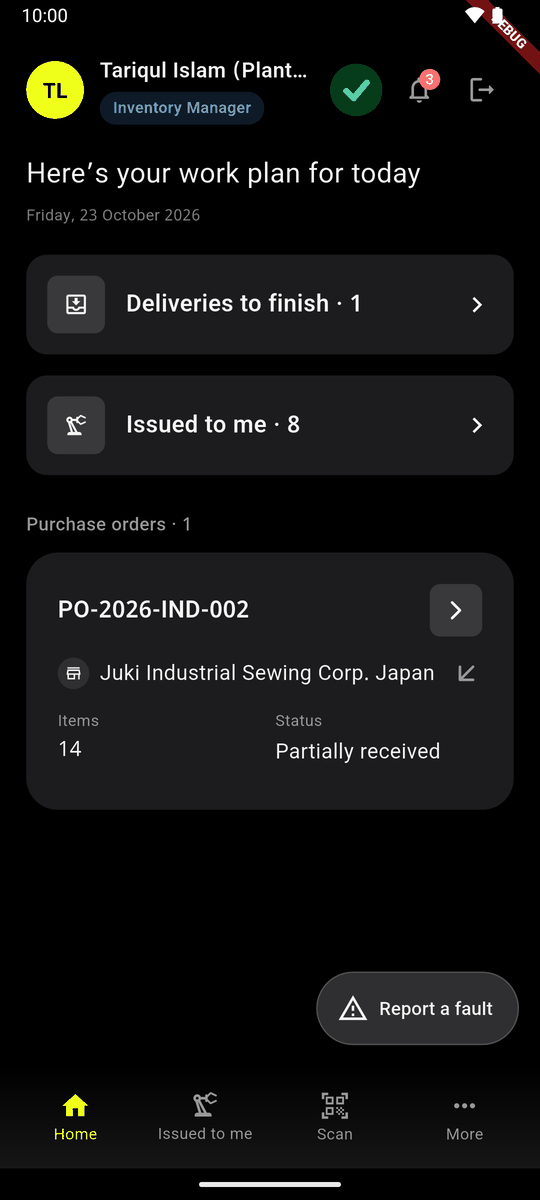
Home is different for each role (chapter 2). An inventory manager's Home, for example:
Your administrator gives you your email and password. Until you sign in, the app does nothing.
Home and the bar at the bottom
The bar at the bottom is the same for everybody: Home, Issued to me (the machines you have), Scan and More. Report a fault floats above it.
At the top right are three round buttons: sync, the bell (notifications) and sign out.
Sync
Your work is saved on the phone first, then sent. The app sends it by itself while it is open.
The sync button shows how long ago the phone last synced: 12m, 2h, 3d. Tap it to sync now. While it syncs it turns.
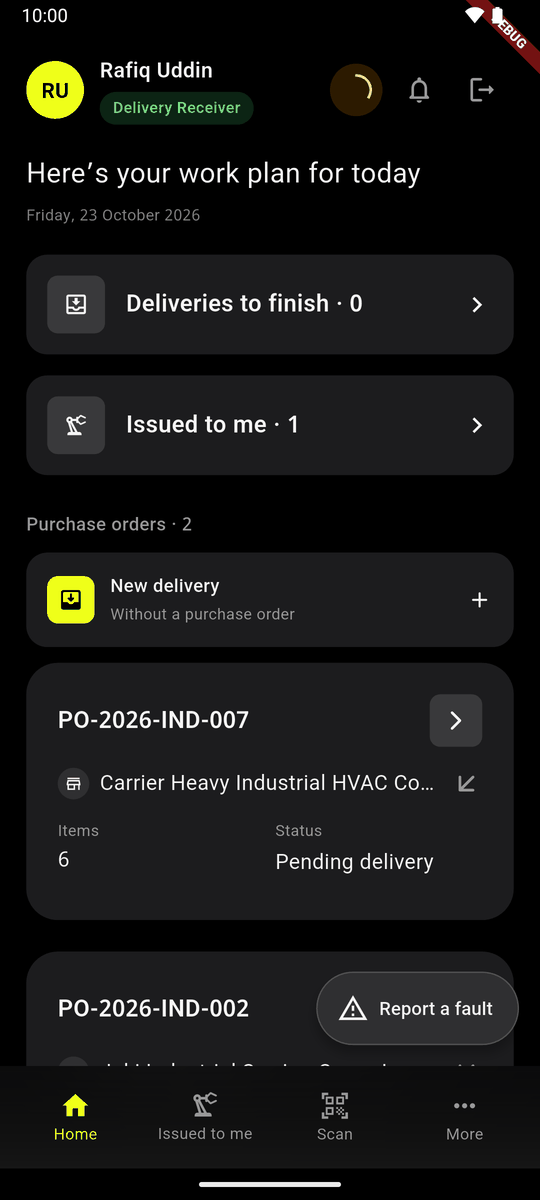
Syncing A green tick means it has just synced. Nothing is waiting.
More
Tap More at the bottom. Here are Language (EN or বাং), Print asset tags, Handover history and Report a fault.
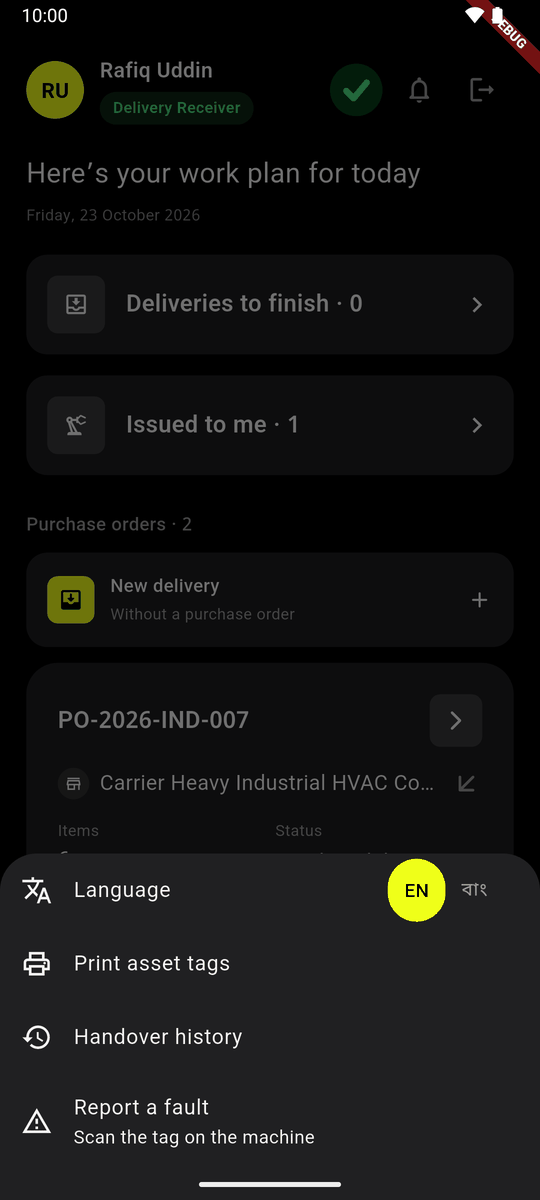
More
No signal
You can keep working with no signal. Deliveries, tags, serial numbers, handovers and faults are kept on the phone and sent when the signal comes back. A few things need a signal: they say Needs signal. See chapter 14.
Sign out
Tap the sign-out button at the top right. Sign out? asks once. Tap Sign out.
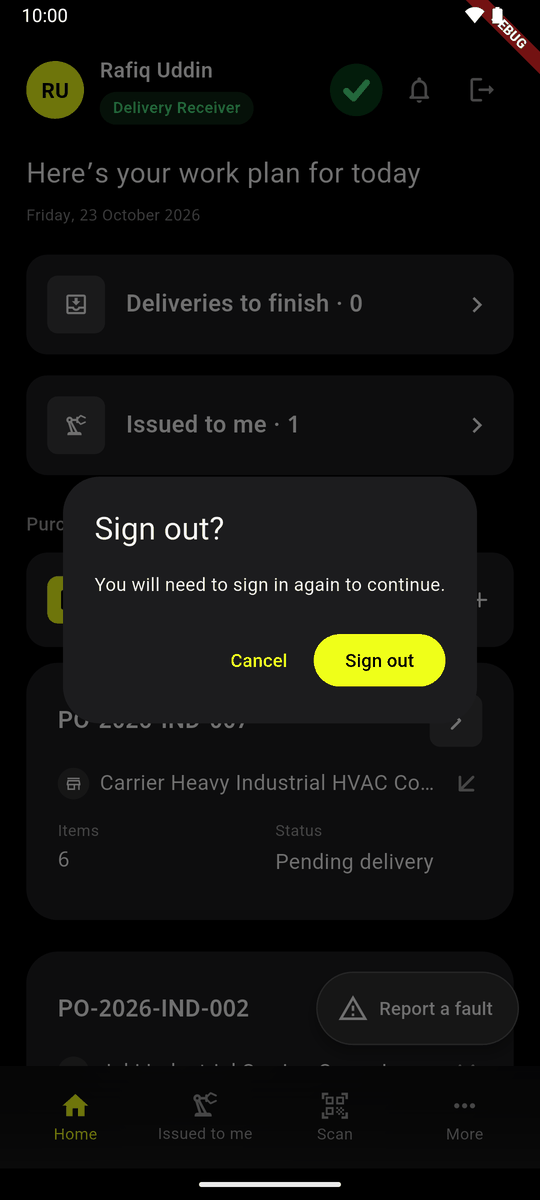
Sign out? Work not sent yet stays on the phone. It is sent the next time you sign in, never under somebody else's name.
On the website
Sign in
Open the AIS website. Type your Email and Password, then click Sign in.
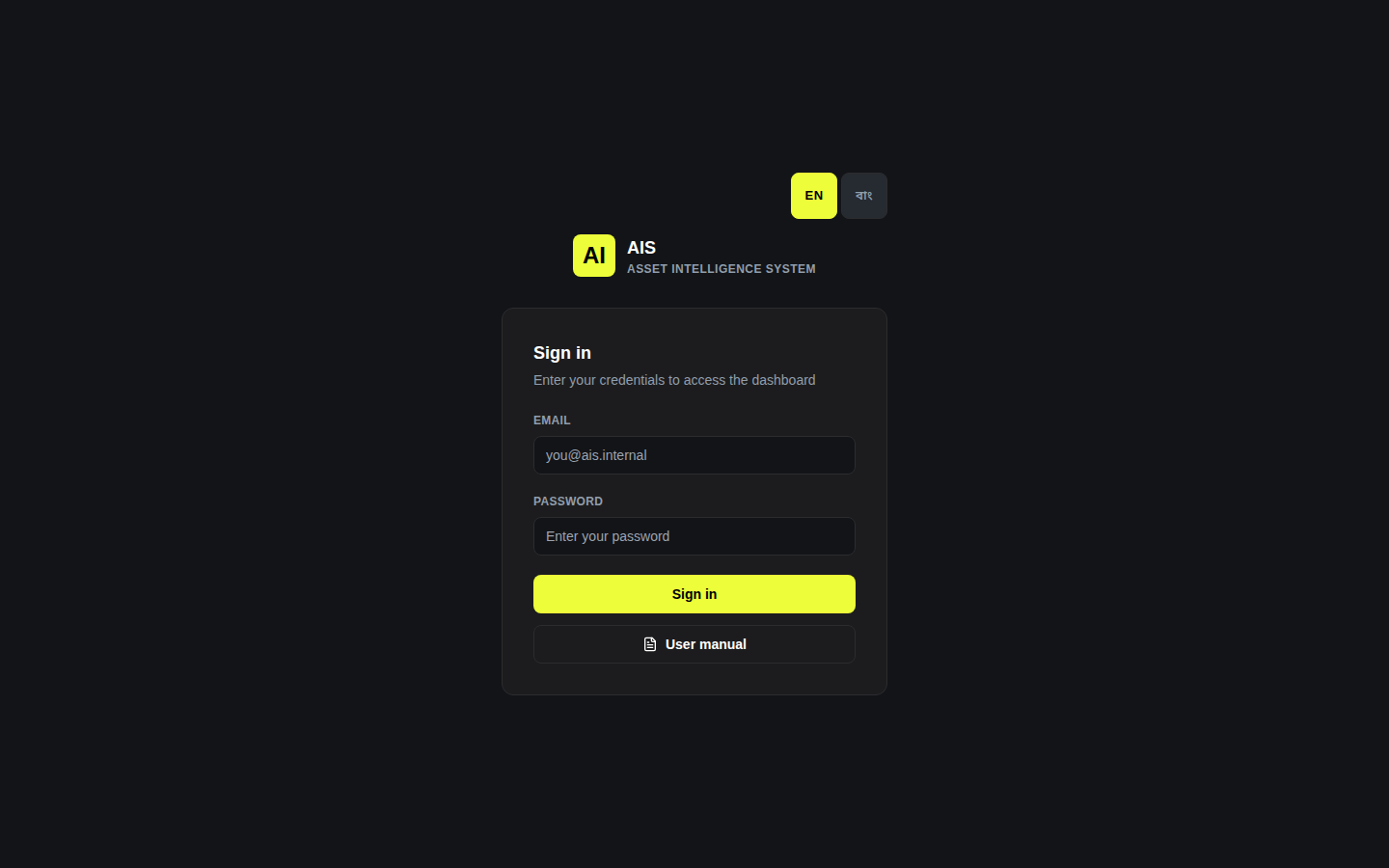
The sign-in page. EN and বাং are at the top right. The Dashboard opens. The menu is on the left. It shows only the pages for your role.
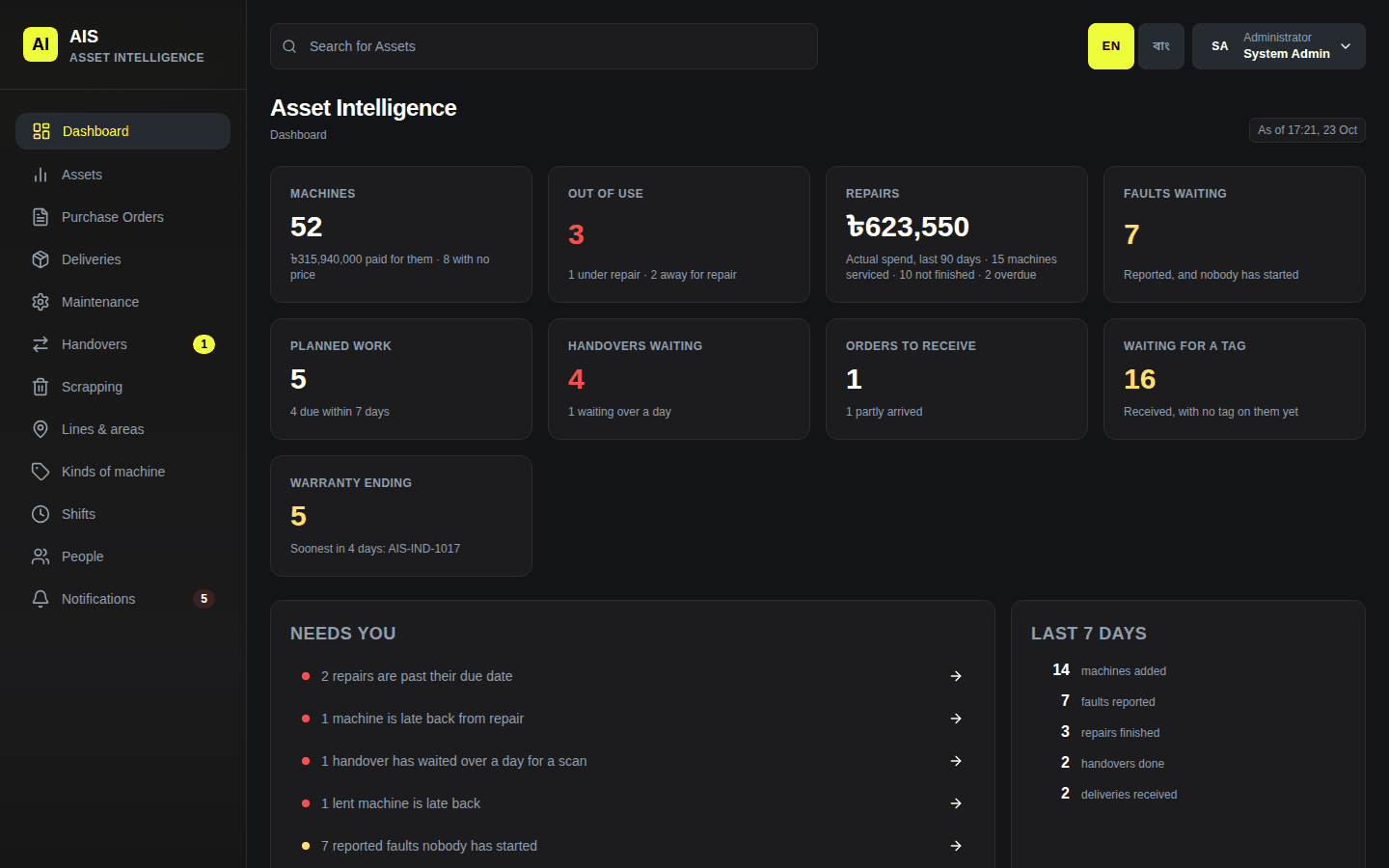
The dashboard, with the menu on the left
Language
Click বাং at the top of any page for Bangla, or EN for English. The page changes at once.

EN and বাং at the top of the page
Search
Type in the Search for Assets box at the top to find a machine. It opens the machine list, narrowed to what you typed.
Sign out
Click your name at the top right. Then click Sign out.
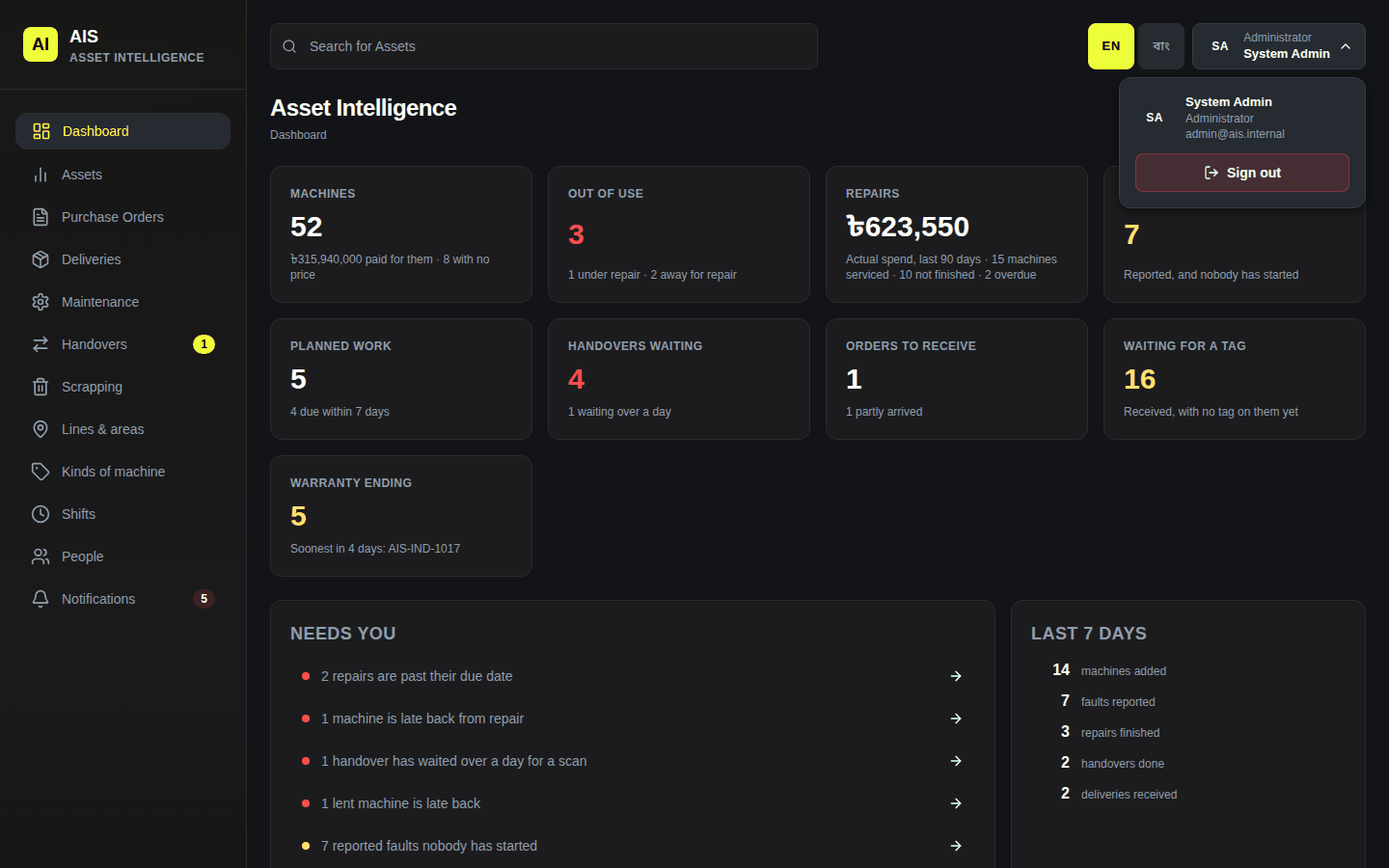
The account menu, with Sign out